Documentation / How-To Guides / How to Review Client Campaign Progress
How to Review Client Campaign Progress
Show a client what changed, what your team did, and what to do next.
Build the client review from OppAlerts research results and your team's work records. Use the results to show what changed, and the records to show what the team completed. Keep those findings distinct so the client can assess the evidence and agree on the next tasks.
- What did the campaign find? The Dashboard tab.
- Which pages are behind a count? The pages of one saved opportunity.
- Which pages link to the client? Brand Links.
- How do AI models see the market? Competitor LLM Recs.
Before you start: save the searches that you report on
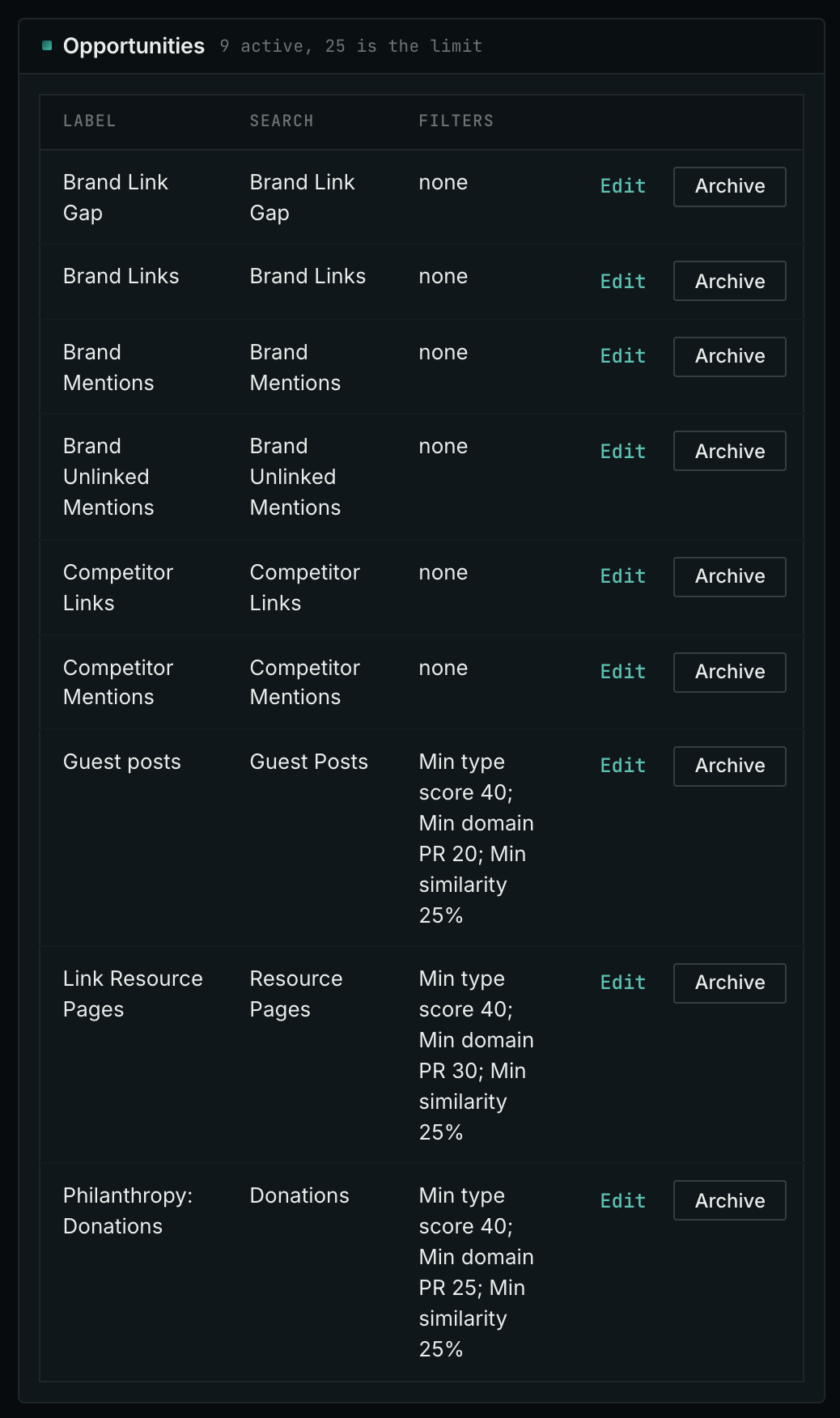
Save opportunities before preparing the review; the Dashboard's first card stays empty until the campaign has them.
- Open the campaign in Edit Campaign, and open the Opportunities tab.
- Add an opportunity for each search that you report on. In Search for, choose a brand search, such as Brand Links, or an opportunity type. For an opportunity type, choose Campaign in Opportunity vector.
- Click Add opportunity. OppAlerts counts the new pages of each saved opportunity every day. The counts of a new opportunity appear after the next nightly update.
- Record and date every change to an opportunity's search. Saving a search change deletes that opportunity's stored daily counts. The next daily count recalculates the missing days using the new search.
- MCP:
campaigns_saved_opportunitieslists the saved opportunities, with the counts of the latest day on each index, with{"campaign": 3}. - API:
POST https://api.oppalerts.com/v1/campaigns/saved_opportunities, with the same JSON body.
1. Read what the campaign found
- In Edit Campaign, open the Dashboard tab.
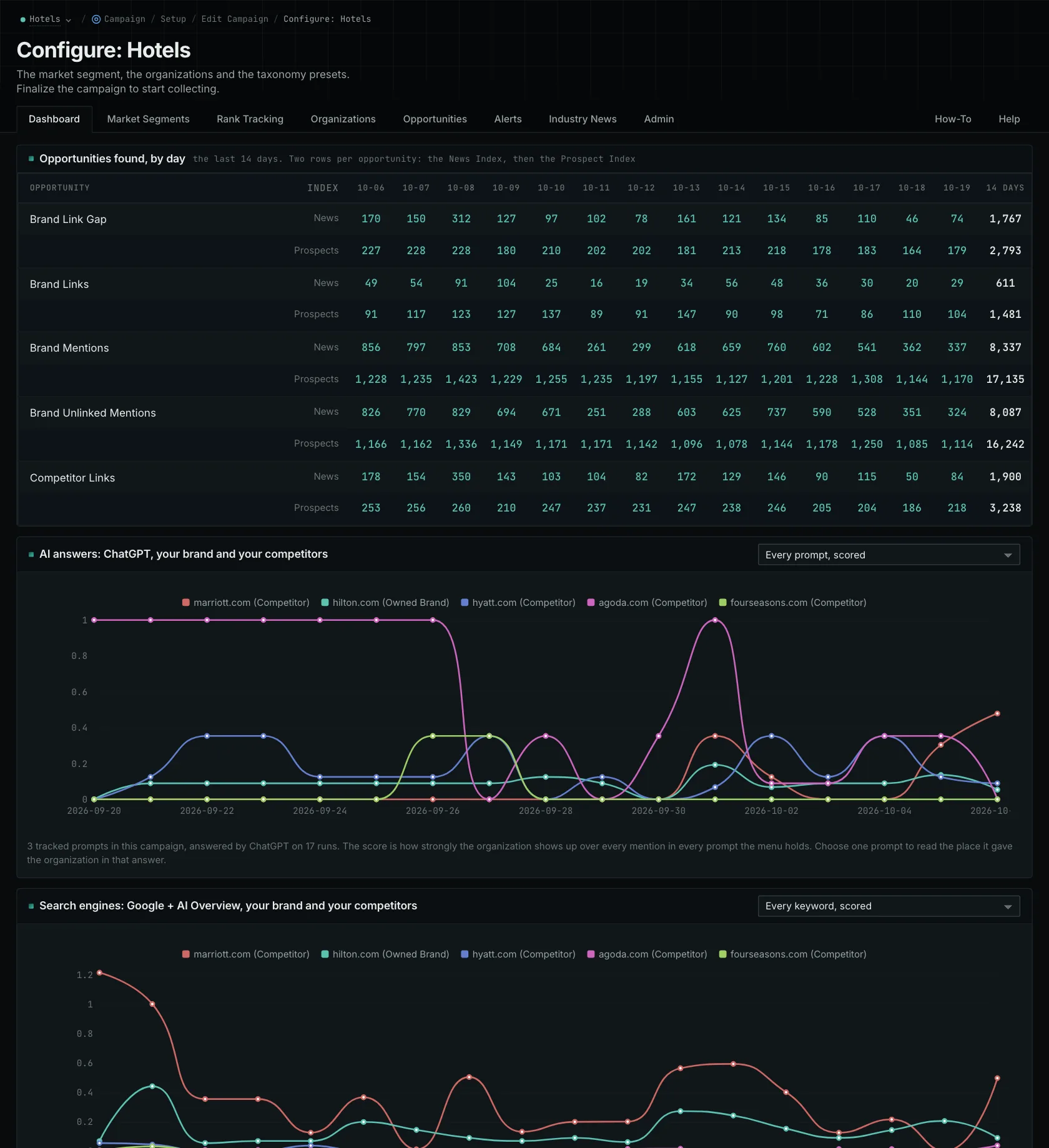
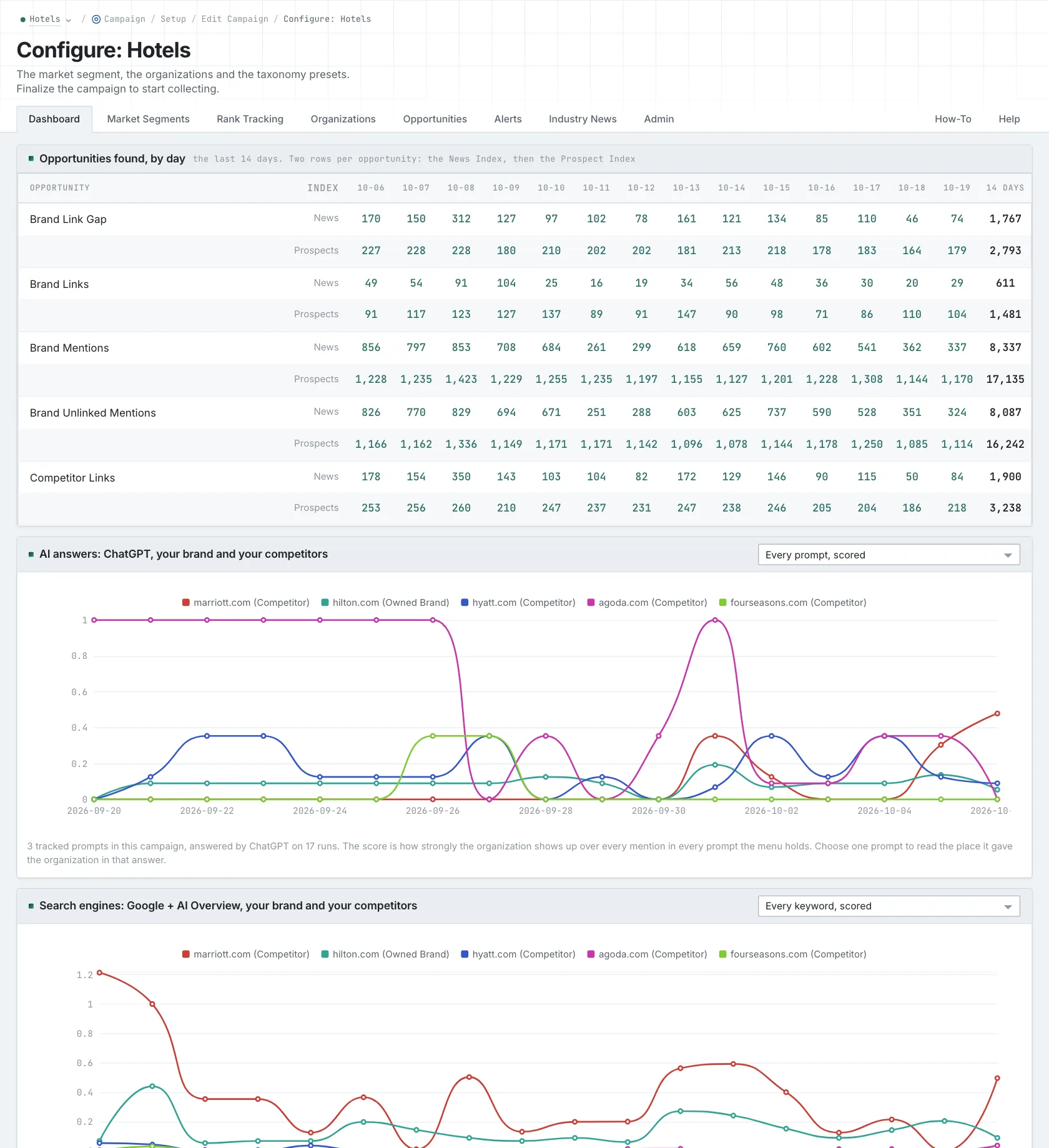
- Read Opportunities found, by day. It shows the last 14 days, with one row for the News Index and one row for the Prospect Index for each opportunity.
- Read News Index links found over time. It shows the pages found each day that link to each organization.
- Read PageRank history. It shows the PageRank of each organization, month by month.
A dot means the index was not counted that day. A 0 means it was counted and no pages were found.
- MCP:
campaigns_dashboard, with{"campaign": 3}. - API:
POST https://api.oppalerts.com/v1/campaigns/dashboard, with the same JSON body.
2. Open the pages behind a count
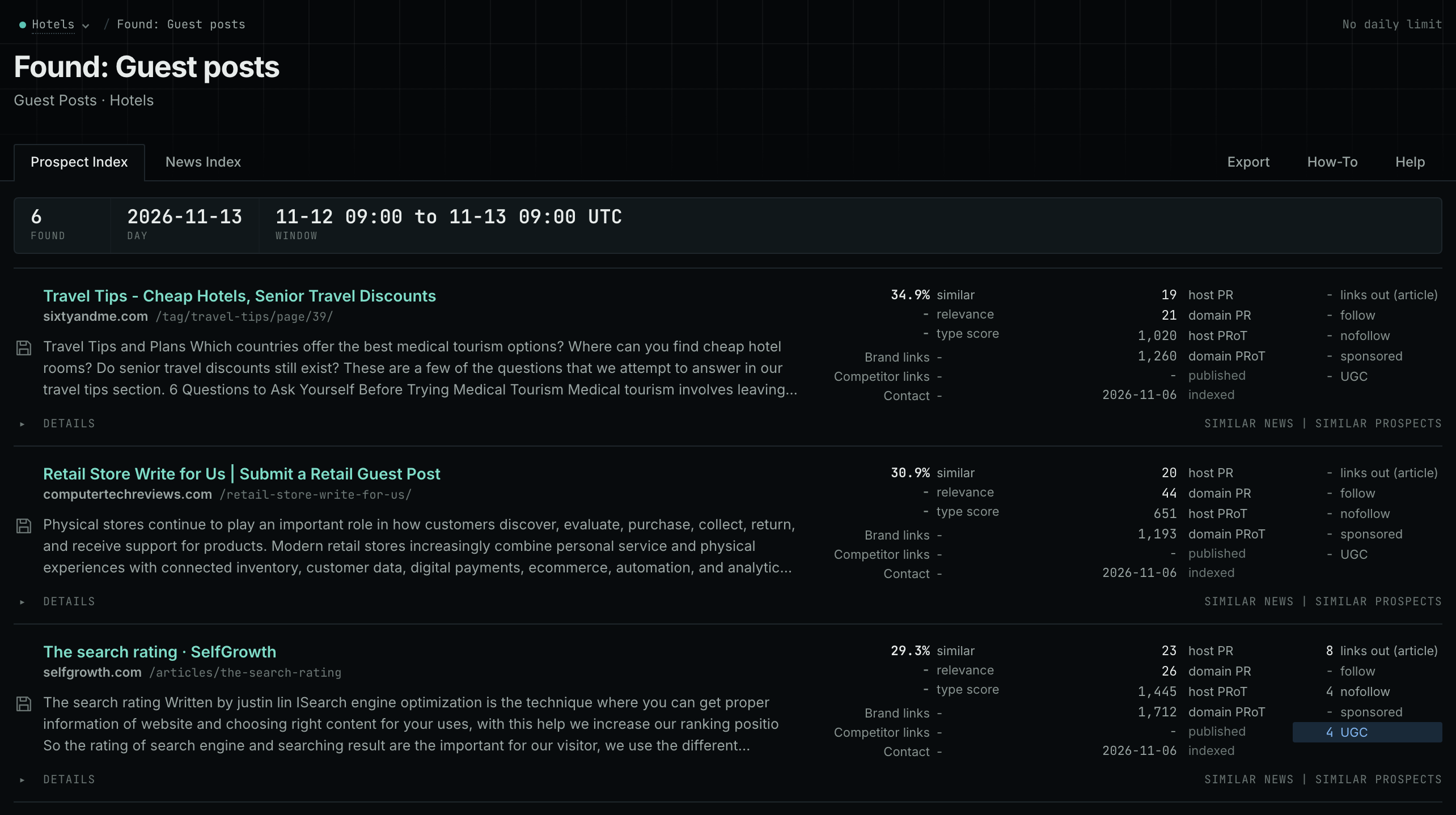
- On the Dashboard tab, click a number that is not 0. Each number opens the pages of that index that were found that day.
- Open the pages that are important for the review, and read them.
- For the review, show the settings of the opportunity, the dates, and the pages that match.
- MCP:
news_opportunitiesandprospects_opportunitiesgive the pages of 1 to 7 days, with{"campaign": 3, "opportunity": 1, "date_from": "2026-08-26", "date_to": "2026-09-01"}. For one day, send the same day indate_fromanddate_to. - API:
POST https://api.oppalerts.com/v1/news/opportunitiesandPOST https://api.oppalerts.com/v1/prospects/opportunities, with the same JSON body.
3. Read the pages that link to the client
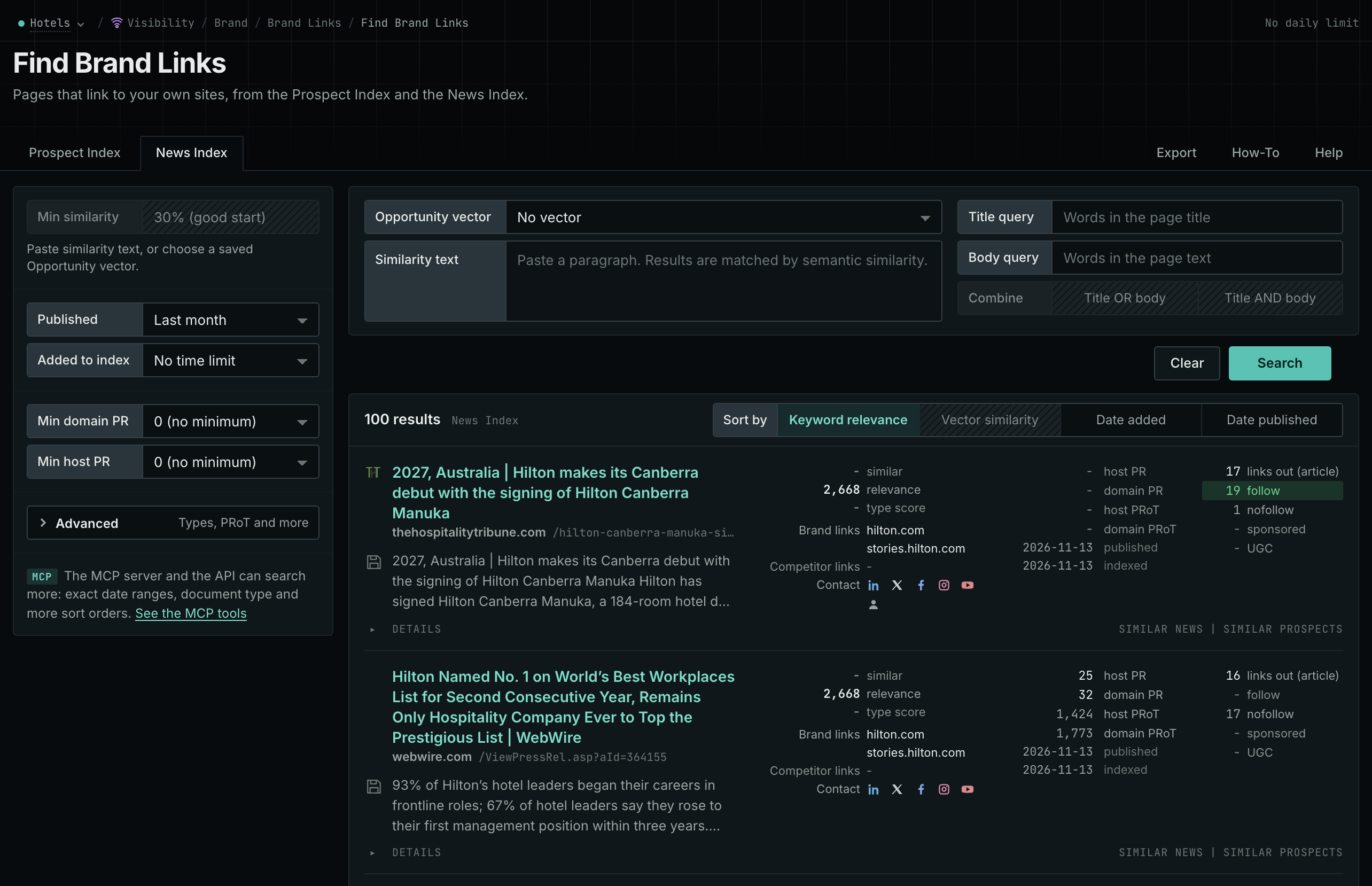
- Open Brand Links.
- Read the News Index tab. Set Published to Last month for a monthly report.
- Read the Prospect Index tab. Use Added to index for a time window on this tab.
- Compare the pages with your records of the requests that the team sent and the placements that are live.
- MCP:
prospects_brand_linksandnews_brand_links, with{"campaign": 3, "relationship": "org_owned_brand", "indexed_days": 30, "similarity_target": "none", "sort": "relevance"}. Fornews_brand_links, sendpublished_daysin place ofindexed_days: it counts from the published date. - API:
POST https://api.oppalerts.com/v1/prospects/brand_linksandPOST https://api.oppalerts.com/v1/news/brand_links, with the JSON body of each tool.
4. Show the market as the AI models see it
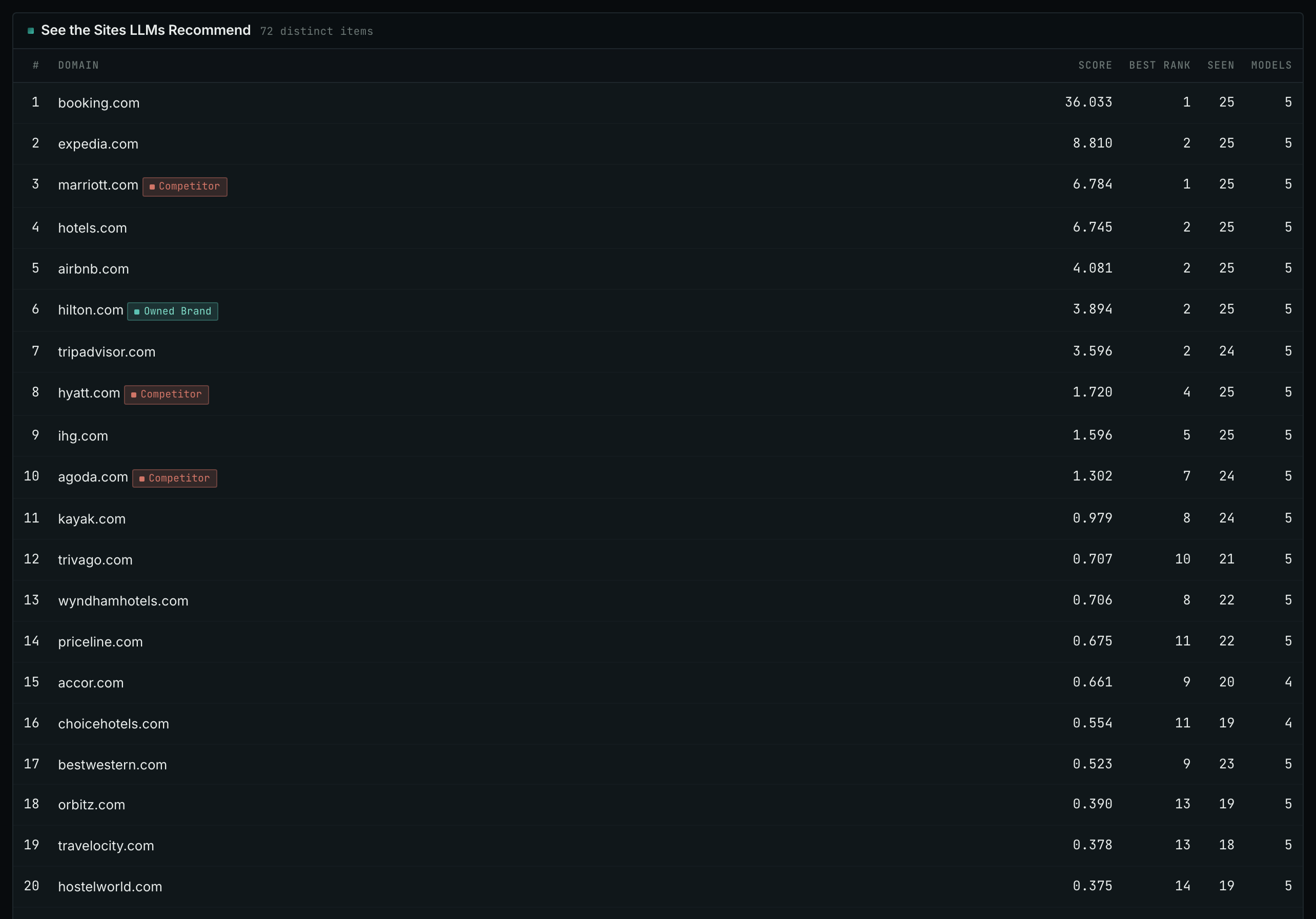
- Open Competitor LLM Recs.
- Find the site of the client and its position. Find the competitors in the same list.
- Read the Models column. It shows how many different models named each site.
- MCP:
llm_answers_top_sites, with{"campaign": 3, "page": 1}. - API:
POST https://api.oppalerts.com/v1/llm_answers/top_sites, with the same JSON body.
How to judge the results
- Timing is not proof. If the team updated two pages this month and the client's brand appeared in more answers, report both observations and any evidence connecting them. Timing alone does not establish that the updates caused the increase.
- A citation after a change is a sequence. If a changed page later appears as a citation, show the page and the answer together. This does not explain why the service chose the source.
- A new page is a reason to look. A discovered page establishes neither a trend nor that the team earned the coverage. Explain uncounted days and changes to opportunity settings.
- Found is not earned. A link that OppAlerts found can be in an old article. Use the requests that the team sent and the confirmed live placements to support claims about the work of this month.
- Show the content problem that the team fixed. Show the explanation added for customers, such as what they need to prepare. A similarity score compares text with a category; assess the new explanation itself to judge its usefulness.
- Compare competitors in the same answers. Use a common set of questions so the client can compare competitors in the same answers. Report search results and AI citations separately: they represent different appearances, and neither establishes visits or revenue without further evidence.
- Tell the client what the next task will find out. Assign someone to check the cited source and prepare a correction when an answer still describes an old feature. Clarify a publisher's criteria before preparing a submission.
- When the numbers fall, show the scope. Show evidence of setting changes or wider changes. If the cause is unknown, state what remains to be investigated. Some findings require more time before action.