Documentation / Opportunity Types / How to Find Websites That Sell Display Ads
How to Find Websites That Sell Display Ads
Find sites in your market that sell banner and display ad space directly, along with their ad sizes and prices.
What this type finds
This type finds pages where a site sells its own display ad space. It can find these kinds of pages:
- Display advertising pages. Pages that explain that a site sells banner ads and how to book them.
- Ad size and specification pages. Ad unit sizes, file types, and ad file requirements.
- Ad inventory pages. Places on the site where an ad can appear, such as the top of a page, a sidebar, or a home page.
- Price pages. The cost of an ad as a flat fee or a price for each 1,000 views, and the number of views each month.
- Media kits that list the display ad units of a site.
The type is for direct sales. The site sells the space itself, and it does not sell through an ad network.
Why it matters
- You buy a placement on a named site. A banner on a site that your buyers read gives you views and clicks from that audience.
- You control where the ad shows. With a direct sale, you know the site and placement before you pay.
- It fits businesses with a budget and a clear audience, and agencies planning a campaign on sites in one market.
Find it in the web app
- Open Opportunity Types in the web app menu.
- Choose Advertising, then choose Display Ads.
- Read the Prospect Index tab first. Pages of this kind often have no published date, so do not set Published on this tab. Min type score starts at 40. Raise it to keep only the pages that match this type most closely.
- Click Vector similarity in Sort by to show the pages most relevant to your market first.
- Open the News Index tab, and set Published to the last few weeks. This tab shows the pages that are current.
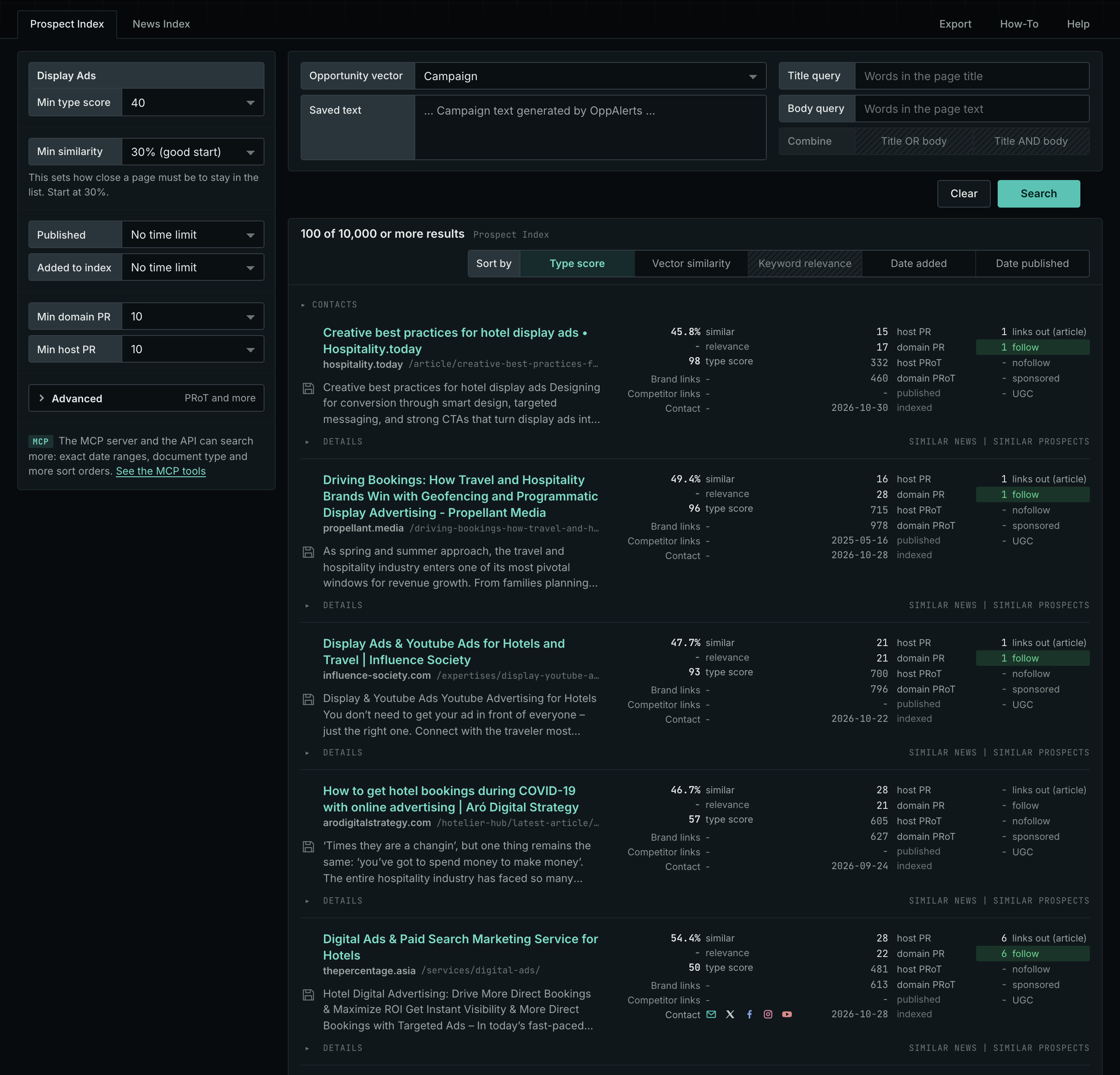
The Display Ads page in the app docs describes every field in the search form.
Get new pages every day
- Open your campaign in Edit Campaign, and open the Opportunities tab.
- In Search for, choose Display Ads in the Advertising group. In Opportunity vector, choose Campaign. Click Add opportunity.
- Open the Daily Email tab, select the checkbox, choose the hour, and click Save.
Each day, the Dashboard tab and the daily opportunities email show the pages added to the indexes in the last 24 hours. See Daily Monitoring and Alerts.
In MCP and the API
Two tools search this type. One request body works for both:
{
  "campaign": 3,
  "similarity_target": "campaign",
  "type_scores": [{"opportunity_type": "advertising/banner-ads", "type_score_min": 50}],
  "sort": "type_score"
}- MCP:
news_searchsearches the News Index.prospects_searchsearches the Prospect Index. - API:
POST https://api.oppalerts.com/v1/news/searchandPOST https://api.oppalerts.com/v1/prospects/search, with the same JSON body.
In type_scores, type_score_min sets the minimum type score, from 1 to 100. Sorting by type_score puts the highest type score first. To keep only the newest pages, add published_from or indexed_from with a date in YYYY-MM-DD format. The MCP pages list every parameter and include the full example response.
To connect your AI agent or to send API requests, read Use OppAlerts in Your AI Agent, Create an API Token, and Your First API Call.
How to judge the results
- The sizes and the formats. Check that you can make an ad for each size that the site accepts.
- The price model. A price for each 1,000 views and a flat fee for a month are different. Find the real cost of one click or one view.
- The view numbers. The site reports its own numbers. Ask for evidence and how it counts views.
- The place on the page. A banner at the bottom of a page gets fewer views than one at the top. Ask where the ad shows.
- The seller. Some pages describe an ad network rather than the site's own ad space. Check who sells the ad.
- The live page and the rates. Open the page. Ask for the current prices, and the rules for the ad content.