Documentation / Account / Subscription
Subscription
Check your plan and next billing date, manage payments, and upgrade, downgrade, or cancel.
For plans, prices, and limits, see Billing and Plans. This page explains the Subscription page itself.
Where it is
- URL: oppalerts.com/account/subscription.
- In the profile menu at the top right, click Account & billing.
- The trial bar of the web app has an Upgrade button. It opens the Upgrade section of this page.
What it shows
- Your plan and its price per billing period.
- Next billing date, or Ends on when you have canceled.
- The buttons and sections below that apply to your plan.
- History: if you have had more than one subscription, each one with its start and end dates.
- With no subscription, the page says "No subscription" and links to the plans.
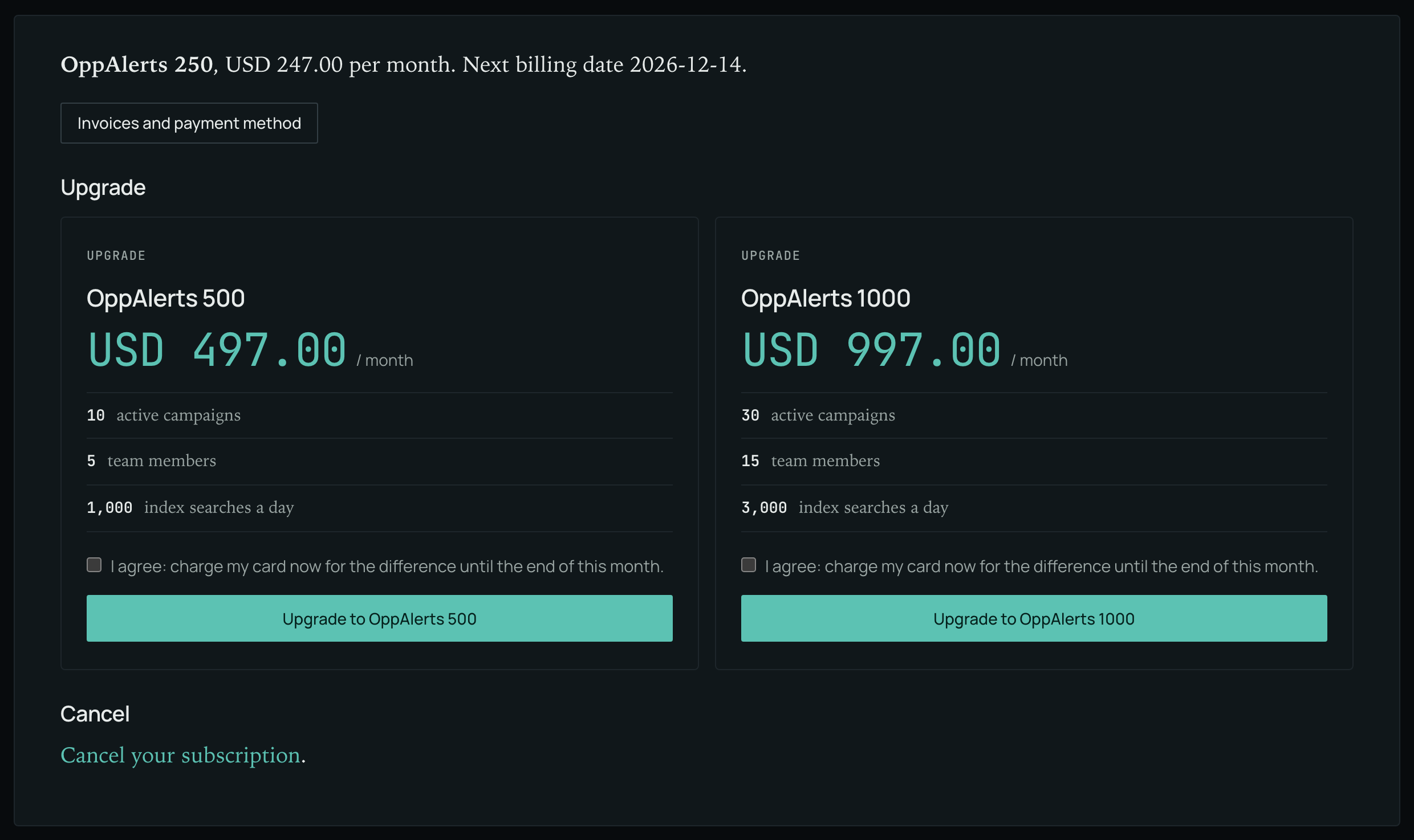
Invoices and the payment method
- Click Invoices and payment method.
- The payment service opens, where you can view invoices and change your card.
A failed payment
- The page says "Your last payment failed."
- Change the payment method with Invoices and payment method.
- Click Retry payment.
Upgrade
The Upgrade section shows one column for each larger plan, with its price, active campaign limit, team member limit, and daily index search allowance.
- In your chosen plan's column, check the confirmation box.
- During the free trial, the box says that your card is charged the full price now, and your monthly plan starts today.
- On a paid plan, the box says that your card is charged now for the difference until the end of this month.
- Click Upgrade to and the plan name.
- A pop-up asks you to confirm. Click Yes, upgrade.
- A page says "Your plan is changed.", with the new plan and the date of the next payment. The new limits take effect immediately.
- If the confirmation box is unchecked, the page says "Tick the confirm box to upgrade." and nothing is charged.
- Your bank may ask you to confirm the payment. The page then shows a link to confirm it with your bank. The plan changes when you confirm. If you do not confirm within 23 hours, the request expires and your plan stays the same.
Downgrade
The Downgrade section shows one link for each smaller plan. A downgrade takes effect at the end of the month you have paid for.
- Click the link for your chosen plan. The downgrade page opens.
- Under Campaigns, select the active campaigns to keep. You can select up to the new plan's campaign limit.
- Under Team members, select the people to keep, up to the new plan's team member limit. Open invitations appear in the list.
- Click Save and change my plan on and the date.
- A pop-up asks you to confirm. Click Yes, set the change.
- If your campaign and team counts already fit the new plan, all boxes are checked by default. Otherwise, all boxes are unchecked.
- Too many selections: "Select up to" and the limit. No selection in a list with rows: "Select what stays."
- A new plan with 0 team members: the list of team members says "The new plan has no team members." Leave every box in that list unchecked. Selecting a box is rejected: "The new plan has no team members. Remove each tick." On the day of the change, every team member is removed.
- You keep your larger plan and its limits until the scheduled change date. Open the downgrade page again to change the selection, and click Save the new selection.
- On the day of the change, campaigns you did not select are archived, and team members you did not select are removed. The same happens to campaigns and team members that you add after you save.
- An archived campaign is not deleted. You can reactivate it later, within the limits of your plan.
- A removed team member can no longer open your account, and their API tokens for it stop working.
Cancel
- Under Cancel, click Cancel your subscription. The cancellation page opens.
- Optional: select your reasons and add details in Tell us more.
- Check the confirmation box.
- Click Cancel my plan, or Cancel my trial during the free trial.
- A pop-up asks you to confirm.
- On a paid plan, your plan stays active until the end of the month you have paid for. Then your access to the web app stops, and your card is not charged again.
- During the free trial, the trial and your access end immediately, and your card is not charged.
- Canceling removes any scheduled downgrade.
- Canceling stops onboarding emails. Undoing the cancellation does not restart them.
- You receive an email confirming the cancellation.
Undo a cancel
- After canceling a paid plan, the page shows Undo cancel.
- Click it. Your plan continues.
- Reschedule any downgrade you had set. Canceling removed it.
While cancellation is scheduled, the Upgrade, Downgrade, and Cancel sections are hidden.
When paid access ends
Your account becomes a free account, and your campaigns are archived. Their research and results are kept. You can reactivate one campaign and use it within the free account limits.
In MCP and the API
No MCP tool or API route reads or changes your plan or your payments. Billing is on this page only.