Documentation / How-To Guides / How to Refresh Existing Content
How to Refresh Existing Content
Decide which pages need an update and what each update must fix.
Identify what has changed or what readers still need explained before assigning a content update. OppAlerts helps you research market questions and language, then compare a page with its intended topic and audience. You must choose the pages to review; OppAlerts does not select them or alert you to traffic losses.
- Which questions does the market ask now? Advanced Search, with the content type FAQs and Q&A.
- Which words does the market use? Keyword Research.
- Does the page still match its topic and its reader? Content Optimizer.
Before you start: choose the page for a reason
Choose a page for a specific reason: a changed process, new evidence, or unanswered reader questions despite search visits. A page's age alone does not establish what needs fixing.
A service page can list accurate equipment details and credentials while leaving buyers unsure what to prepare or what the service includes. In that case, the update needs to address the customer's decision as well as describe the supplier.
1. Find the questions that the market asks now
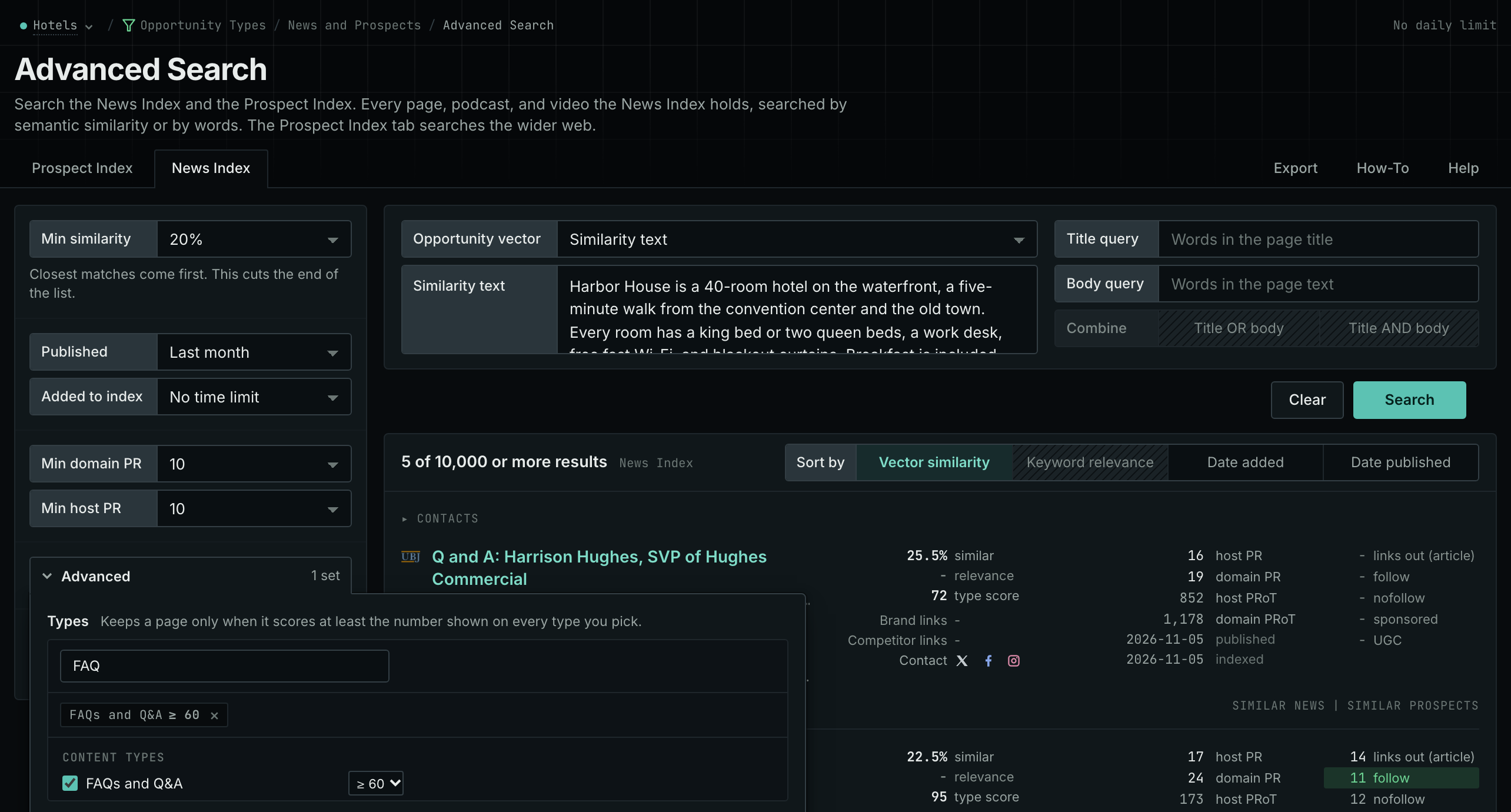
- Open Advanced Search, and open the News Index tab.
- In Opportunity vector, choose Similarity text, and paste the first paragraph of the page. Or type the main word of the page in Title query.
- Click Advanced. In Types, tick FAQs and Q&A, and choose a minimum score, for example 60.
- Set Published to a recent window, for example Last month, and click Search. The rows show the pages that answer questions about the subject now.
- Do the same search on the Prospect Index tab, with Published on No time limit.
- Compare the questions with the page. Write down each question that the page does not answer.
- MCP:
news_searchandprospects_search, with{"campaign": 3, "similarity_target": "similarity_text", "similarity_text": "The first paragraph of the page.", "similarity_score_min": 25, "type_scores": [{"content_type": "faqs-and-q-and-a", "type_score_min": 60}], "sort": "best"}. For the News Index, add"published_from"with a date. - API:
POST https://api.oppalerts.com/v1/news/searchandPOST https://api.oppalerts.com/v1/prospects/search, with the same JSON body.
2. Compare the page with the words of the market
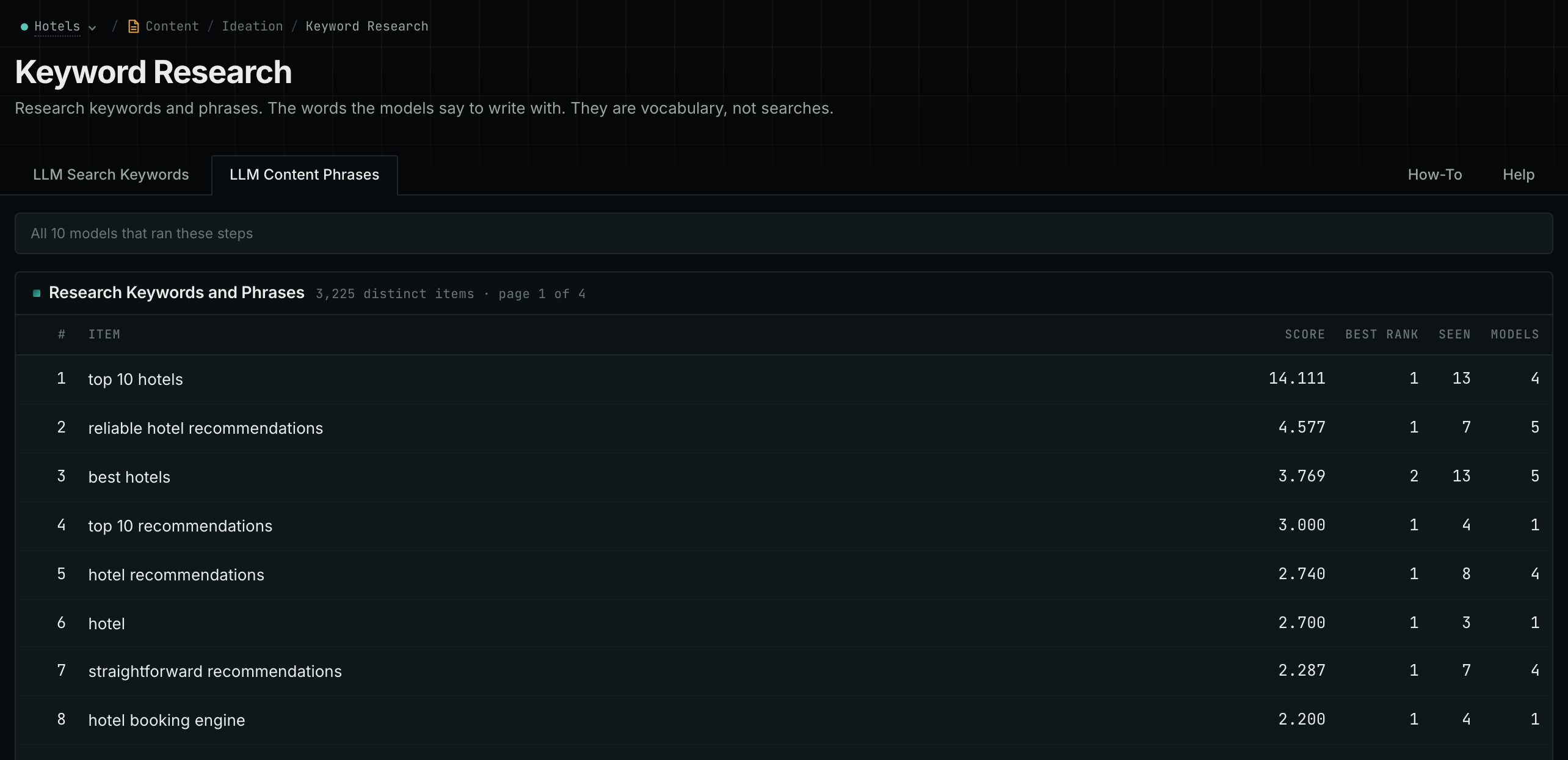
- Open Keyword Research.
- Read the LLM Content Phrases tab. It shows the phrases that the AI models use when they write about your market.
- Read the LLM Search Keywords tab. It shows what the AI models say people search for in your market.
- Identify subjects the page leaves unexplained and develop those explanations rather than adding isolated words.
- MCP:
llm_answers_content_phrasesandllm_answers_search_keywords, with{"campaign": 3, "page": 1}. - API:
POST https://api.oppalerts.com/v1/llm_answers/content_phrasesandPOST https://api.oppalerts.com/v1/llm_answers/search_keywords, with the same JSON body.
3. Score the page against its topic and its reader
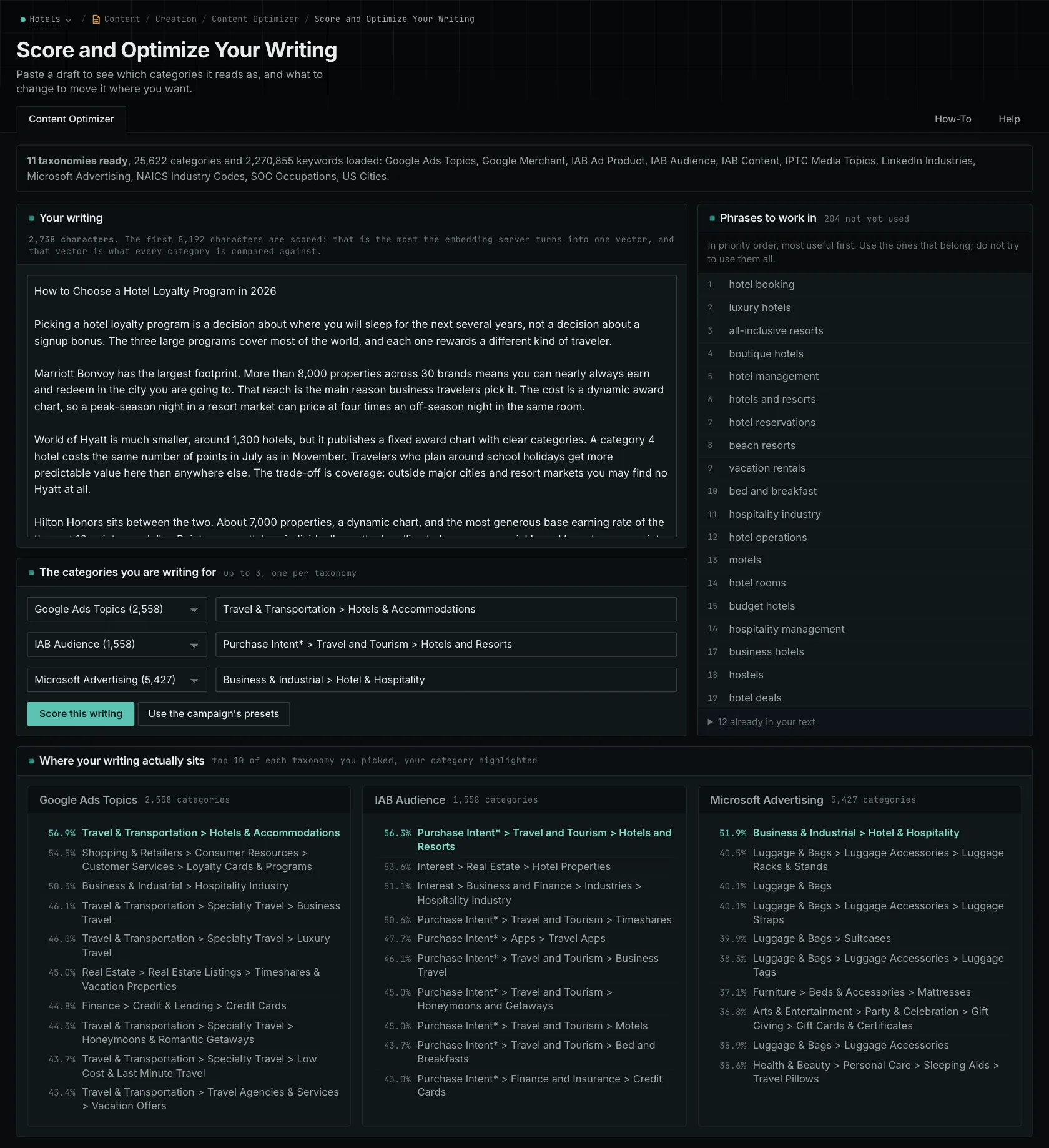
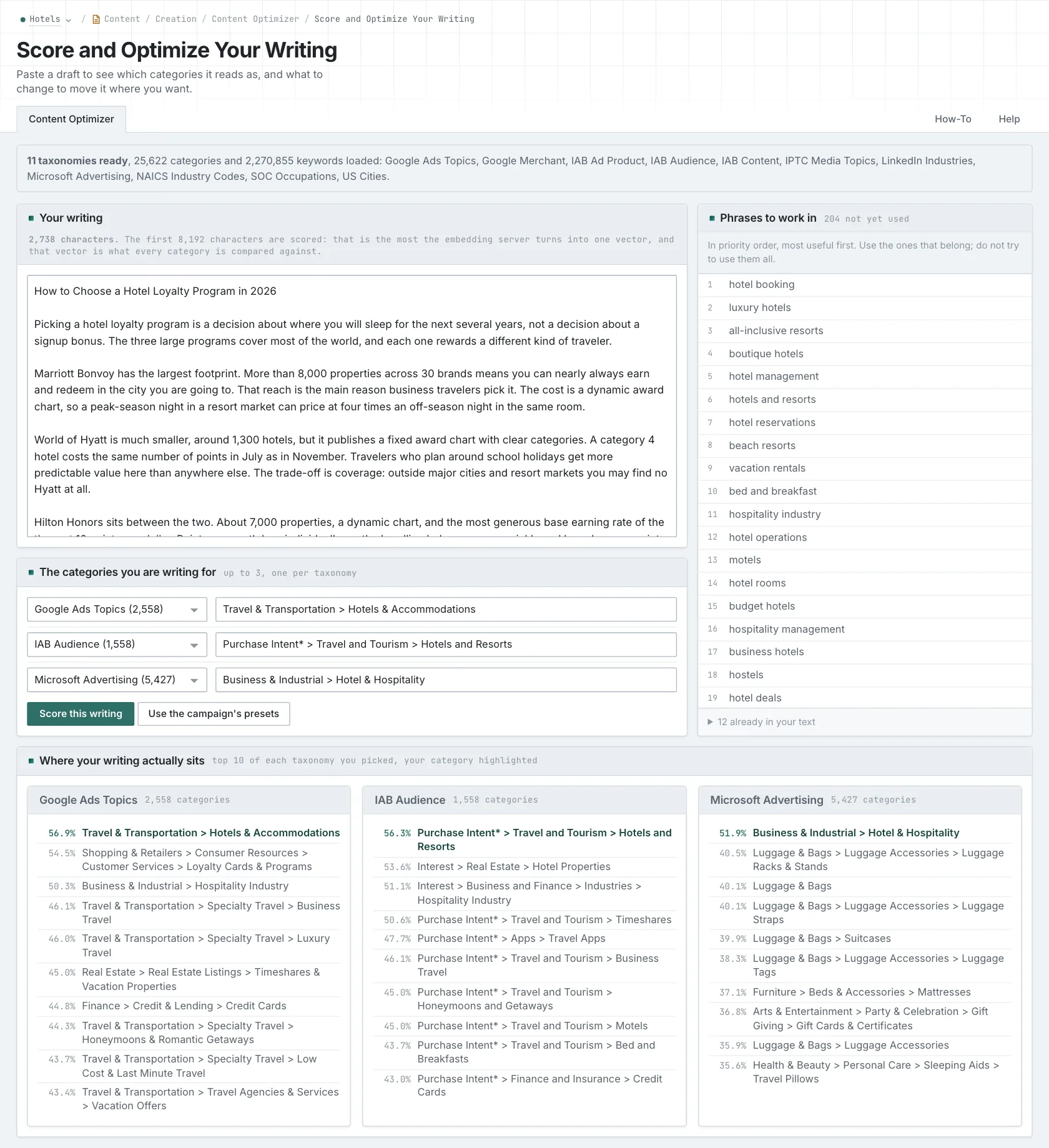
- Open Content Optimizer.
- Paste the text of the page into the Your writing box. The box accepts up to 8,192 bytes. Score a long page in sections, for example the introduction apart from the practical sections.
- In The categories you are writing for, choose the topic category or the audience category that the page is for.
- Click Score this writing.
- In Where your writing actually sits, read the top row and your highlighted row. If a different category is first, read the sections of the page and look for a real mismatch.
- Read Phrases to work in. A phrase can show a subject that you did not explain.
If the service page's problem is an opening that dwells on company history, revising that section alone may be enough.
How to judge the results
- A result is a reason to look, not a cause. Reread the page when another category ranks first. The result does not explain the cause or establish that a rewrite is necessary.
- Pages from one template. Similar results warrant a text comparison, but do not establish that pages were copied. Check what each page adds for its customer or service. Shared explanations can help, provided each page contains enough information of its own.
- A phrase alone does not answer a question. If the page does not say what the customer must prepare, explain it. Do not only add the word.
- Check each claim. Check each price, service, and process claim against current sources.
- Fix the real problem. Update outdated details, explain missing tasks, and address unsupported claims. Keep useful, accurate passages and recheck facts when the business changes.