Documentation / Account / Team
Team
Invite people to your account, choose what each person can view or edit, and remove access when needed.
Where it is
- URL: oppalerts.com/app/account/team.
- In the profile menu at the top right, click Team. In the web app, this item appears only for the account owner and account editors.
- This page is in the web app. The old address
/account/teamredirects here. - The page shows the team for the account currently open in the web app. If you are on more than one team, choose the account in the profile menu first.
Who can manage the team
- The account owner and account editors can view and manage the team.
- Everyone else sees this message: "Only the account owner or an account editor can see and change the team of this account." A form submitted by someone without these permissions makes no changes.
The 4 types of permissions
- Account editor: can view and edit every campaign, create, archive, and activate campaigns, and manage the team.
- Account viewer: can view every campaign but cannot make changes.
- Campaign editor: can view and edit only the campaigns you select.
- Campaign viewer: can view only the campaigns you select and cannot make changes.
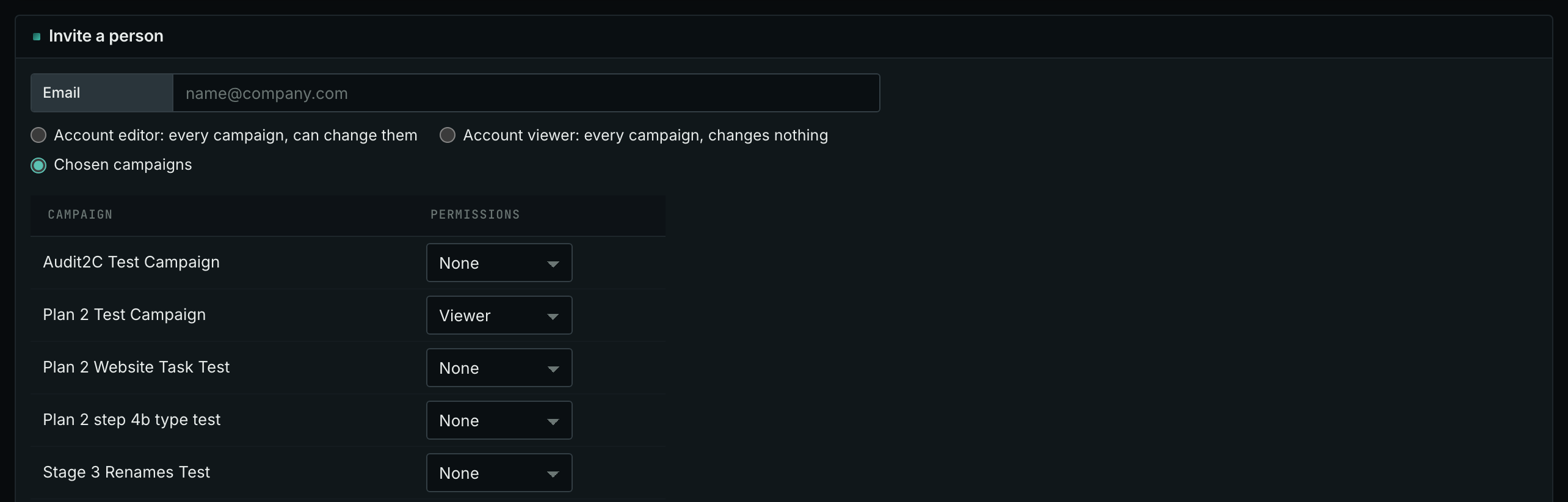
On the form, the choices are Account editor, Account viewer, and Chosen campaigns. Chosen campaigns lists each campaign in the account with None, Viewer, or Editor. Each person has permissions for either the whole account or selected campaigns, never both.
The permissions apply the same way in the web app, in MCP, and in the API. A
campaign editor's agent can change that campaign. A viewer has read permissions, so a viewer's agent cannot change
anything. A campaign viewer or editor sees only their campaigns:
campaigns_list leaves out
the others.
Invite a person
- Under Invite a person, in Email, enter the person's email address.
- Choose the permissions. For Chosen campaigns, set Viewer or Editor for at least one campaign.
- Click Send the invitation.
- The page says "The invitation is sent. The link works for 7 days."
If an invitation is rejected, the page shows one of these messages:
- "That is not an email address."
- "That is the account owner's own address."
- "That person is already on the team. Use "Change permissions"."
- "The team is full for this plan. Remove a person or change the plan."
- "Choose the permissions: account editor, account viewer, or at least one campaign."
If the email cannot be sent, the page says "The invitation is saved, but the email could not be sent. Use "Send the invitation again"."
What the invited person does
- The person receives an email with a link valid for 7 days.
- Someone without an OppAlerts login follows the link and sets a password, then enters the web app.
- A person with a login signs in and clicks Accept.
- The account owner gets an email when the person accepts.
- The person's own account does not change.
The team list
The top of the team card shows how many team places are used, for example "1 of 5 used". Each person has one row:
- Email.
- Permissions: Account editor, Account viewer, or the campaigns where the person is a campaign editor or a campaign viewer.
- State: "Active since" and the date, or "Invited" with the link's expiration date.
- The buttons Send the invitation again (only for an open invitation) and Remove.
- Change permissions for the person, under the row.
Change the permissions of a person
- Click Change permissions for under the person.
- Choose the new permissions.
- Click Save. The new permissions replace the old ones. The page says "Saved."
Send an invitation again
- Click Send the invitation again in the row.
- The person receives a new email. The new link is valid for 7 days from the time it is sent.
Remove a person
- Click Remove in the row.
- A pop-up asks you to confirm. Click Yes, remove.
- The page says "Removed. That person can no longer open this account."
- Access ends immediately.
- The person's API tokens and connected apps for this account stop working. A connected app on the person's own account keeps working.
- The person keeps their own OppAlerts login.
Team size
- The account owner's plan determines the team member limit. Billing and Plans gives the number for each plan.
- Open invitations count toward the team member limit.
- When the team is full, the page shows no invite form. It says "Your plan allows 5 team members. Remove one or change the plan to invite another." (with the number of your plan). Remove a person or an open invitation, or upgrade on Subscription.
- A plan with 0 team members shows no invite form. The page says "Your plan allows 0 team members. Change the plan to invite a team member."
- Team members' calls count against the account owner's daily limits. See Usage and Daily Limits.
Why team permissions are given on the website only
Manage account permissions yourself on this page. This is a security precaution: no MCP tool or API route can invite people, change their permissions, or remove them. AI agents read pages from the open web, which can contain instructions for the agent. Those instructions must not be able to make the agent grant access. A person must grant permissions on this page.
In MCP and the API
account_team_membersreturns the team list: each person, their permissions in plain language, and whether they are active or invited. It cannot make changes.- The account owner, an account editor, and an account viewer see every person with this tool. A campaign editor and a campaign viewer see only their own row.
- No tool can invite people, change their permissions, or remove them, for the reason above.