Documentation / Account / Email Notifications
Email Notifications
Choose which OppAlerts account emails you receive.
Where it is
- URL: oppalerts.com/account/newsletter.
- It is not in the profile menu. Open Profile, then click Email notifications in the list of links at the bottom.
The newsletter
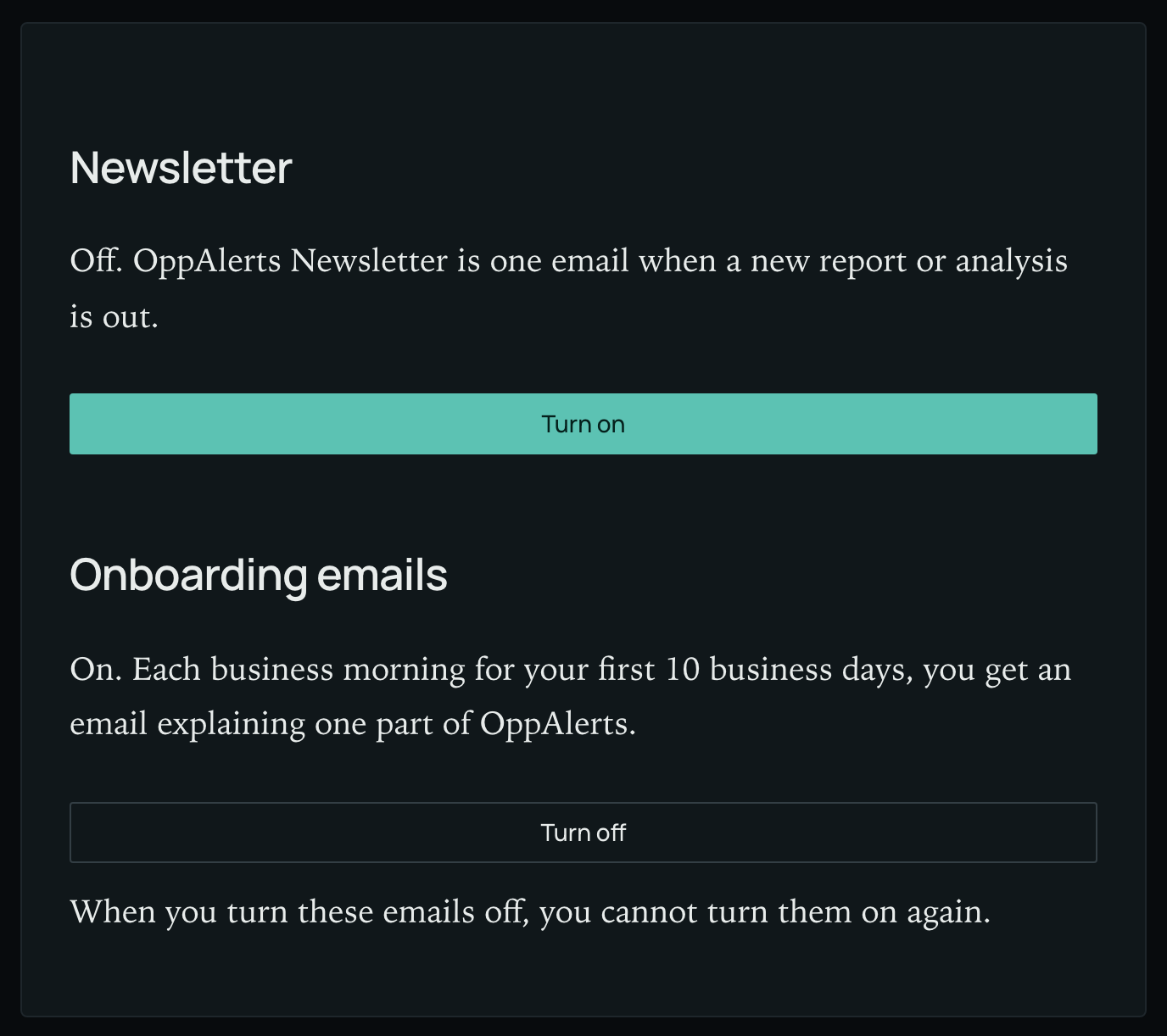
The OppAlerts Newsletter sends one email when a new report or analysis is published. It goes to your sign-in email address.
- When it is on, the page says "On." Click Turn off to stop it.
- When it is off, the page says "Off." Click Turn on to get it.
- The page then says "Saved."
The onboarding emails
This section appears only if you have received onboarding emails. The series starts when your plan begins or you create a free account. Each business morning for your first 10 business days, an email explains one part of OppAlerts.
- When they are on, click Turn off to stop them.
- When you turn them off, you cannot turn them on again.
- "Off. These emails were turned off." means that you stopped them.
- "Off. No more emails of this series are due." means that every email was sent.
- Canceling your plan also stops these emails.
The daily opportunities email of a campaign
Manage a campaign's daily opportunities email on the Alerts tab of Edit Campaign. Each campaign has its own recipient address. See Daily Monitoring and Alerts.
In MCP and the API
- Manage account email notifications on this page only. No MCP tool or API route can change them.
- An agent can configure a campaign's daily opportunities email
with
campaigns_set_daily_opportunities_email: the recipient address, first name in the greeting, whether the email is on or off, delivery hour, and time zone. This requires the scopeapi:writeand edit permissions for the campaign.