Documentation / How-To Guides / How to Find Resource Page Opportunities
How to Find Resource Page Opportunities
Find resource lists that could link to your guide, tool, or dataset.
To suggest your guide, tool, or dataset for a resource page, first check that it serves the list's readers. Compare what your resource helps people do with what the list promises. The four OppAlerts workflows below use different criteria, so each can find relevant resource pages the others miss.
- Which pages are resource pages for your market? The Resource Pages opportunity type.
- Which resource pages are about your subject? Advanced Search with a type score.
- Which resource pages link to your competitors and not to you? Brand Link Gap with a type score.
- What is new today? A saved opportunity and the daily opportunities email.
1. Search the Resource Pages opportunity type
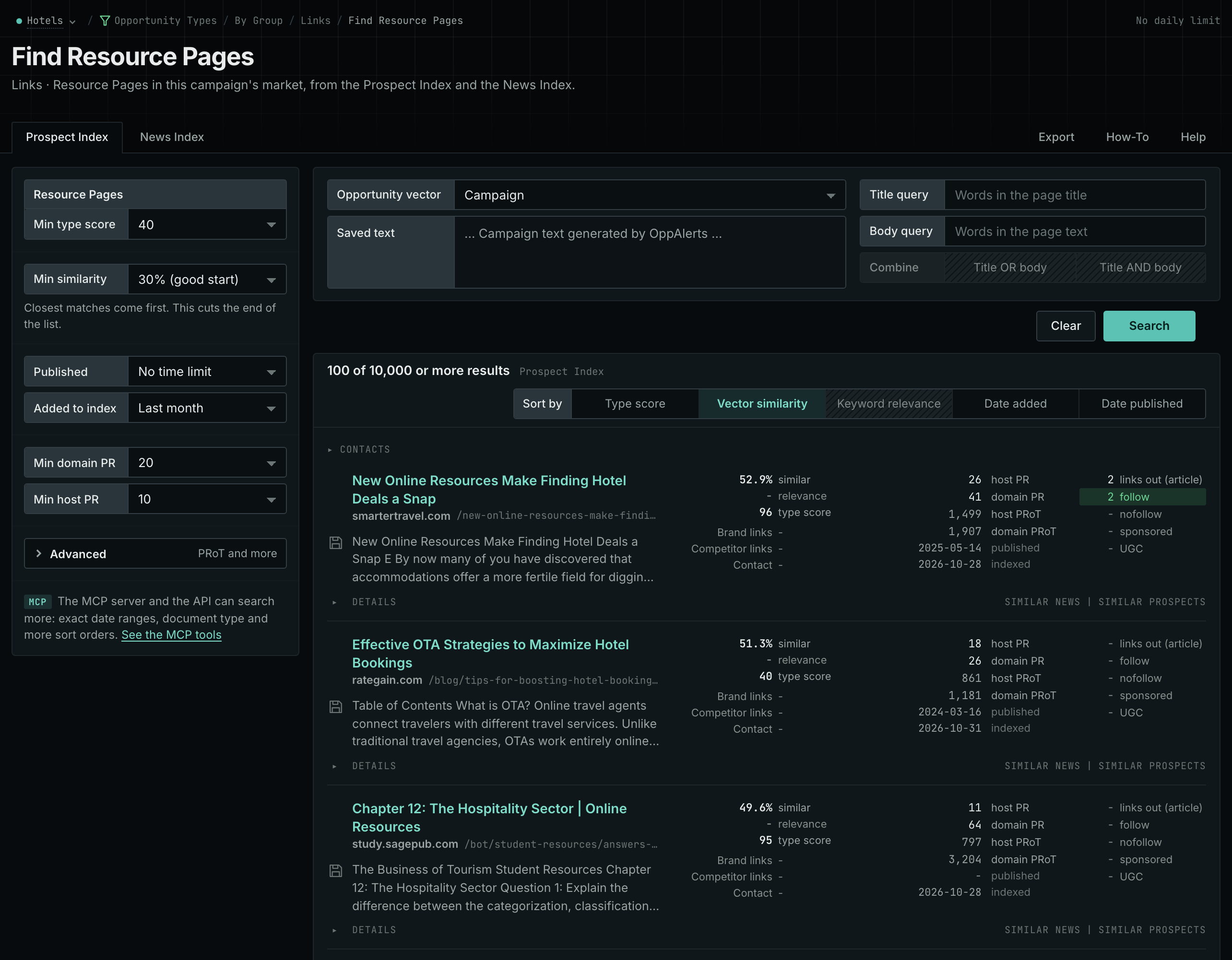
- Open Opportunity Types in the menu of the web app. Choose Links, and then Resource Pages.
- Read the Prospect Index tab. Most resource pages have no published date, so use Added to index for a time window.
- Set Min domain PR to remove the sites with little standing.
- Click Vector similarity to put the pages nearest to your market first. The list opens in Type score order, so a general resource page can come first.
- MCP:
prospects_searchandnews_search, with{"campaign": 3, "similarity_target": "campaign", "pr_domain_min": 10, "type_scores": [{"opportunity_type": "links/resource-pages", "type_score_min": 50}], "sort": "type_score"}. - API:
POST https://api.oppalerts.com/v1/prospects/searchandPOST https://api.oppalerts.com/v1/news/search, with the same JSON body.
2. Search your subject on resource pages
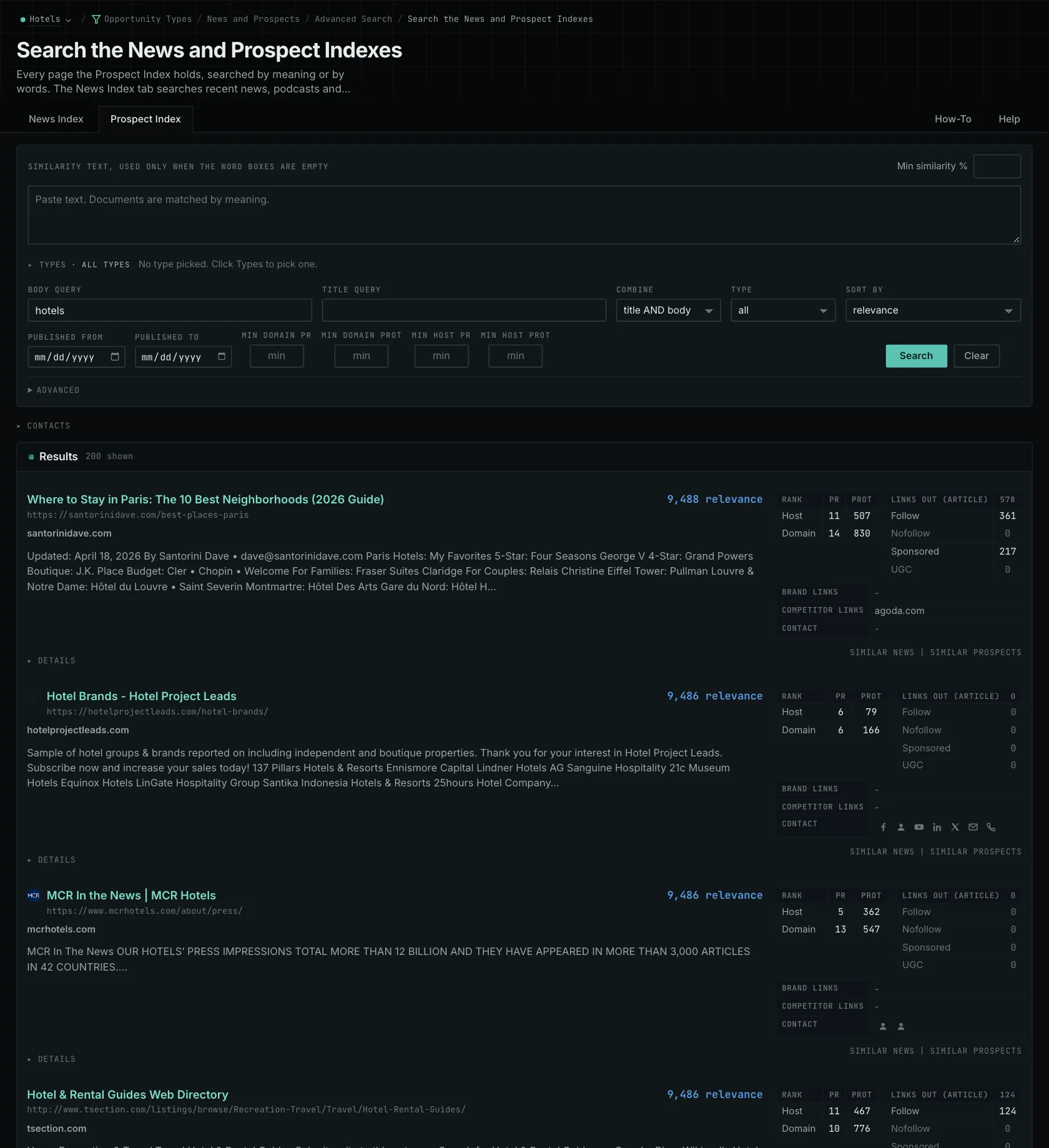
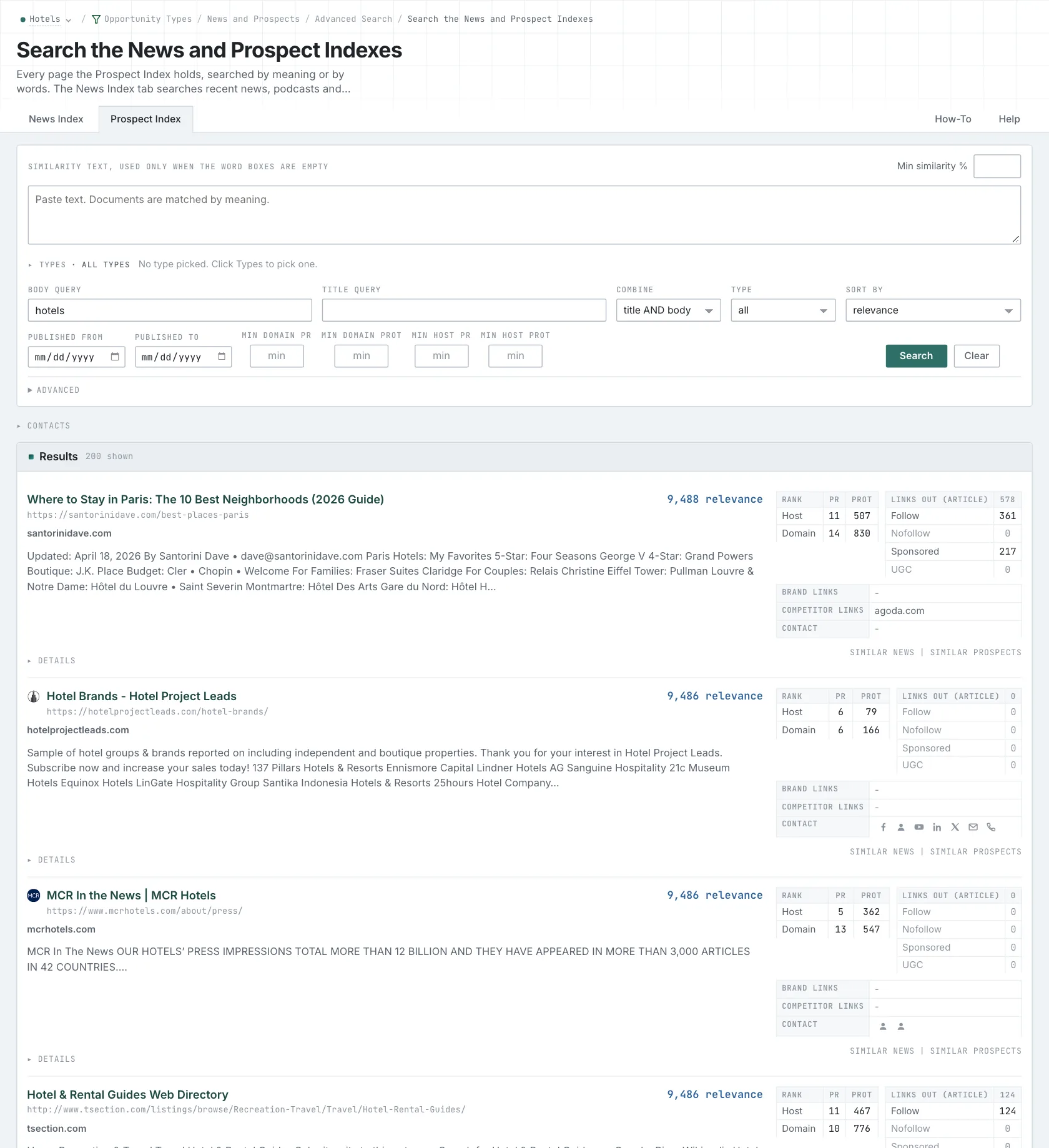
- Open Advanced Search, and open the Prospect Index tab.
- In Title query or Body query, type the subject of your resource. Start with two words. Every word that you type is necessary.
- Click Advanced. In the Types box, tick Resource Pages and choose its minimum score.
- Click Search.
- MCP:
prospects_search, with{"campaign": 3, "similarity_target": "none", "title_query": "scheduling", "type_scores": [{"opportunity_type": "links/resource-pages", "type_score_min": 60}], "sort": "best", "results_limit": 100}. - API:
POST https://api.oppalerts.com/v1/prospects/search, with the same JSON body.
3. Find the resource pages that link to your competitors
- Enter your competitors and your own hosts on the Settings tab of Edit Campaign.
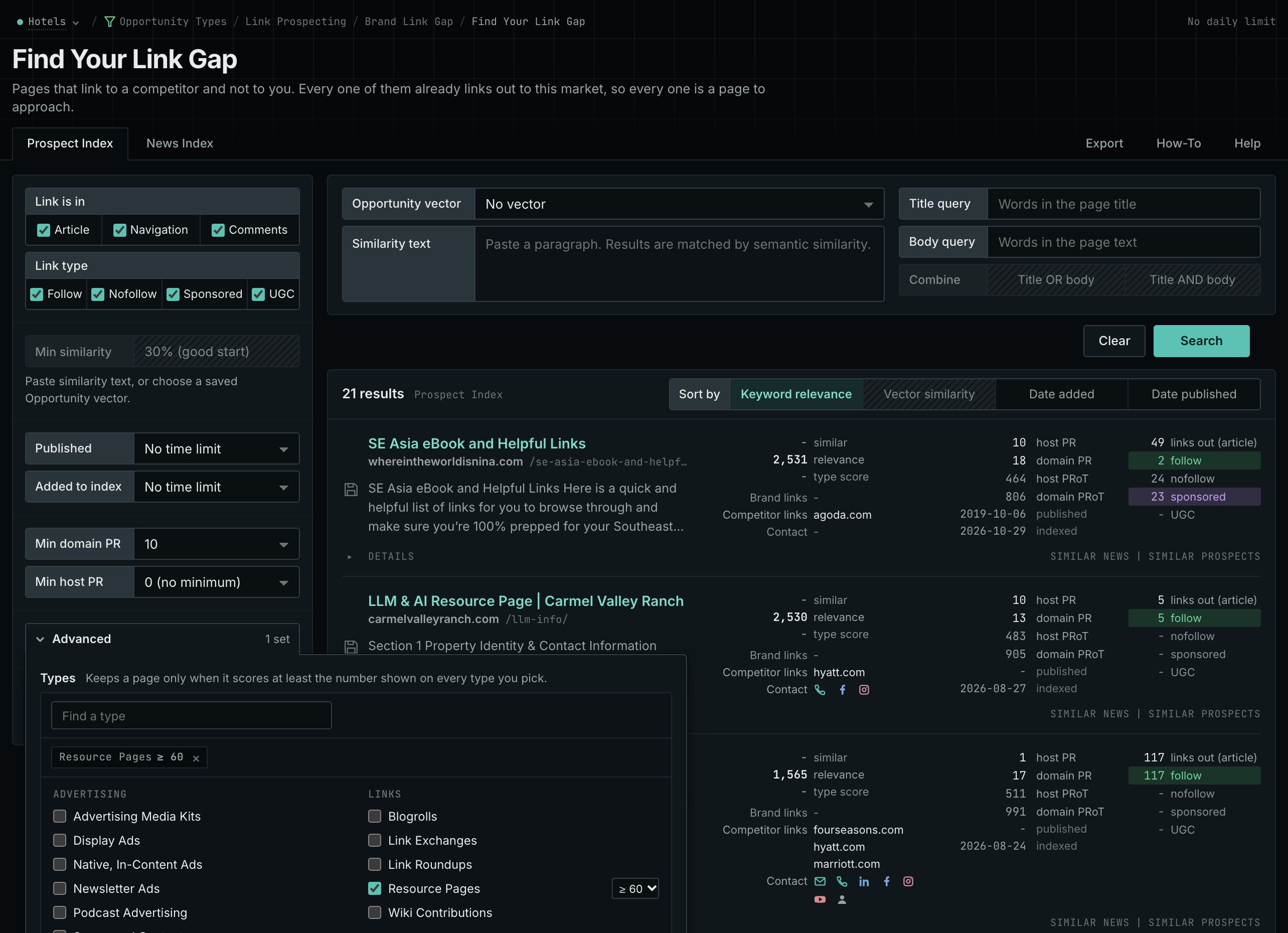
- Open Brand Link Gap. Each row is a page that links to a competitor and not to you.
- Click Advanced. In the Types box, tick Resource Pages and choose its minimum score.
- Read Competitor links on each row. A list that links to several of your competitors is about your market.
How to Find Competitor Backlink Gaps gives the other ways to find these pages.
- MCP:
prospects_brand_link_gapandnews_brand_link_gap, with{"campaign": 3, "similarity_target": "none", "pr_domain_min": 10, "type_scores": [{"opportunity_type": "links/resource-pages", "type_score_min": 60}], "sort": "relevance"}. - API:
POST https://api.oppalerts.com/v1/prospects/brand_link_gapandPOST https://api.oppalerts.com/v1/news/brand_link_gap, with the same JSON body.
4. Get the new resource pages every day
- In Edit Campaign, open the Opportunities tab.
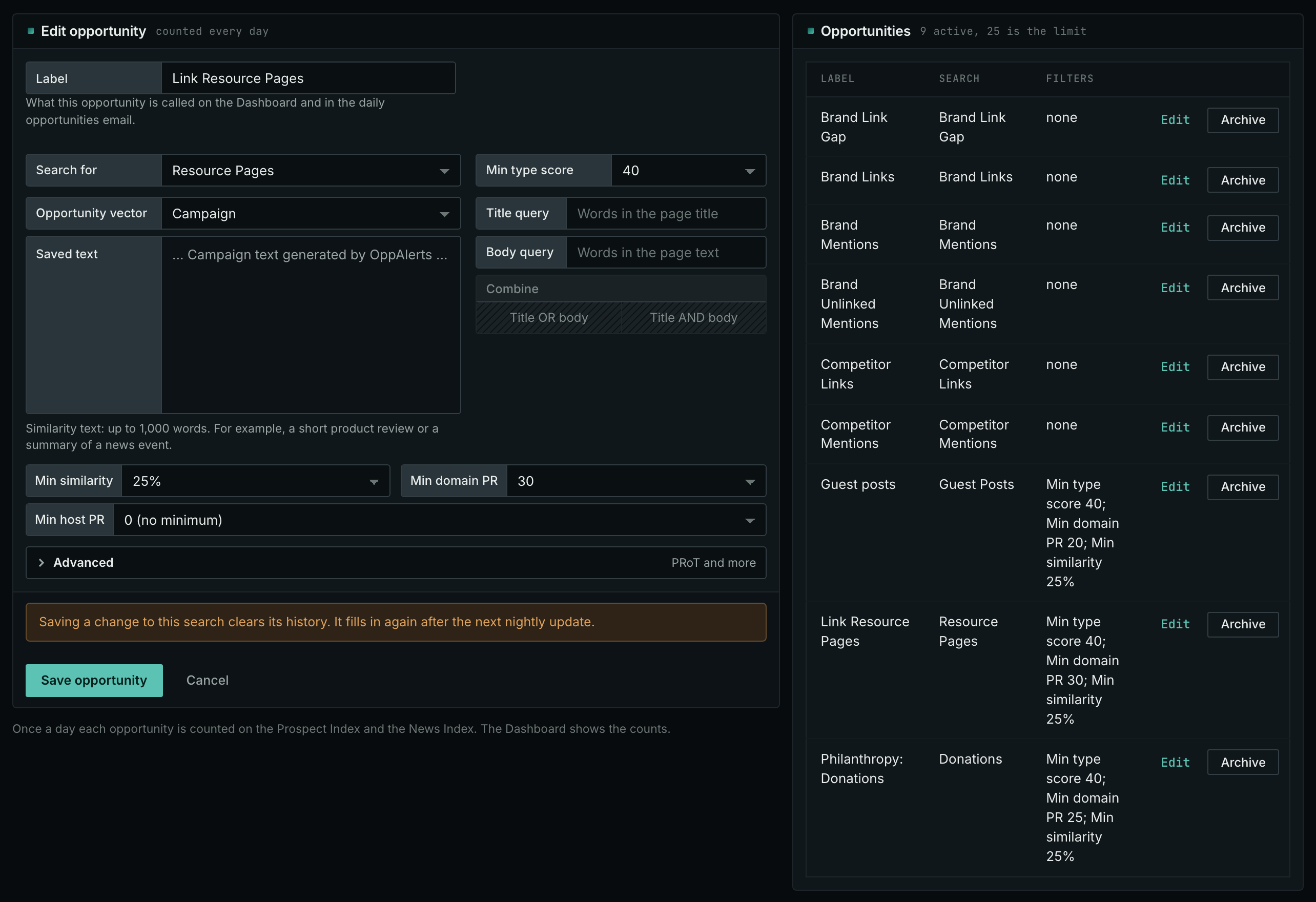
- Add an opportunity. In Search for, choose Resource Pages under Links. In Opportunity vector, choose Campaign. Click Add opportunity.
- Open the Daily Email tab, tick the box, choose the hour, and click Save.
- Each day, the Dashboard tab and the daily opportunities email show the new pages: the pages that came into the indexes in the last 24 hours.
- MCP:
campaigns_saved_opportunitiesgives the ID of each saved opportunity. Thennews_opportunitiesandprospects_opportunitiesgive the pages of 1 to 7 days, with{"campaign": 3, "opportunity": 1, "date_from": "2026-08-26", "date_to": "2026-09-01"}. For one day, send the same day indate_fromanddate_to. - API:
POST https://api.oppalerts.com/v1/news/opportunitiesandPOST https://api.oppalerts.com/v1/prospects/opportunities, with the same JSON body.
How to judge the results
- Read the rules of the list. A staff scheduling list limited to free templates will not accept a paid scheduling product solely because the subject matches. If you have a qualifying free template, suggest that page instead.
- Open some entries. Check what existing entries help readers do, whether they are free to access, and what the list says about additions.
- An old date does not make a list bad. Many resource pages lack a publication date. The indexed date records only when OppAlerts collected the page.
- Find out if the curator accepts suggestions. Look for a current suggestion form or contributor address. Recent additions and site activity indicate maintenance; a broken entry alone does not mean the curator will not reply.
- Read why competitors are there. When several competitors appear on a list, check whether membership, payment, or another condition explains their inclusion. A marketing overview does not qualify for a list of independent research.
- Send the exact page. Send the resource's own URL so the curator and readers can open it directly. Identify the section it fits and what it helps readers do beyond the existing entries.
- Follow the instructions, and keep a record. Follow the submission and follow-up instructions, and record each request and confirmed addition. A suitable page does not guarantee a reply or a permanent link.
- Have a suitable resource first. If you do not have one, make it before you send a request.