Documentation / How-To Guides / How to Research a New Client Market
How to Research a New Client Market
Research a new client's buyers, competitors, and coverage to decide what work to recommend first.
Build your recommendations for a new client on an understanding of its business and buyers. Start by describing them in an OppAlerts campaign, then use that context to research market language, competitors, coverage, placements, and the client's own pages.
- Is the campaign aimed at the right market? Keyword Research.
- Which sites do AI models name in this market? Competitor LLM Recs.
- Which pages write about the problems that the client solves? Advanced Search.
- Which pages link to a competitor and not to the client? Brand Link Gap.
- Which pages accept a guest, a speaker, or a listing? Opportunity Types.
- Do the pages of the client answer the buyer? Content Optimizer.
Before you start: describe the business and its buyers
Buyers may describe a technical product's purpose in everyday language. Researching only the product name can miss their questions. Ask the client what customers need to do, which constraints affect their decisions, and which alternatives they consider.
- Open New Campaign in the web app.
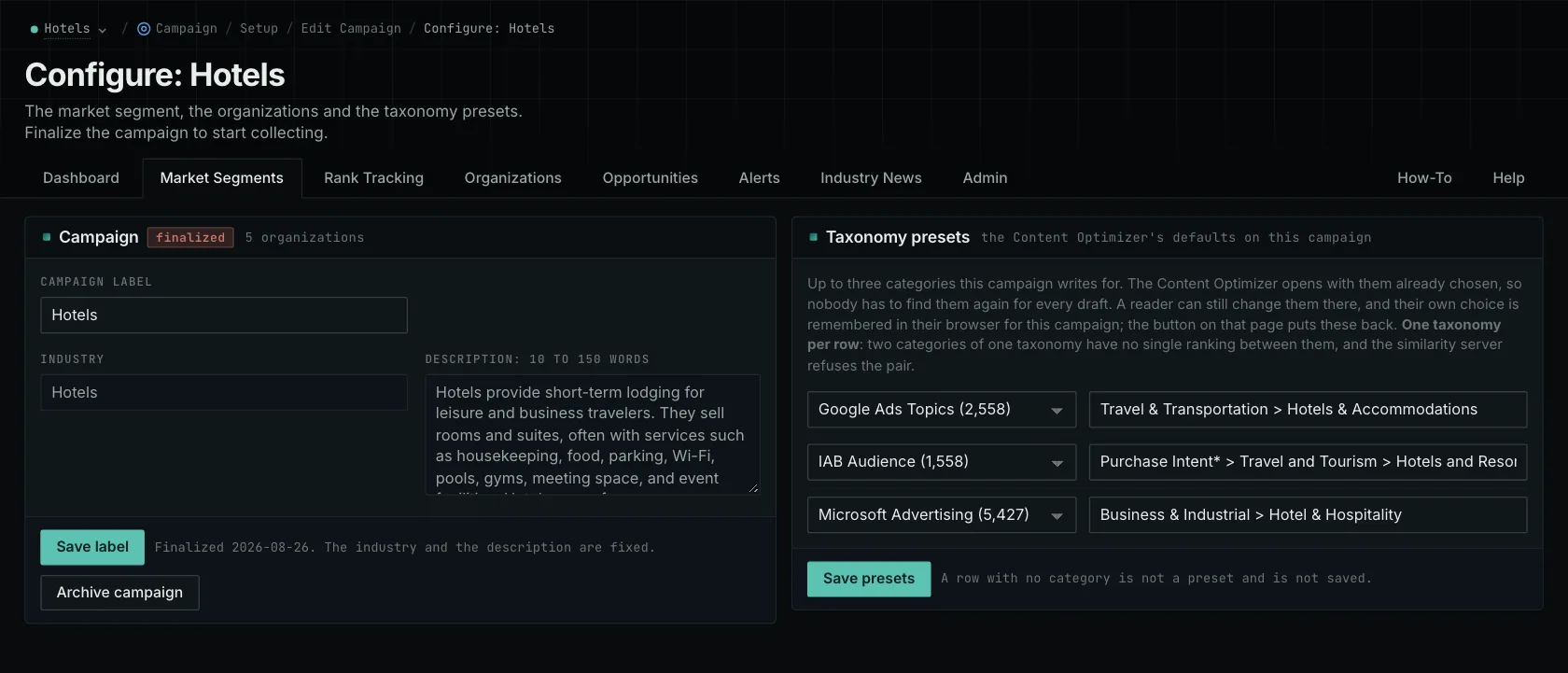
- In the Campaign card, write the Campaign label and the Industry. Write the market in Industry, not the name of the client.
- Use the client's answers to write a description of 100 to 1,000 characters covering products, customer type, price position, area, and competitors. Use factual language without marketing claims.
- Click Save Draft. The first save creates the campaign.
- In the Brands and competitors card, add one owned brand with its host name. It is required. Add the competitors, with their host names and their brand names.
- Review the description with the client. Then, at the end of the page, click Finalize and Begin Research, and agree in the pop-up. The research takes a few hours.
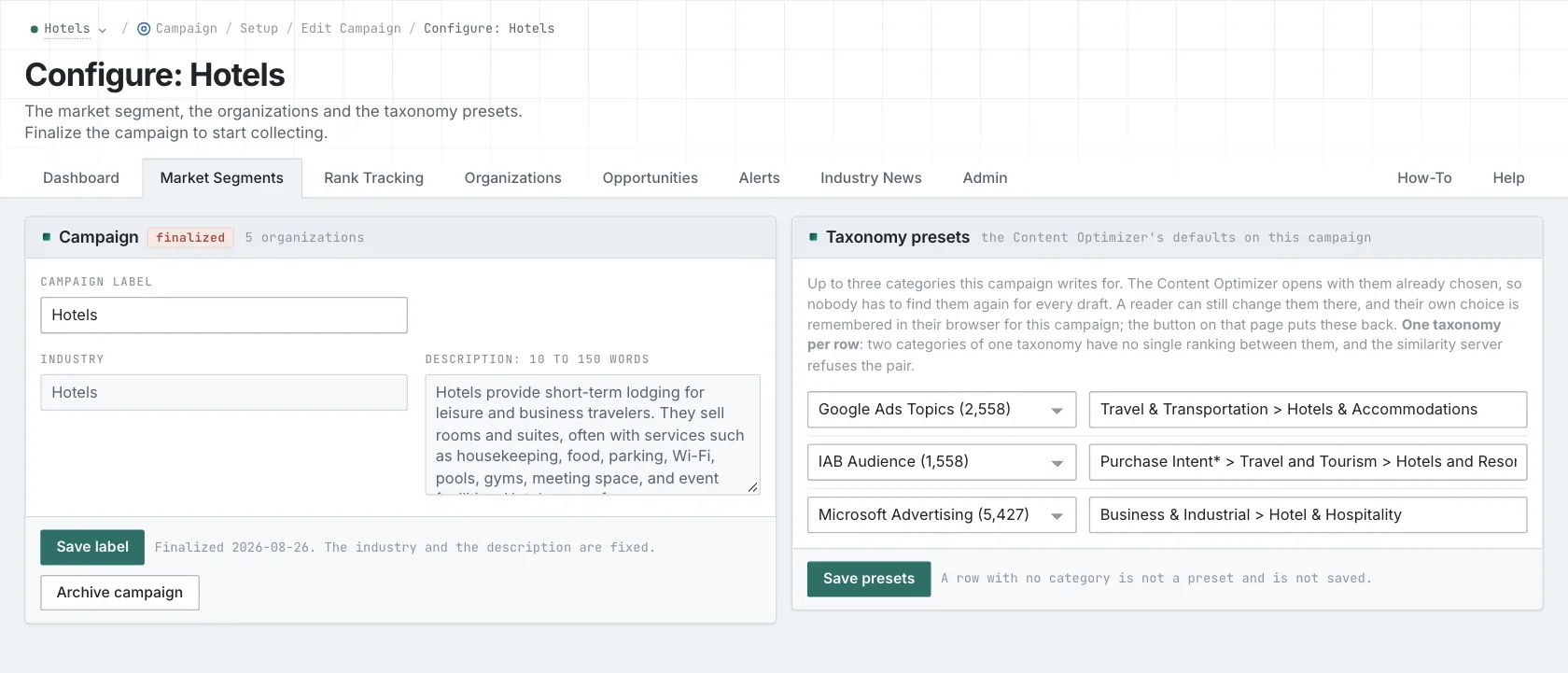
Finalize locks the industry and the description. To change them later, you must start a new campaign. The organizations stay editable at any time.
- MCP:
campaigns_settingsreturns the label and the description of a campaign, with{"campaign": 3}. - API:
POST https://api.oppalerts.com/v1/campaigns/settings, with the same JSON body.
1. Check that the campaign is aimed at the right market
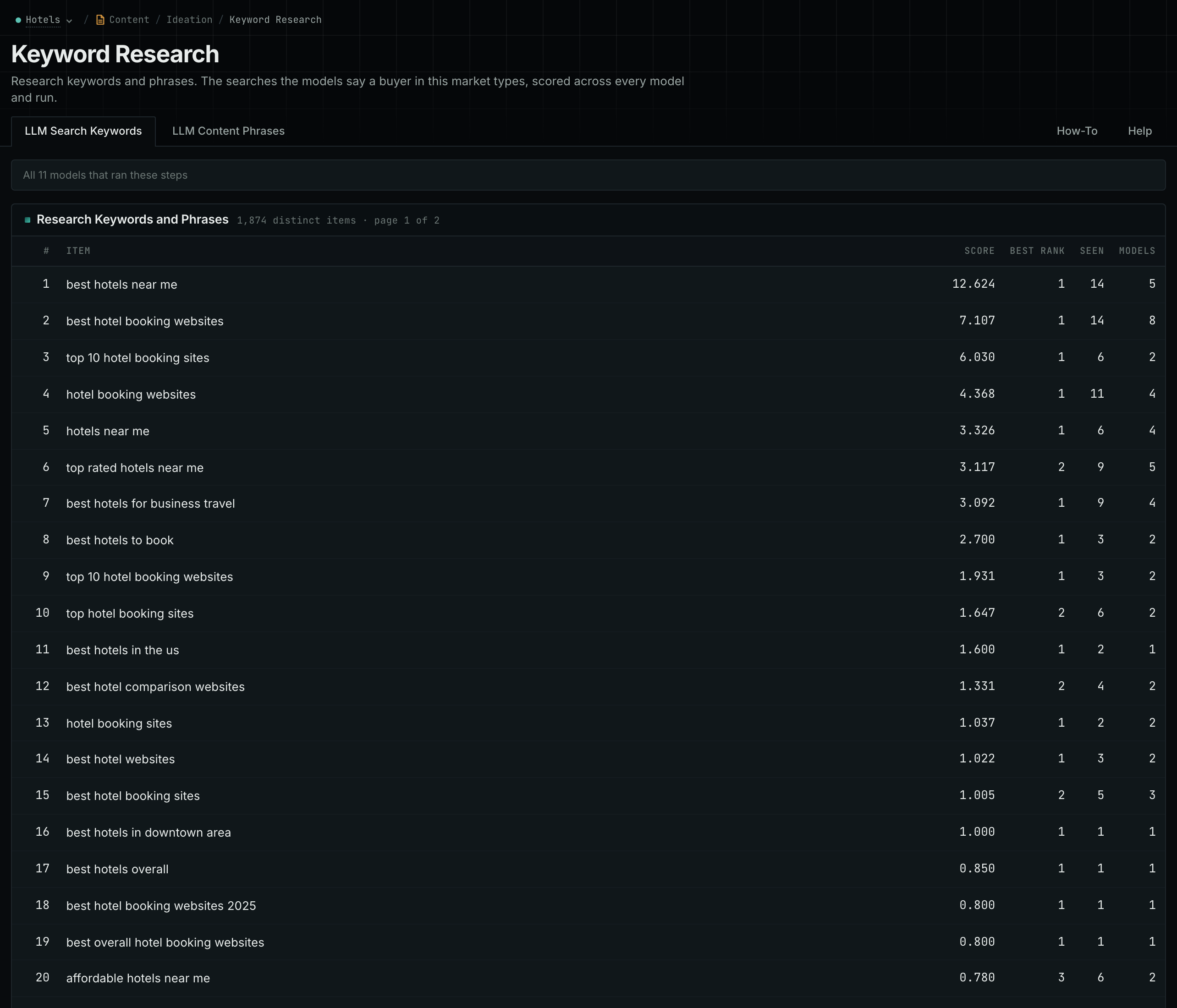
- When the research is finished, open Keyword Research.
- Read the top 20 rows of the LLM Search Keywords tab. Ask: is this the market of the client?
- If the words are general, the description is too vague. If they are the right words for the wrong buyer, the description does not say who buys. In both cases, write a new description and start a new campaign.
- Compare the words with how the client describes its buyers.
- MCP:
llm_answers_search_keywords, with{"campaign": 3, "page": 1}. - API:
POST https://api.oppalerts.com/v1/llm_answers/search_keywords, with the same JSON body.
2. See which sites AI models name in the market
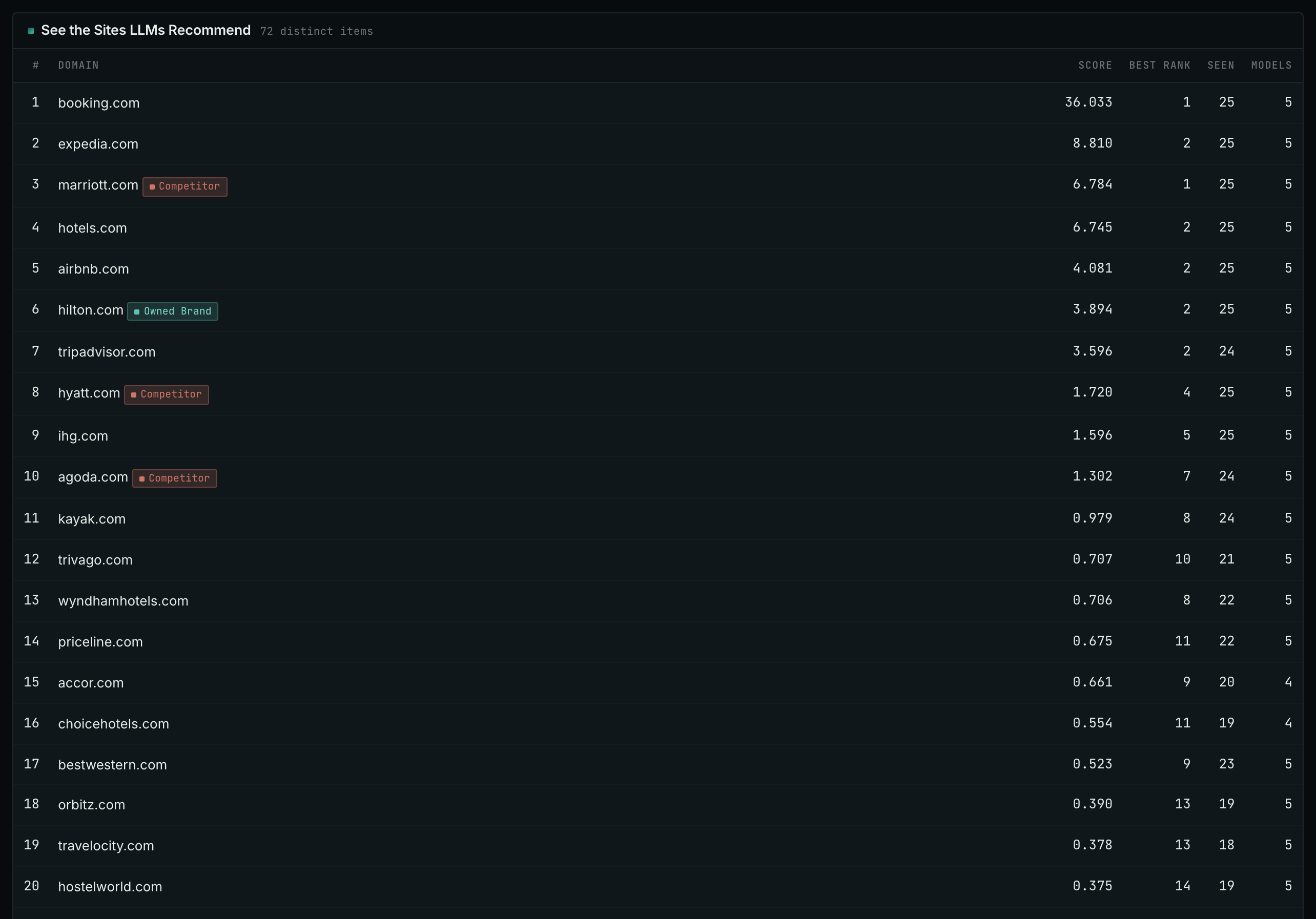
- Open Competitor LLM Recs.
- Read the top 20 rows, and find the site of the client.
- A site that is not in the Competitors box can be a competitor that the client did not name. Ask the client about it before you add it on the Settings tab of Edit Campaign.
- Show the client this list. It is the market as the AI models see it.
- MCP:
llm_answers_top_sites, with{"campaign": 3, "page": 1}. - API:
POST https://api.oppalerts.com/v1/llm_answers/top_sites, with the same JSON body.
3. Find the coverage of the problems that the client solves
- Open Advanced Search.
- In Opportunity vector, choose Similarity text. In the box, write a short paragraph about the problem of the buyer, in the words of the buyer.
- Click Search. A semantic search finds pages that use different words from the description of the product.
- Read the News Index tab for news, podcasts, and videos, and the Prospect Index tab for other pages.
- Read the questions that the pages answer and the experts that they quote.
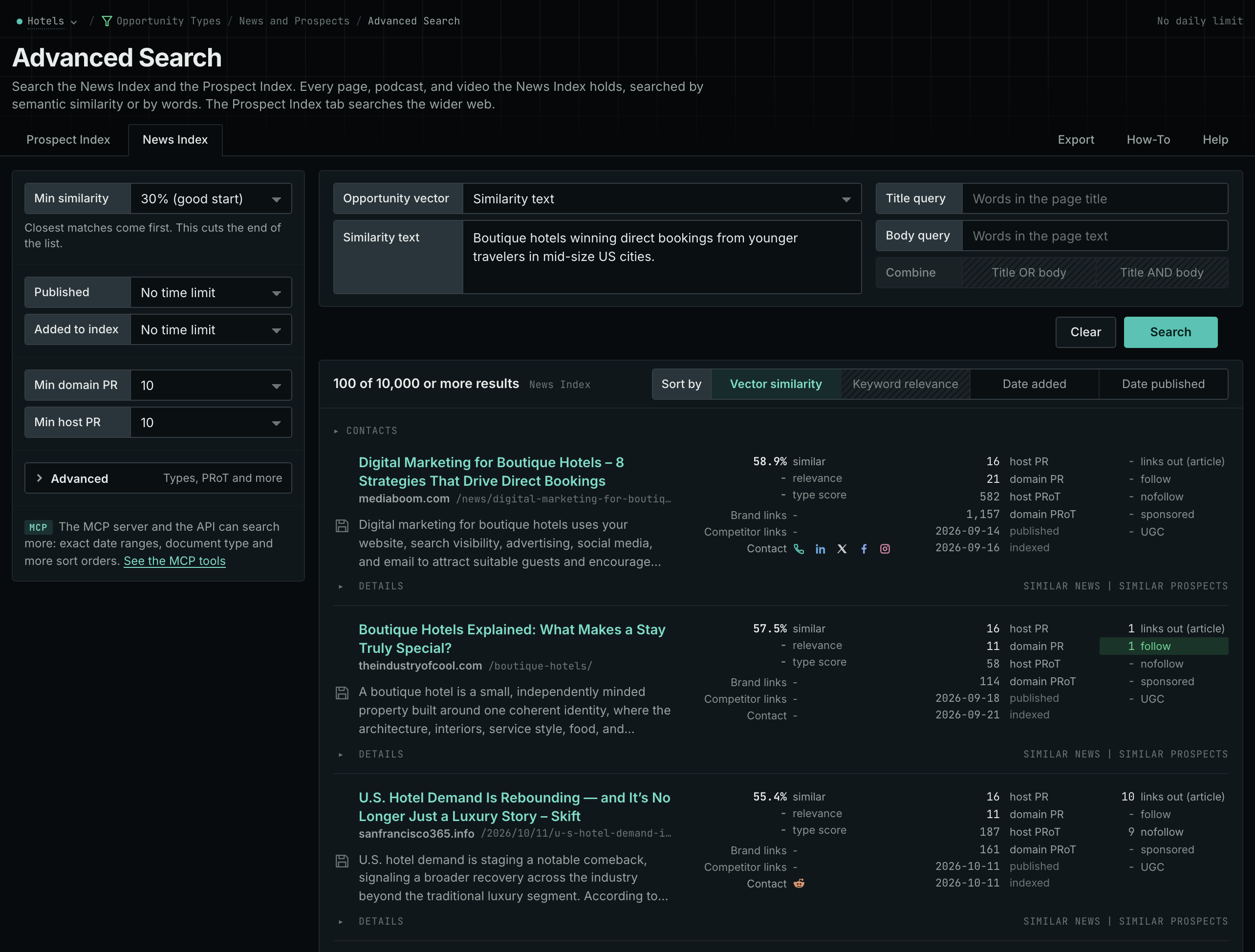
- MCP:
news_searchandprospects_search, with{"campaign": 3, "similarity_target": "similarity_text", "similarity_text": "Boutique hotels winning direct bookings from younger travelers in mid-size US cities.", "similarity_score_min": 25, "sort": "best", "results_limit": 100}. - API:
POST https://api.oppalerts.com/v1/news/searchandPOST https://api.oppalerts.com/v1/prospects/search, with the same JSON body.
4. Find the pages that link to a competitor and not to the client
- Open Brand Link Gap.
- Each row is a page that links to at least one competitor and to none of the hosts of the client.
- Start with the pages that show more than one host under Competitor links.
- Read why each page includes the competitors before you recommend the same links.
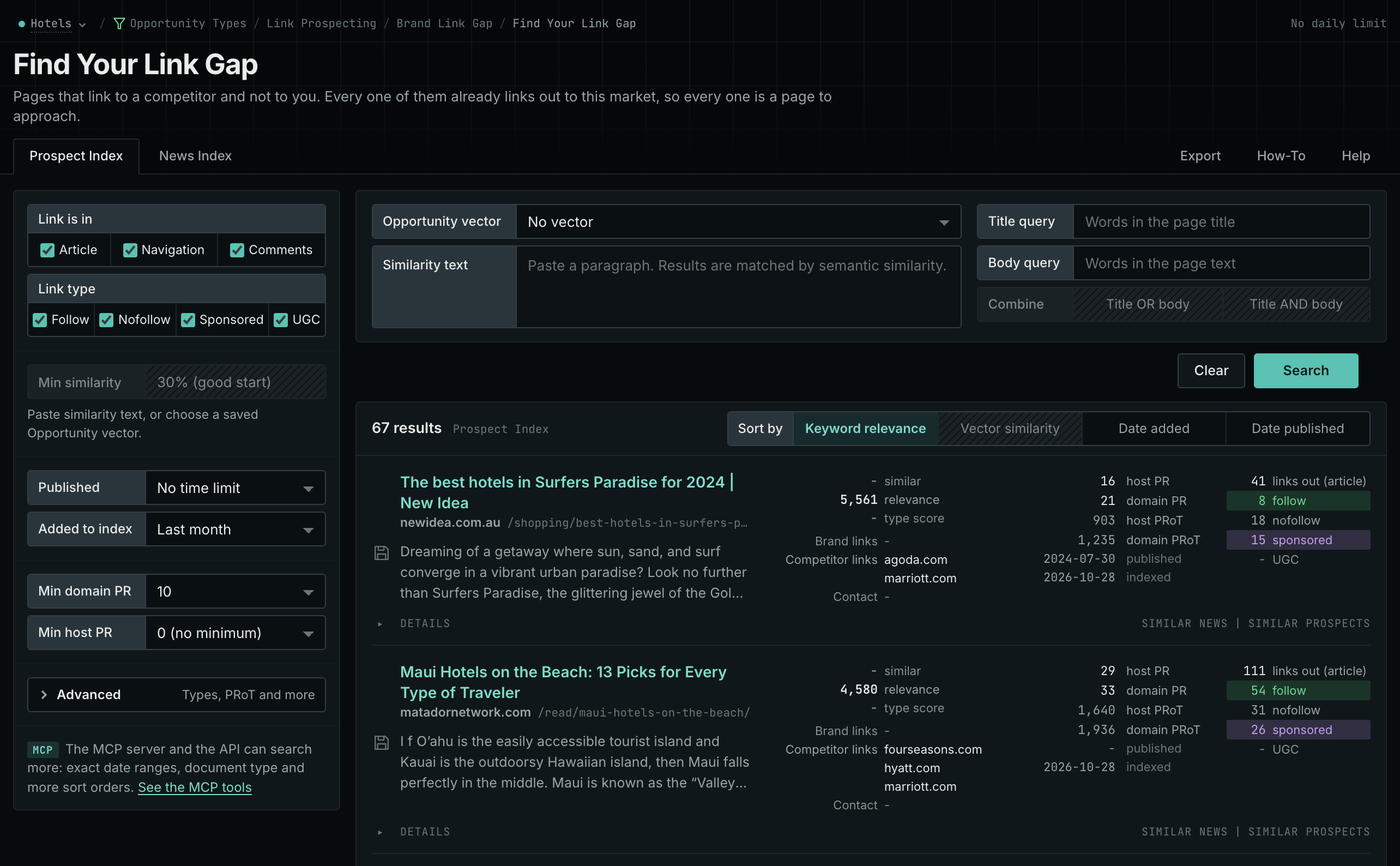
- MCP:
prospects_brand_link_gapandnews_brand_link_gap, with{"campaign": 3, "indexed_days": 30, "similarity_target": "none", "pr_domain_min": 10, "sort": "relevance"}. Fornews_brand_link_gap, sendpublished_daysin place ofindexed_days: it counts from the published date. - API:
POST https://api.oppalerts.com/v1/prospects/brand_link_gapandPOST https://api.oppalerts.com/v1/news/brand_link_gap, with the JSON body of each tool.
5. Search by opportunity type
A podcast accepting guests or an open call for speakers may suit the client even when competitor links do not reveal it.
- Open Opportunity Types from the menu. Choose a group, then a type, for example Audio and Video, then Podcast Guests.
- The page opens with Opportunity vector on Campaign. It shows the pages of that type that are nearest to the market of the client.
- Click Vector similarity to put the pages that are nearest to the market first.
- Read the current requirements of each page. They tell you whether the client can take part.
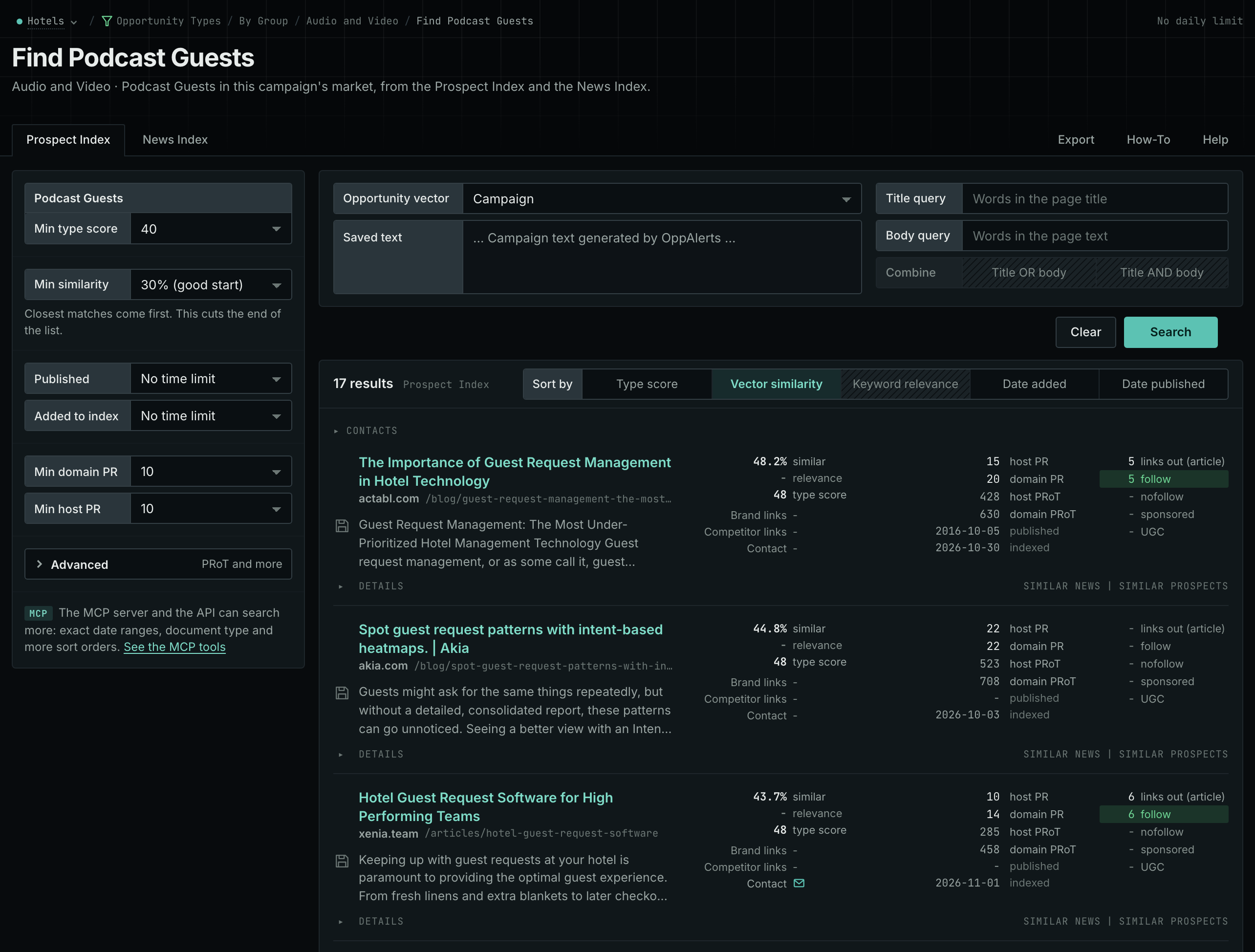
- MCP:
prospects_searchandnews_search, with{"campaign": 3, "similarity_target": "campaign", "pr_domain_min": 10, "type_scores": [{"opportunity_type": "audio-video/podcast-guesting", "type_score_min": 50}], "sort": "type_score"}. - API:
POST https://api.oppalerts.com/v1/prospects/searchandPOST https://api.oppalerts.com/v1/news/search, with the same JSON body.
6. Review the pages of the client
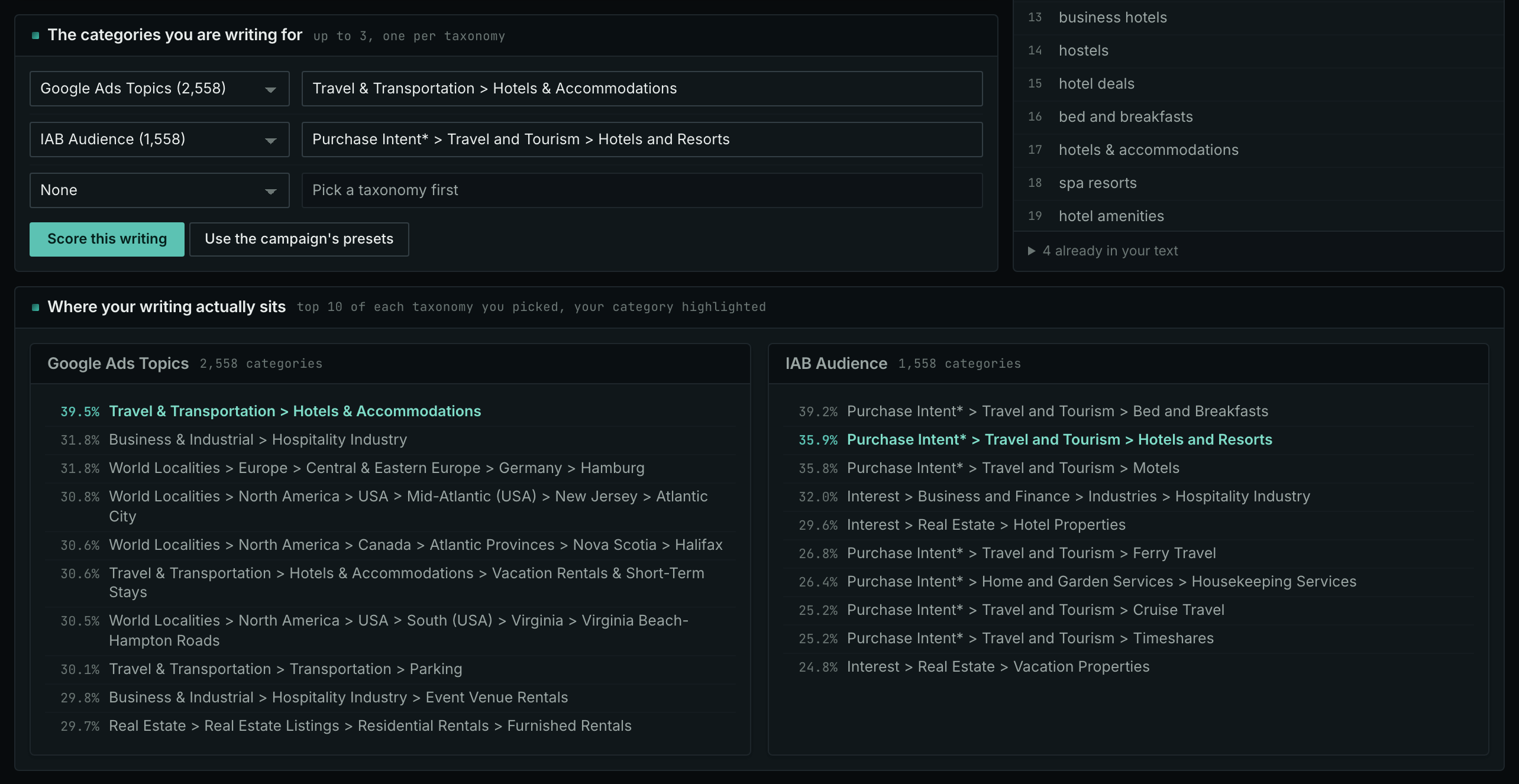
- Open Content Optimizer.
- Paste the text of an important service or product page into the Your writing box.
- In The categories you are writing for, choose a topic category and an audience category.
- Click Score this writing, and read Where your writing actually sits.
- Compare the page with the buying decisions that you found. Show the client the passages that do not answer them.
How to judge the results
- Treat initial findings as preliminary. Draft a small set of questions based on buying situations and review them with the client. Include the buyer's conditions in questions sent to an AI service. Save the answers and repeat the questions later to check whether patterns persist.
- Read why a page includes a competitor. A shared directory can have membership rules. Repeat publications can show subjects that the market already covers.
- An absent link proves nothing. If no competitor link shows a podcast, that does not prove that no competitor tried it.
- Explain the missing information. Use category results to support a concrete explanation of what is missing. A page may describe how a product is built while leaving buyers unsure who handles each setup task.
- Connect each task to evidence. Let the client check your assumptions before assigning work. Connect every task to a buyer question, source, or page, and distinguish preliminary findings from evidence of trends.