Documentation / App / Competitor Mentions
Competitor Mentions
Apphttps://oppalerts.com/app/visibility/competitor_mentions
What you use it for
- Find every page that names a competitor. The same question as Brand Mentions, about somebody else.
- See who writes about them and not about you. Every one of those writers is somebody to approach.
- Watch a launch or a campaign as it is covered.
How it works

Identical to Brand Mentions, reading the organizations in the Competitors box instead of Owned Brands. The names and hosts come from the Settings tab of Edit Campaign, so a competitor you have not entered cannot appear.
Two tabs. Prospect Index and News Index search the title and the body for each name as an exact phrase.
The PageRank minimums run inside the query, so raising Min domain PR gives more results from stronger sites, not fewer results.
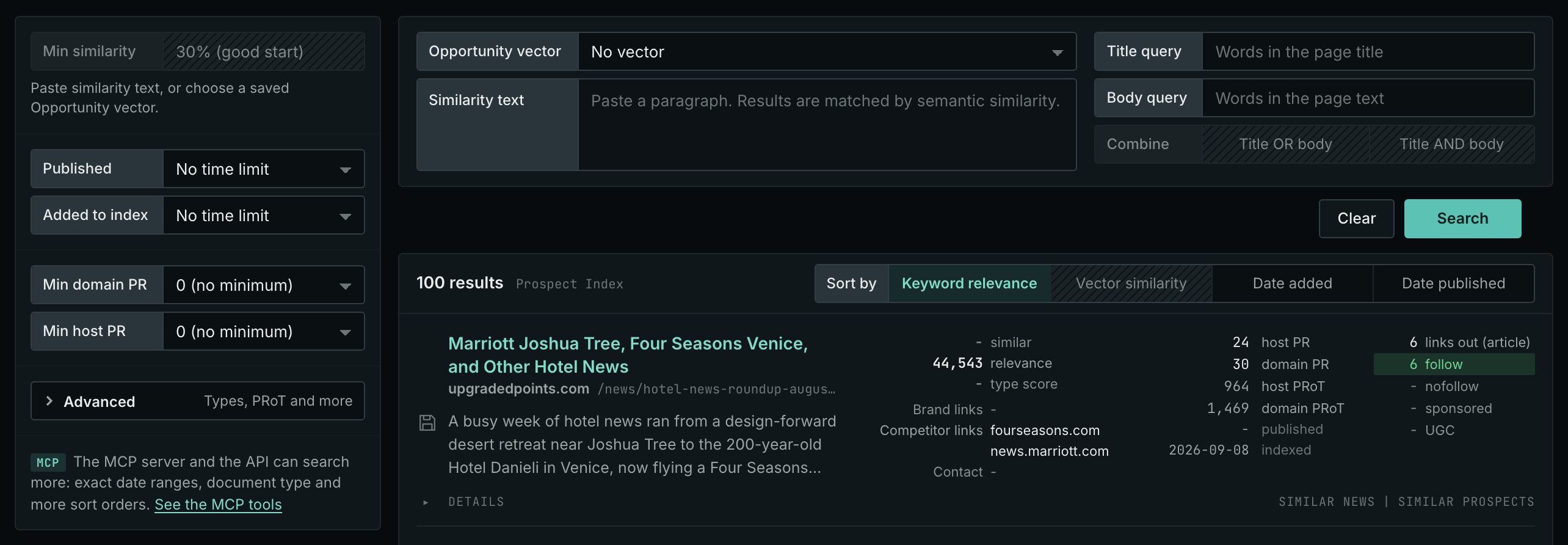
The search form
- The page opens with no vector. Opportunity vector is No vector and the box is empty, so no row has a similarity and Min similarity is off. The list is the pages that name a competitor, the first 100 in Keyword relevance order.
- Sort by opens on Keyword relevance and stays there when you choose a vector. A vector adds the similarity to each row. Choose Vector similarity to put the closest pages first.
- Title query and Body query are optional words. A page must name a competitor AND match the words.
- Published and Added to index open on No time limit. Published is the date the page says it was published. A page with no published date is left out when it is set.
- Min domain PR and Min host PR open at 0 (no minimum). Advanced holds the Types box, the PRoT boxes, the Maximums, and the 12 Links out menus.
- Clear puts every box back to how the page opens, and runs the search again.
The words, the count line, and a search that did not run. Title query and Body query take the search operators. A query with a formatting error is not searched: the sentence names the box and the error. How to Search the Indexes has every rule of a query. A number box takes digits only. The count line says how many rows the page shows, for example "100 results". "100 of 10,000 or more results" means that the search found 10,000 pages or more. When the search was sent and did not end, the count line says "The search did not finish", "The search was stopped", "No searches left today", or "Another search is running", and a sentence under it says what to do. The page opens at its own values: a value that you typed on another search page is not carried over.
Tabs
The page has 2 tabs.
Tab 1: Prospect Index
What it shows
Prospect pages that name a competitor in the title or the body.
Where the data comes from
The Prospect Index: the pages we have fetched and indexed ourselves.
The title and the body are searched for each competitor name as an exact phrase.
Most prospect pages have no published date. Published leaves those pages out, so on this tab use Added to index for a time window: the date the page was added to the index.
How to use it
- This is the widest of the tabs. Come here for volume.
- Raise Min domain PR to drop the sites with no standing. The minimums run inside the query, so you get more strong results rather than fewer results.
- Open Details on a card to see the site's contact data and the page's outbound links before you act on it.
Tab 2: News Index
What it shows
News, podcasts, and video that name a competitor.
Where the data comes from
The News Index: news, podcasts, and video from news sources, news aggregators, about 20 million RSS feeds, and more than 4 million podcast feeds. It keeps every document.
The title and the body are searched for each competitor name as an exact phrase.
How to use it
- This is the only current tab. Read it weekly.
- Set Published to the last few weeks to read the current coverage, which is the coverage worth acting on today.
- Use Published: Last week for a weekly review, Last month for a monthly report.
On your own campaign
- Enter every competitor you care about on the Settings tab, with their real brand names as well as their host.
- Read the News Index tab weekly, with Published set to the last week or two, for the current coverage.
- Note the writers and the publications that cover them.
- Go to Brand Link Gap for the version of this that is directly actionable: pages that link to a competitor and not to you.

Reading one result row
Every page in the application that shows an index result displays this same row, with the same fields in the same order, so learning it once is enough. A hyphen means the row has no value there, or the value is 0.
- The title is the page itself. It opens in a new tab.
- The host under it is the site. Click it to open the site. The mark beside it says what the site is to your campaign, such as Competitor, when it is one of your organizations. The address after it is the page's path on that site.
- Save is the small button before the text. It puts a label on the result, such as Follow up. The label is not stored yet, so a reload clears it.
- The text is what the index stored, not a search engine's snippet. It is the beginning of the page's own writing, which is why it is worth reading before you approach anybody.
- similar, relevance, type score. similar is the semantic similarity of the page to the search text, 0 to 100 percent. relevance is how well the page matches the typed words; it has no upper end, so compare it only with the other rows of the list. type score is how well the page fits the opportunity type or content type, 0 to 100. Each one needs its part of the search, and without it the row prints a hyphen.
- Brand links and Competitor links say whether this page already links to you or to a competitor, from your Organizations list. Each line is one host it links to. Competitor links and no brand links is the target row.
- Contact is what the site publishes about itself: email addresses, phone numbers, and social accounts. Point at an icon to see them.
- host PR, domain PR, host PRoT, domain PRoT. They come from a link graph built from billions of links. PR is the PageRank of the newest month it holds, 0 to 100. PRoT is PageRank over Time: the PageRank of every month the graph holds, added up. So a site that has been strong for years is high on both, and a site that is strong only now is high on PR and low on PRoT. Host and domain differ, often by a lot: a strong domain can carry a weak subdomain, and these are the numbers the PageRank minimums filter on.
- published, then indexed. published is the date on the page, when it has one. Prospect pages usually do not, and the row prints a hyphen. indexed is the date the page came into the index. Both are dates in UTC.
- links out (article) is how many outbound links the page's own article carries, then follow, nofollow, sponsored, and UGC split them by type. A link with 2 types counts in both. A page with many followed outbound links links freely; a page with none does not link out at all, and asking it for a link is usually wasted effort.
- Details opens the hosts the page links to, in the article, the navigation, and the comments, and the site's contact routes: email addresses, phone numbers, social accounts, contact pages, and RSS feeds. It is always there, whatever the row holds.
- Similar news and Similar prospects find the pages nearest in semantic similarity to this one, in the News Index or the Prospect Index.
MCP
These MCP tools give the same data. Each page has every parameter and an example.
news_brand_mentions: Index pages that NAME this campaign's own brand, or its competitors, without regard to linking, on the News Index.prospects_brand_mentions: Lists the Prospect Index pages that name the campaign’s own brand or its competitors, whether or not they link.
API
These API routes give the same data.