Documentation / Account / Profile
Profile
Check your sign-in email and plan, and change the name shown in the web app.
Where it is
- URL: oppalerts.com/account.
- In the profile menu at the top right, click Profile.
- You must be signed in. If you are not, the page redirects you to sign in, then returns you here.
What it shows
- Logged in as and your email address.
- Your plan, with its price per billing period, for example "per month". With no plan, the page says "No subscription" and links to the plans.
- A Log out link.
- The Your name form.
- At the bottom, a link to each of the other account pages, with one sentence about each.
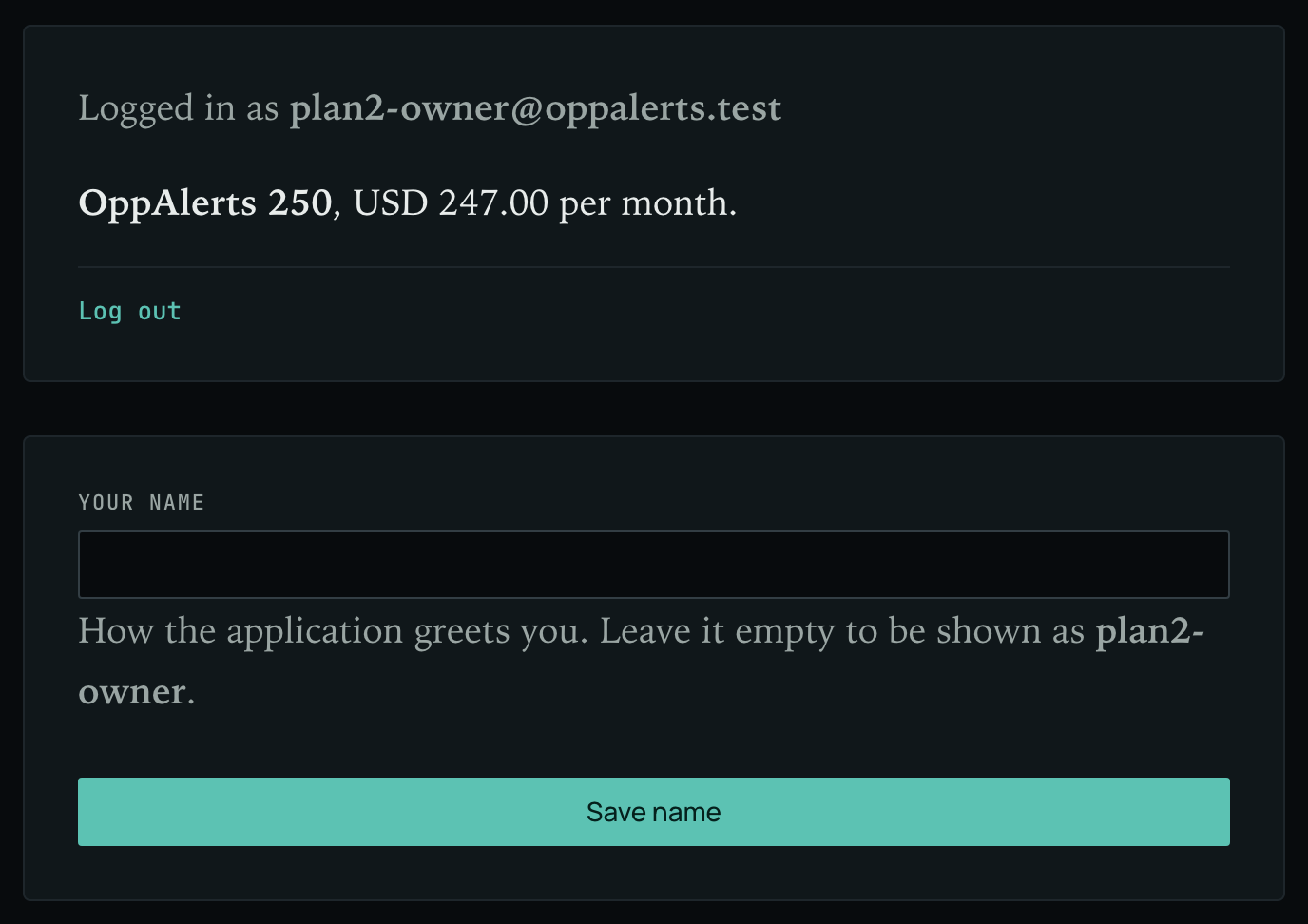
Change your name
- In Your name, enter a name of up to 120 characters.
- Click Save name. The page says "Saved."
- The web app shows the name at the top of the profile menu.
- Team invitation emails identify you by this name.
- Leave the field empty to use the part of your email address before the @ as your display name.
After you buy a plan
After payment, you return to Profile. The page says "Thank you. Your subscription is set up." and shows a Go to the application button. If payment has been received but your plan is not yet set up, the page asks you to refresh it in a minute.
In MCP and the API
No MCP tool or API route reads or changes the Profile page. Change your name on this page.