Documentation / Getting Started / Daily Monitoring and Alerts
Daily Monitoring and Alerts
Get new mentions, links, and opportunities in your market each morning, without running the searches yourself.
Daily monitoring has three parts: saved opportunities define what to look for, the Dashboard shows what was found, and the daily opportunities email sends those results to you.
1. Save the searches that you want to follow
- Open your campaign in Edit Campaign, and open the Opportunities tab.
- Add an opportunity. In Search for, choose a brand
search or an opportunity type:
- Brand searches: Brand Links, Brand Mentions, Brand Unlinked Mentions, Brand Link Gap, Competitor Links, and Competitor Mentions.
- Opportunity types: one of the 79 types, for example Guest Posts or Podcast Guesting.
- Give it a Label to identify it on the Dashboard and in the email.
- For an opportunity type, set Min type score. It defaults to 40.
- Choose the Opportunity vector: No vector, Similarity text, or Campaign. A new opportunity defaults to Similarity text. Set Min similarity. It defaults to 30% and is locked when there is no vector.
- Enter words in Title query or Body query if needed. Both boxes accept the search operators. An opportunity requires a vector, a Title query, or a Body query.
- Set numeric filters, such as Min domain PR, as you would on a search page.
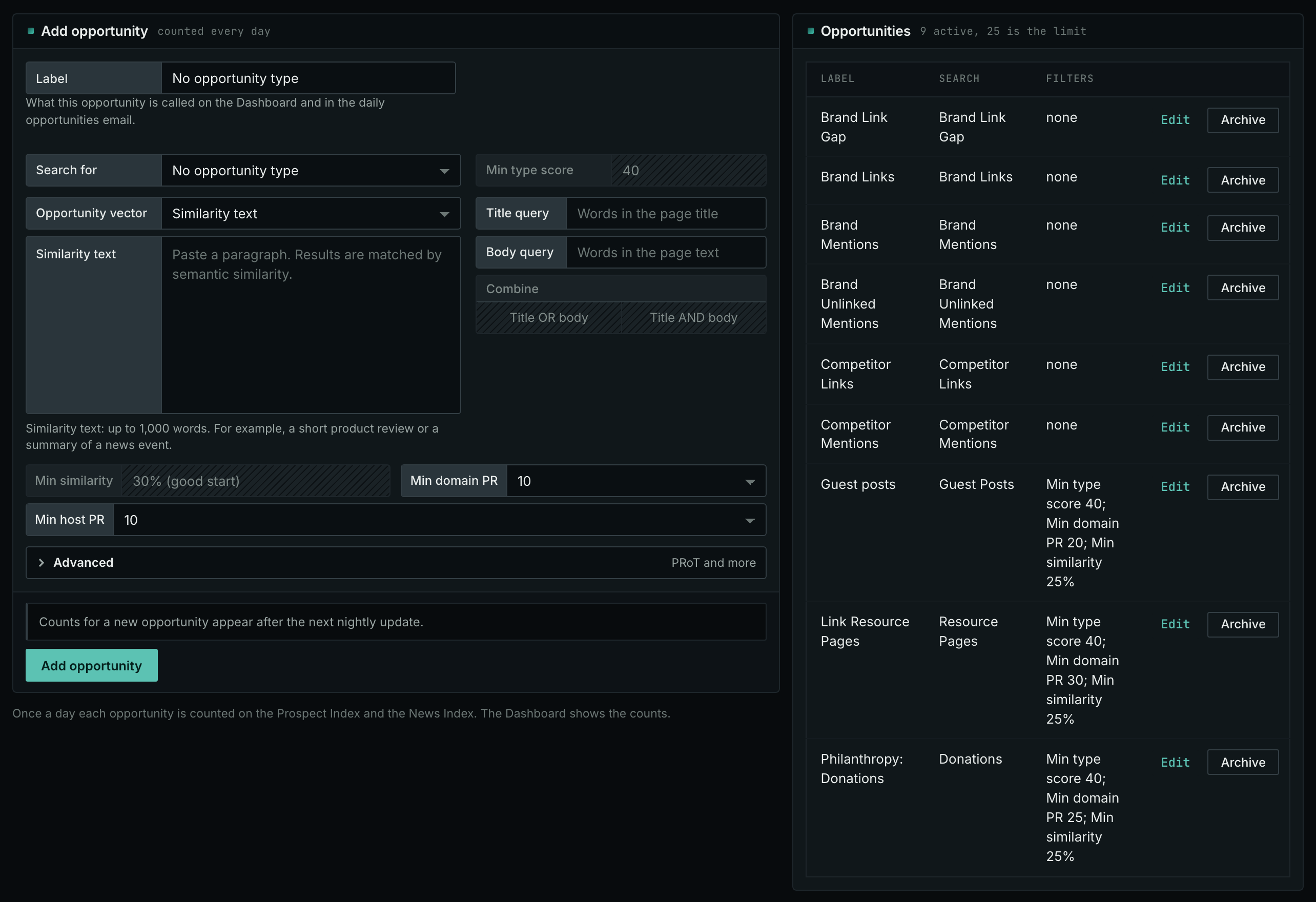
- A new campaign starts with five saved opportunities: Brand Mentions, Brand Unlinked Mentions, Brand Link Gap, Competitor Mentions, and Competitor Links.
- Start by following two or three saved opportunities. Include an opportunity type you are actively looking for and a brand search.
- A campaign holds at most 25 opportunities in total, including active and archived opportunities. Opportunities cannot be deleted. Archive one you no longer follow to keep its history and stop its daily counts.
2. Read the Dashboard each morning
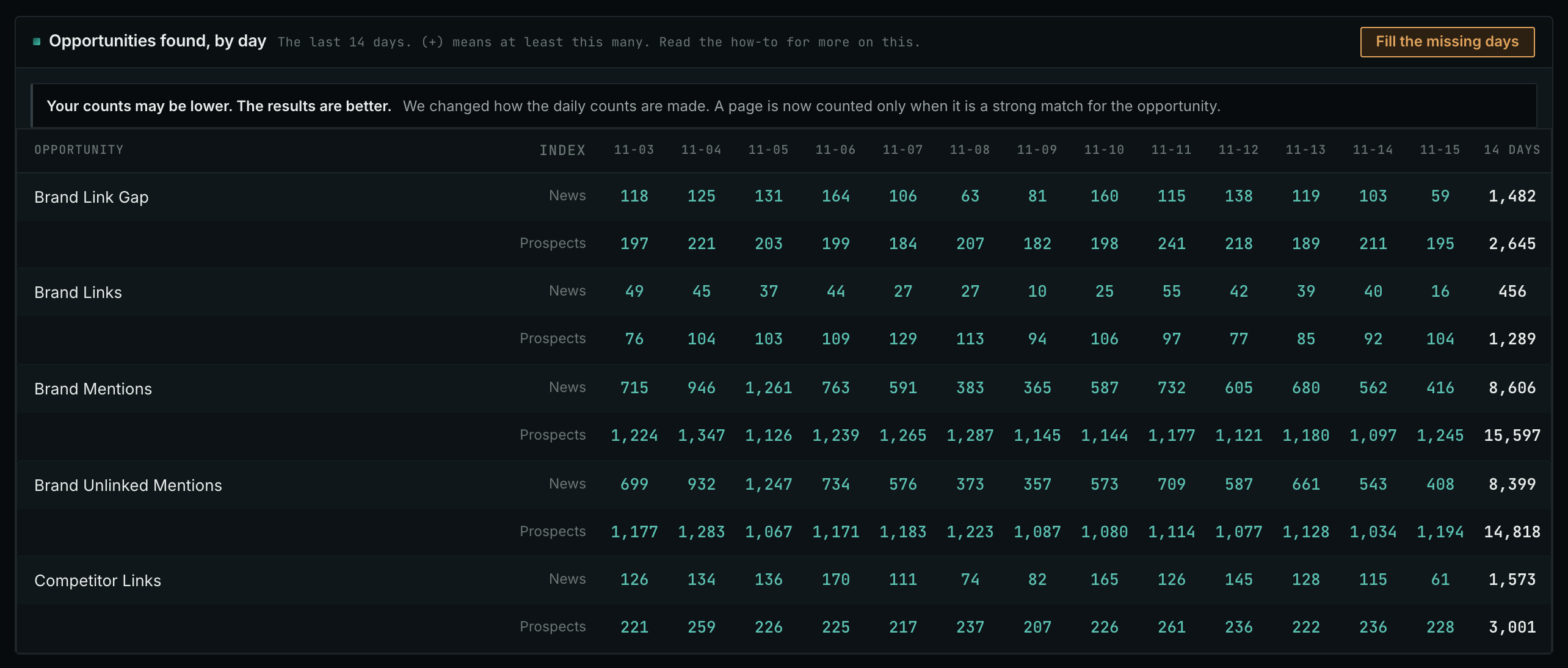
- The Dashboard tab shows one column for each of the last 14 days, and two rows for each opportunity: the News Index and the Prospect Index.
- Click a number to see the pages found that day.
- A dot means the index was not counted that day. A gray 0 means it was counted, but no pages were found.
- A number with a plus, for example "150+", means at least 150. Daily Counts explains it.
3. Turn on the daily opportunities email
- Open the Daily Email tab.
- The name and email address come from your login. Change them if the email goes to someone else.
- Check the box to turn on the alert.
- Choose a delivery hour and your time zone.
- Click Save.
- You receive one email a day. It lists active opportunities in Dashboard order, with the pages found in each index in the last day and the last 7 days.
- Each opportunity includes the top 3 pages from each index, a link to all pages found that day, and a link to the last 7 days.
- The email uses the Dashboard counts, so the numbers always match.
- The Daily Email tab lists the campaign's last 30 emails. View opens one as it was sent.
- Each campaign has one recipient address for the alert.
What counts as a new page
A page counts as new if it was added to an index in the 24 hours ending at 09:00 UTC. A News Index page must also have a published date in the last 7 days. The daily count includes only the News Index and Prospect Index.
In MCP and the API
campaigns_saved_opportunitieslists a campaign's saved opportunities, with their IDs.campaigns_dashboardreturns the Dashboard counts.news_opportunitiesandprospects_opportunitiesreturn pages found for one saved opportunity fromdate_fromtodate_to, a range of 1 to 7 days. For a single day, use the same date fordate_fromanddate_to.- An AI agent can read these each morning and write you a summary.