Documentation / Opportunity Types / How to Find Web Shows and Livestreams
How to Find Web Shows and Livestreams
Find the recurring video shows and live streams in your market, and the ones that take guests or sponsors.
What this type finds
This type finds shows that run outside conventional television. The pages include:
- Web series and video series. Interview series, documentary series, and shows that have many episodes.
- Video podcasts. Podcasts that you can watch.
- Live streams and live shows. Streams on video sites and on social networks, and live audio rooms.
- Show and episode pages. A page with the list of episodes, the show notes, or a watch link.
- Guest and submission pages. A show says that it looks for guests, or that you can submit a show.
- Sponsor pages. A show or a series says how to sponsor an episode.
- Live coverage pages. Ongoing updates from an event.
Television shows are in the Television Programs type.
Why it matters
- You find new places to appear. A show with an audience in your market is a place to talk about your work.
- You learn what the market watches. The shows reveal which topics, people, and companies get attention.
- It fits founders and experts who want to be a guest, businesses that want to sponsor a show, and agencies that research media for a client.
Find it in the web app
- Open Opportunity Types in the web app menu.
- Choose Audio and Video, then choose Livestreams & Web Shows.
- Read the Prospect Index tab first. Pages of this kind often have no published date, so do not set Published on this tab. Min type score defaults to 40. Raise it to keep only the pages that match this type most closely.
- Click Vector similarity in Sort by to put the pages most similar to your market first.
- Open the News Index tab, and set Published to the last few weeks. This tab shows current pages.
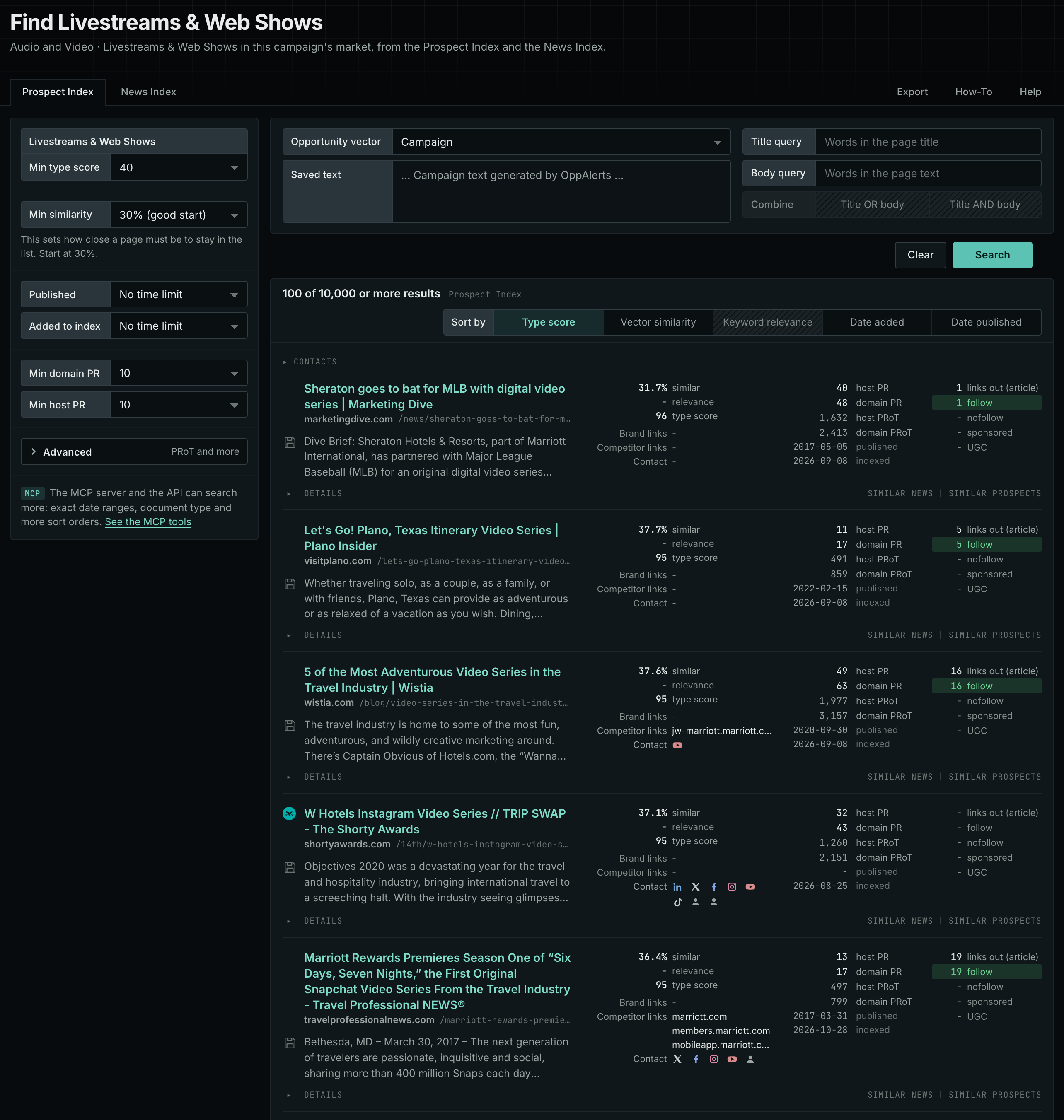
The Livestreams & Web Shows page in the app docs describes every control in the search form.
Get new pages every day
- Open your campaign in Edit Campaign, and open the Opportunities tab.
- In Search for, choose Livestreams & Web Shows in the Audio and Video group. In Opportunity vector, choose Campaign. Click Add opportunity.
- Open the Daily Email tab, select the checkbox, choose the hour, and click Save.
Each day, the Dashboard tab and the daily opportunities email show the pages added to the indexes in the last 24 hours. See Daily Monitoring and Alerts.
In MCP and the API
Two tools search this type. One request body works for both:
{
  "campaign": 3,
  "similarity_target": "campaign",
  "type_scores": [{"opportunity_type": "audio-video/web-shows", "type_score_min": 50}],
  "sort": "type_score"
}- MCP:
news_searchsearches the News Index.prospects_searchsearches the Prospect Index. - API:
POST https://api.oppalerts.com/v1/news/searchandPOST https://api.oppalerts.com/v1/prospects/search, with the same JSON body.
In type_scores, type_score_min sets the minimum type score, from 1 to 100. Sorting by type_score puts the highest type score first. To keep only the newest pages, add published_from or indexed_from with a date in YYYY-MM-DD format. The MCP pages list every parameter and a full example response.
To connect your AI agent or send API requests, read Use OppAlerts in Your AI Agent, Create an API Token, and Your First API Call.
How to judge the results
- The latest episode. Check its date. A show with no new episode for a year is probably over.
- Live or recorded. A live stream requires you to attend at a set time. A recorded show lets you choose.
- The audience. Check the views and the comments. Check that the viewers are the people that you want to reach.
- The guest rules. Read how to apply, who the show wants, and what a guest must prepare.
- The end of a live page. A live coverage page of an event that is over cannot take your message now.
- The cost. Some shows charge for a guest appearance or a sponsorship slot. Ask before you agree.