Documentation / Content Types / How to Find Glossaries and Term Definitions
How to Find Glossaries and Term Definitions
Learn the terms a market uses and see which publishers define them.
What this type finds
The Glossaries type finds pages that explain the words of a field. It includes these kinds of pages:
- Term and definition lists. One page with many terms, each with a short definition, often in alphabetical order.
- Acronym and abbreviation lists. Pages that spell out the acronyms and abbreviations a field uses.
- Plain-language explainers. Pages that translate the jargon of a field for a buyer who is new to it.
- Technical dictionaries. Longer reference pages that a trade body, a vendor, or a standards group keeps for its own field.
- Single-term pages inside a glossary. A page for one term, linked from an index of terms.
A content type describes the format of a page rather than its subject. The same subject can appear in many formats. The search keeps pages that match this format and are semantically similar to your market.
Why it matters
A glossary quickly shows you which words a market uses. When you start with a new client, read ten glossaries in its market before you read anything else. You learn the terms that the buyers know, the acronyms that the trade uses, and the words that two publishers define in two different ways.
Glossaries also show which publishers answer the question "what is this term". A publisher that maintains a full glossary has invested time in the field. Those publishers are experts worth knowing. Write down the trade bodies, the vendors, and the educators that appear in the results. They are candidates for outreach, quotes, and partnerships.
Content types are for research. Use them when you take on a new client or enter an unfamiliar market. They show you what people in the market write and who writes it.
Find it in the web app
- Open Content in the web app menu.
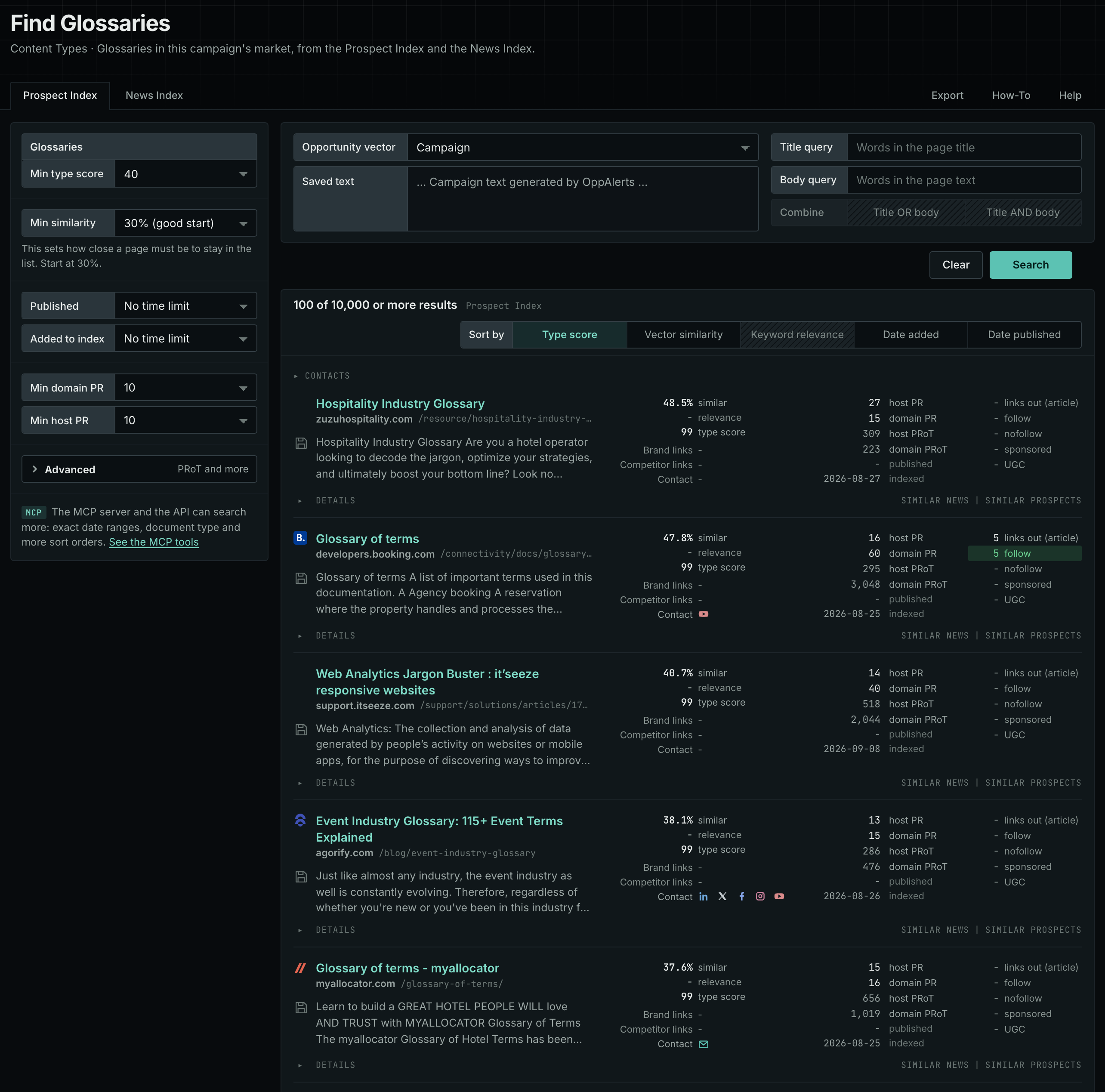
- Under Content Types, choose Glossaries. The page searches as soon as it opens.
- Open the Prospect Index tab. It shows indexed pages of this type, with the closest matches to your market first. Min type score starts at 40, and Min similarity starts at 30%.
- Open the News Index tab to see what publishers are writing now. Set Published to a recent period. Most pages in the Prospect Index have no published date, so use Added to index there.
- Raise Min domain PR if the list includes sites that nobody knows. Open Details on a row to see how to reach the site.
See the new pages
The Search for menu of a saved opportunity in Edit Campaign lists the brand searches and the opportunity types. It does not include the content types. To follow new pages of this type, return to Content Types each week. Set Added to index to the last week on the Prospect Index tab, and set Published to the last week on the News Index tab. For the daily opportunities email for a campaign, read Daily Monitoring and Alerts.
In MCP and the API
Two tools search this type. One request body works for both:
{
  "campaign": 3,
  "similarity_target": "campaign",
  "type_scores": [{"content_type": "glossaries", "type_score_min": 50}],
  "sort": "type_score"
}- MCP:
news_searchsearches the News Index.prospects_searchsearches the Prospect Index. - API:
POST https://api.oppalerts.com/v1/news/searchandPOST https://api.oppalerts.com/v1/prospects/search, with the same JSON body.
In type_scores, type_score_min sets the minimum type score, from 1 to 100. Sorting by type_score puts the highest type score first. To keep only the newest pages, add published_from or indexed_from, with a date in YYYY-MM-DD format. The MCP pages list every parameter and include the full example response.
To connect your AI agent or to send API requests, read Use OppAlerts in Your AI Agent, Create an API Token, and Your First API Call.
How to judge the results
- Check how complete the list is. A list of 20 terms is thin. A list of 200 terms with a page for each term is a source that other sites cite.
- Check who writes it. A page by a named expert or a trade body carries more weight than an unsigned page.
- Check the date. Terms change. A list that no one has updated for years can miss the words that buyers use now.
- Compare two lists. Where two publishers define one term in different ways, your market has not settled the meaning. That is a gap that your content can fill.
- Check the site. Look at the domain PR in the result row. Read the glossaries of the strong sites first.