Documentation / App / Content Optimizer
Content Optimizer
Apphttps://oppalerts.com/app/content/optimizer
What you use it for
Check a draft says what you think it says, before you publish it.
- Aim a page at a category and see how closely it matches.
- Find out what a page is really about. The returned list is often more useful than the score.
- Get the phrases you are missing for the category you are aiming at.
- Check a writer's work when you do not know the subject well enough to judge it yourself.
- Compare two drafts by running each and reading the difference.
- Settle an argument about a draft with a number rather than an opinion.
How it works
Your text is turned into a list of numbers that stands for its meaning, by the same model that processed every category of every taxonomy. Those numbers are then compared against every category, and the nearest come back.
What the number means
Semantic similarity. Not quality, not keyword density, and not a grade. A page can be excellent and land far from the category you picked, which means it is a good page about something else.
The percentages are not out of 100 in any useful sense. A strong match is usually in the 40s and 50s. Nothing ever reaches 90, and it does not need to. Read the ORDER and the GAPS between rows, not the absolute number.
Each category is scored on its own
You can pick up to three, one per taxonomy. They are never merged: merging two taxonomies would average two unrelated judgments into one meaningless number. Each pick gets its own comparison, its own list, and its own position for the category you aimed at.
What is scored
The whole text is scored, up to 8,192 bytes. An accented letter or a symbol counts as two or more. The count on the writing box says how many you have. Longer writing is refused, not cut: score it in parts.
Tabs
The page has 3 tabs.
Step 1: The input
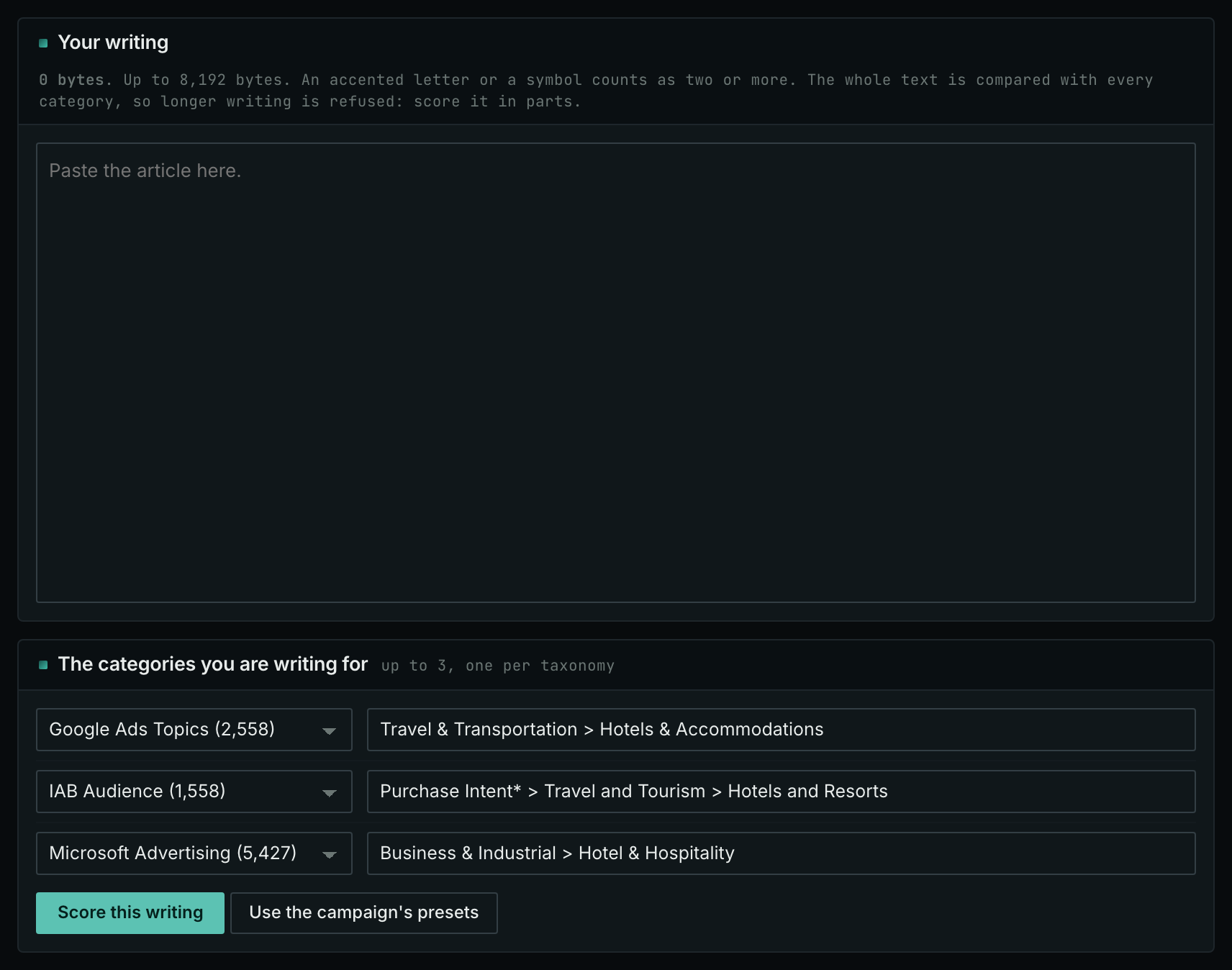
What it shows
One box for the writing, and three category slots. Every slot can be None, so nothing is scored that you did not ask for.
Where the data comes from
The writing is nothing but what you type. The page does not save the text and does not attach it to a campaign.
The taxonomies are fixed lists: IAB Content, IAB Audience, Google Ads Topics, Google Merchant, IPTC Media Topics, and the rest. The number beside each is how many categories it holds.
The rows are filled in for you, and there are three sources
The page does not open empty. It fills the three rows from the first of these that has anything, and that order is the whole rule:
- What you chose here before, for this campaign. Change a row and it is remembered in your own browser, per campaign. It is your choice, on your machine; nobody else sees it and it changes no setting.
- The campaign's taxonomy presets, set on the Settings tab of Edit Campaign. They are the client's defaults and everybody on the account gets them.
- Nothing selected, when the campaign has no presets.
"Use the campaign's presets" forgets your own choice for this campaign and puts the campaign's rows back. It is the way out when you have changed a row for one draft and want the client's defaults again. It is hidden when the campaign has no presets, because there would be nothing to put back.
Switching campaign in the breadcrumb switches all of this: the presets and the remembered choice are both per campaign.
How to use it
- Paste the real draft, not a summary and not an outline. A summary is about the page; the page is what gets scored.
- Check the rows before you score. They came from the campaign or from your last visit, and the draft in front of you may not be aimed at the same thing.
- Pick the category you are AIMING at, and be honest about it.
- Add a second taxonomy as a control. IAB Content for the subject and IAB Audience for the reader is a useful pair.
- Watch the count. Up to 8,192 bytes can be scored. The box marks anything past that, and longer writing is refused.
Step 2: Reading the result
What it shows
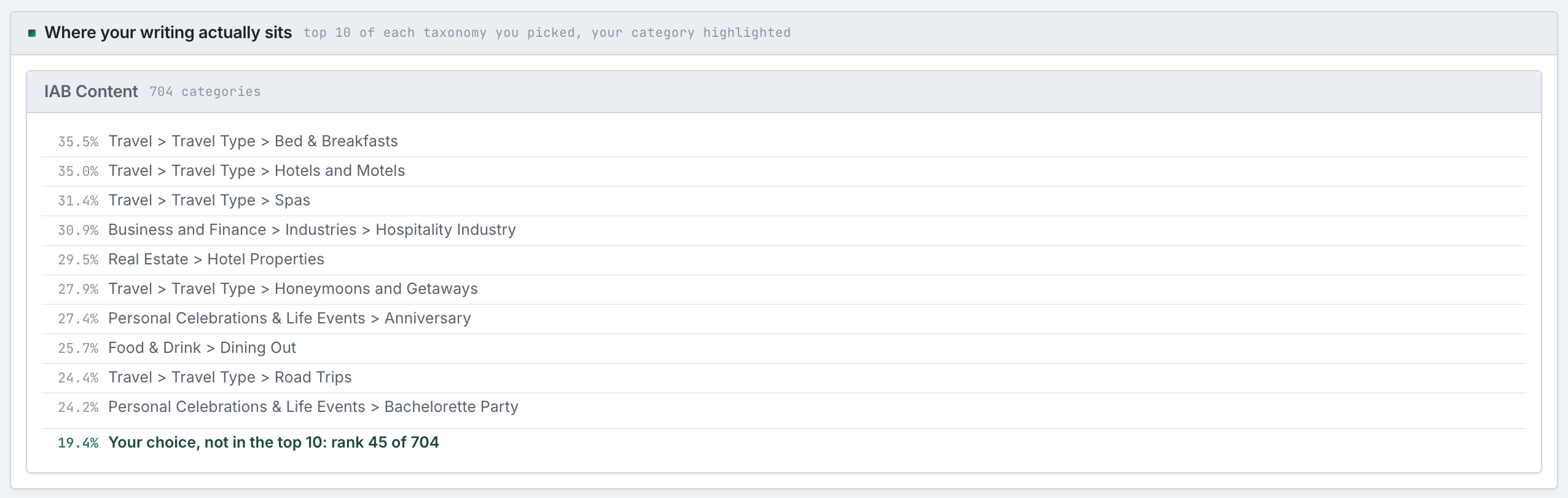
The ten categories nearest to your text, in order, out of the whole taxonomy. The highlighted row is the one you aimed at. When your category is not in the top ten, its exact position is printed instead, so you always know where you landed.
Reading the example above
The text was a draft article of about 370 words for a small hotel, about its new rewards programme for returning guests, aimed at Travel in IAB Content. Here is what that result actually says:
- It landed 45th of 704, at 19.4%, outside the top ten. So the writing is about a place to stay on a trip, and Travel is still not what it is about.
- "Bed & Breakfasts" at 35.5% and "Hotels and Motels" at 35.0% are first and second, almost tied. That is the real subject. The gap between 35.5 and 19.4 is the finding, not the 19.4.
- "Spas", "Hospitality Industry", and "Hotel Properties" are close behind. The draft reads as writing about one hotel and how it works, rather than as travel writing for a traveller.
- "Honeymoons and Getaways" at 27.9% and "Anniversary" at 27.4% are far above the aim. The draft never says couples, but a dinner for two, a bottle of wine in the room, and a stargazing weekend moved the page toward them.
- "Bachelorette Party" at the bottom of the ten is noise, and every result has some. Ignore the tail; read the gaps.
So the decision is: retarget or rewrite. Either aim the page at "Hotels and Motels" or "Bed & Breakfasts", which it already is, or add the traveller's point of view, the trip and the place, until Travel rises. What you must not do is call it a Travel page because a hotel is a place people travel to.
Where the data comes from
Every category of the taxonomy was turned into numbers once, by the same model that just read your text. The comparison is between those two sets of numbers and nothing else. No search engine, no page, no campaign.
How to use it
- Read the top row first. That is what the page is about, whatever you intended.
- Then find your highlighted row and read the distance between them.
- Read rows 2 to 4. They tell you which way the page is leaning, and they are usually the most useful part.
- Ignore the last two or three. There is always a tail.
The four answers you can get
- Your category is first, clear of the rest. On target. Publish.
- Your category is in the top few, close behind. Normal for a page that covers ground. Add the suggested phrases and run it again.
- Your category is far down, and one other row is well clear. The page is about that other thing. Retarget it or rewrite it; an edit will not close that gap.
- Everything is bunched within a few points. The draft is too short, too general, or covers too many subjects at once. Score is not the problem; focus is.
Step 3: The phrases to work in
What it shows
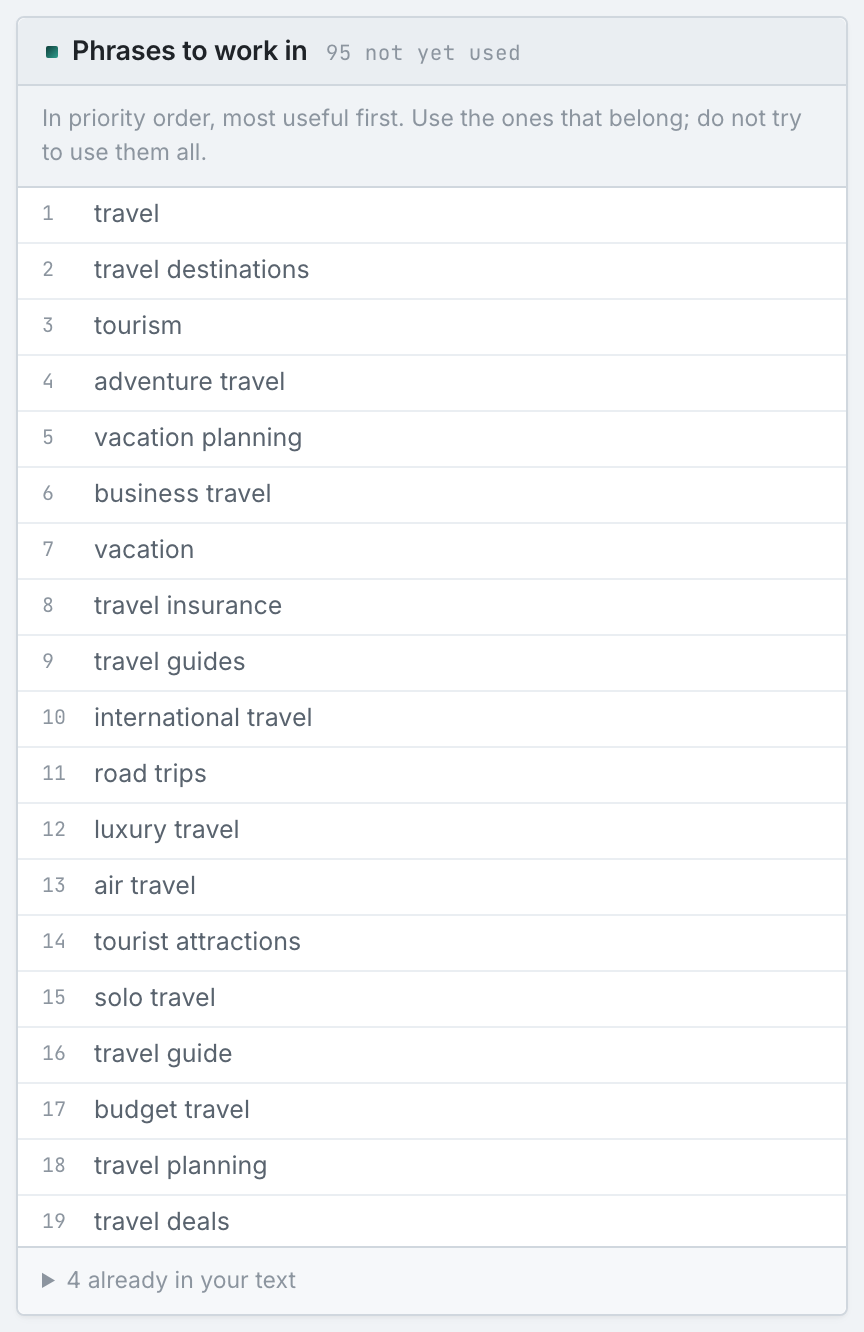
The keywords of the category you aimed at that your text does not already use, in priority order, with a count of how many there are.
Matching allows for capitals, punctuation, and simple plurals, so "theme parks" in your text counts as "theme park".
Reading the example above
The aim was Travel, and the list starts with travel, travel destinations, tourism, adventure travel, vacation planning. Even the word travel is not in the draft. That list is telling you something before you use any of it:
These phrases do not belong in an article about the rewards programme of one hotel. The list is a description of what "Travel" means in this taxonomy, and it does not match the page. That is the same finding as the result above, said a second way: the page is not a Travel page, and forcing these words in would make it a worse page, not a nearer one.
95 not yet used is the same signal. A page genuinely on target usually has a short list, because it already uses the language.
Where the data comes from
The keywords stored on that category in the taxonomy, minus everything your text already uses, sorted by how strongly each one belongs to the category. Not from your market, not from a search engine, and not from your competitors.
How to use it
- Read the list before you use it. If most of it does not belong in your page, that is the answer and you should stop there.
- Take the few that do belong and work them into sentences where they fit.
- Never paste them as a list. It moves the number and not the reader, and a page written for the number reads like one.
- Run it again and check the result moved. If it did not, the edit did not change the meaning.
The phrases are the weakest signal on the page. The order of the result list above is the strong one. Use the phrases as vocabulary, not as a checklist.
On your own campaign
The order to work in
- Paste the draft and pick the category you are aiming at.
- Score it and read the TOP row, not your own row. That is what the page is about.
- Read the gap between the top row and yours.
- Decide: retarget or rewrite. A small gap is an edit. A large gap with something else clearly on top is a different page.
- Take the phrases that belong and work them in as sentences.
- Run it again and compare.
A worked sequence for one page
- Content Types says which SHAPE the market rewards.
- Keyword Research, LLM Content Phrases says how the market TALKS.
- This page is the check at the end, before it goes out.
Using it on somebody else's page
Paste a competitor's page that outranks you and aim it at the same category you aimed yours at. The comparison between the two results is usually more useful than either one alone, and it tells you what their page is doing that yours is not.
What it will not tell you
- Whether the page is any good. It measures semantic similarity, not writing.
- Whether it will rank. No search engine is involved.
- What to write. Content Types and Keyword Research answer that.
- Anything about your campaign. This page reads nothing from the campaign except its taxonomy presets.
MCP
The MCP tool taxonomy_semantic_content_analyzer gives the data of this page: for the same text and the same categories, the same scores, ranks, nearest categories, and phrases. taxonomy_categories gives the categories of the picker, and taxonomy_taxonomies gives the taxonomies. This page uses these 3 tools.
API
The API route POST /v1/taxonomy/semantic_content_analyzer gives the data of this page: for the same text and the same categories, the same scores, ranks, nearest categories, and phrases. POST /v1/taxonomy/categories gives the categories of the picker, and POST /v1/taxonomy/taxonomies gives the taxonomies.