Documentation / How-To Guides / How to Research Customer Questions
How to Research Customer Questions
Research customer questions to decide what your content needs to explain.
Research questions about your market before choosing an article title. Existing answers show which questions people ask and what a new page may need to explain. OppAlerts scores every page for the FAQs and Q&A content type, making those pages searchable in both the News Index and Prospect Index. The four workflows below help you find questions and compare the answers.
- Which questions does my market ask again and again? Advanced Search: Prospect Index, with the FAQs and Q&A type.
- Which questions are new? Advanced Search: News Index, with the FAQs and Q&A type.
- Which questions are about one subject? Advanced Search, with a word from Keyword Research in the title.
- How do other pages answer the questions? Content Types: FAQs and Q&A.
1. Read the questions that your market asks
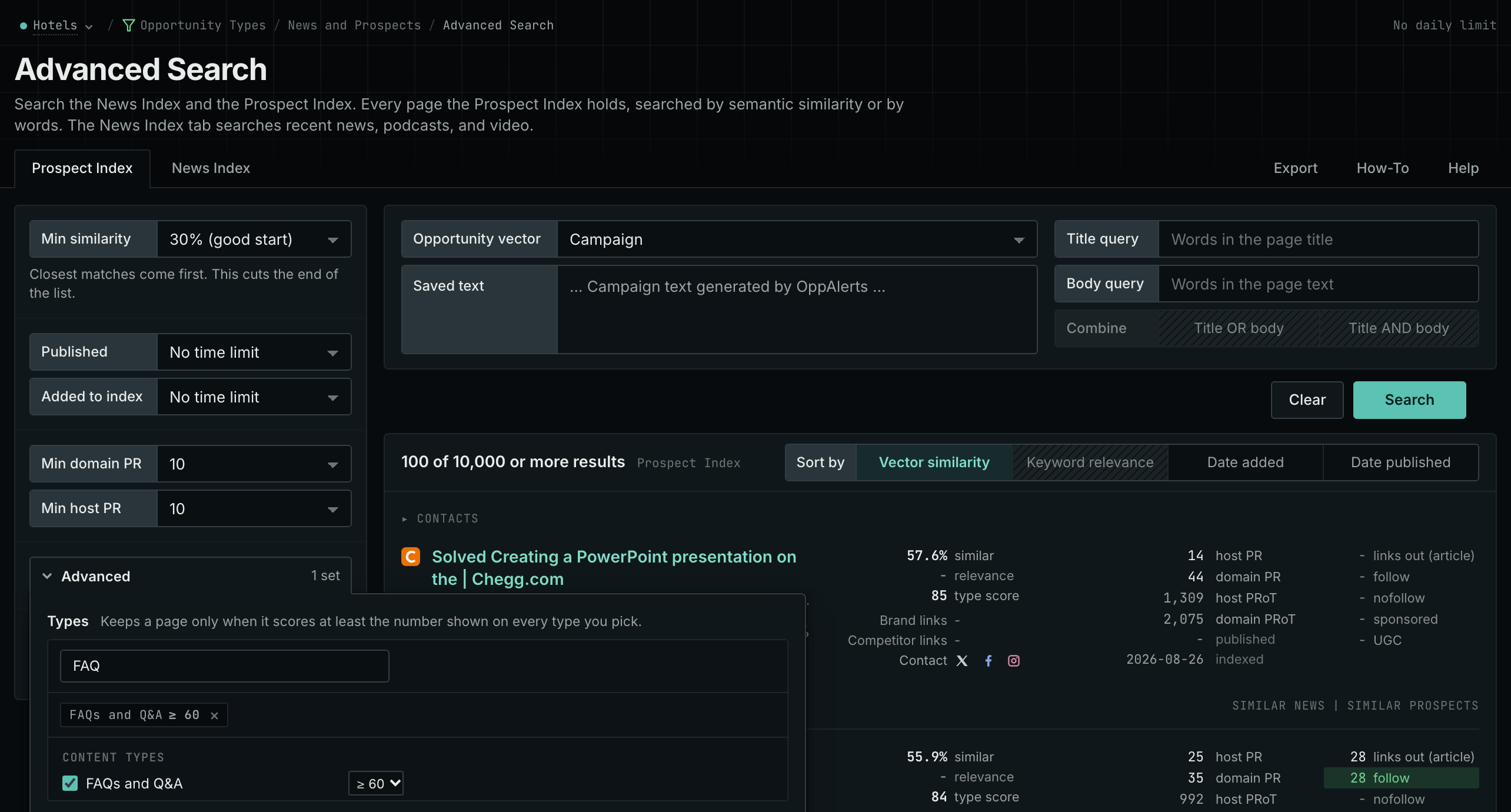
- Open Advanced Search in the web app, and open the Prospect Index tab. It holds pages of every date.
- In Opportunity vector, choose Campaign. The search then finds the pages nearest to your market in semantic similarity.
- Click Advanced. In Types, tick FAQs and Q&A, and choose a minimum score, for example 60.
- Click Search. Read the titles and the text of the rows, and note the questions that the pages answer.
- Open the pages to see how they answer the questions.
- MCP:
prospects_search, with{"campaign": 3, "similarity_target": "campaign", "similarity_score_min": 25, "type_scores": [{"content_type": "faqs-and-q-and-a", "type_score_min": 60}], "sort": "best"}. - API:
POST https://api.oppalerts.com/v1/prospects/search, with the same JSON body.
2. Read the new questions in the news
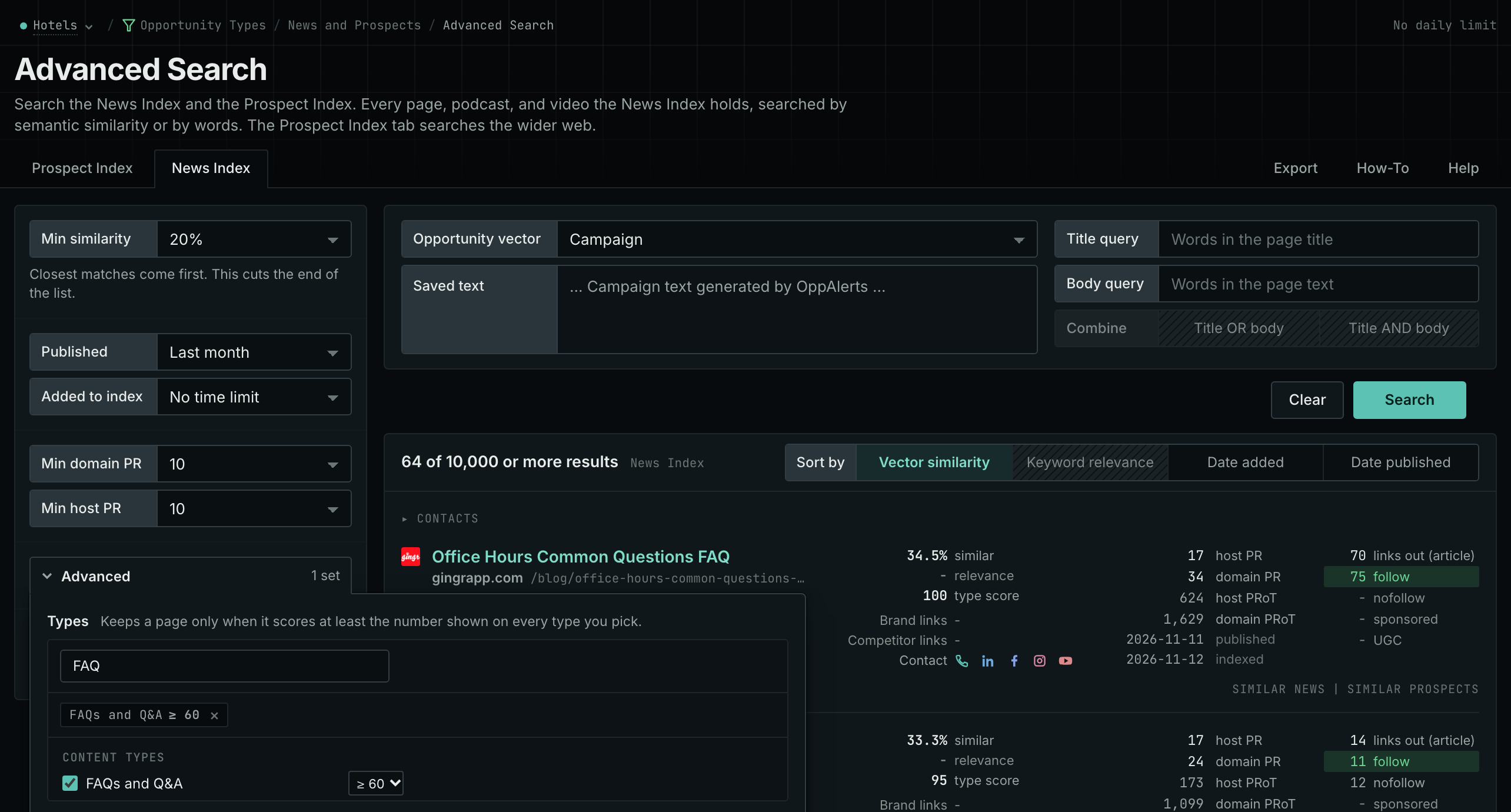
- In Advanced Search, open the News Index tab. It holds news pages, podcasts, and videos. Keep the same Opportunity vector and Types.
- Set Published to Last week or Last month to read only the newer pages.
- Compare the questions with the questions of the Prospect Index tab. A question on both tabs is asked all the time. A question only in the news is new.
- MCP:
news_search, with{"campaign": 3, "similarity_target": "campaign", "similarity_score_min": 25, "published_from": "2026-11-01", "type_scores": [{"content_type": "faqs-and-q-and-a", "type_score_min": 60}], "sort": "best"}. - API:
POST https://api.oppalerts.com/v1/news/search, with the same JSON body.
3. Find the questions about one subject
- Open Keyword
Research, and read the LLM Search Keywords tab.
Choose a word that names the subject, for example
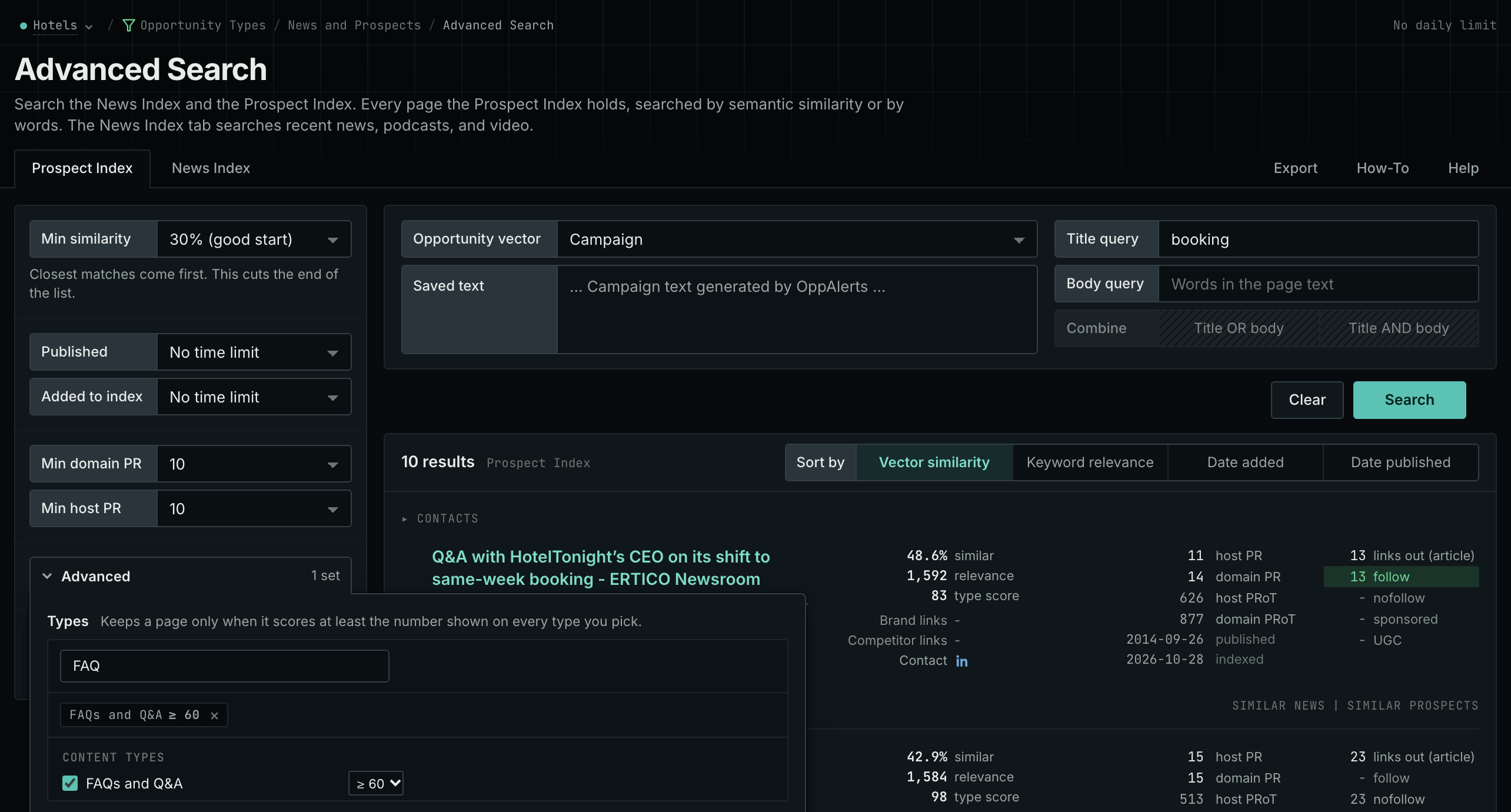
booking. - In Advanced Search, type the word in Title query. A page must then have the word in its title.
- Or, in Opportunity vector, choose Similarity text, and paste a paragraph about the subject.
- Keep FAQs and Q&A ticked in Types. Run the search, and read the questions on both tabs.
- If the list is empty, choose a longer time in Published or Added to index, lower Min similarity, or lower the minimum score of the type.
- MCP:
llm_answers_search_keywordsgives the words, with{"campaign": 3, "page": 1}. Thenprospects_searchandnews_search, with{"campaign": 3, "similarity_target": "campaign", "similarity_score_min": 25, "title_query": "booking", "type_scores": [{"content_type": "faqs-and-q-and-a", "type_score_min": 60}], "sort": "best"}. - API:
POST https://api.oppalerts.com/v1/llm_answers/search_keywords, thenPOST https://api.oppalerts.com/v1/prospects/searchandPOST https://api.oppalerts.com/v1/news/search, with the same JSON bodies.
4. Read how other pages answer the questions
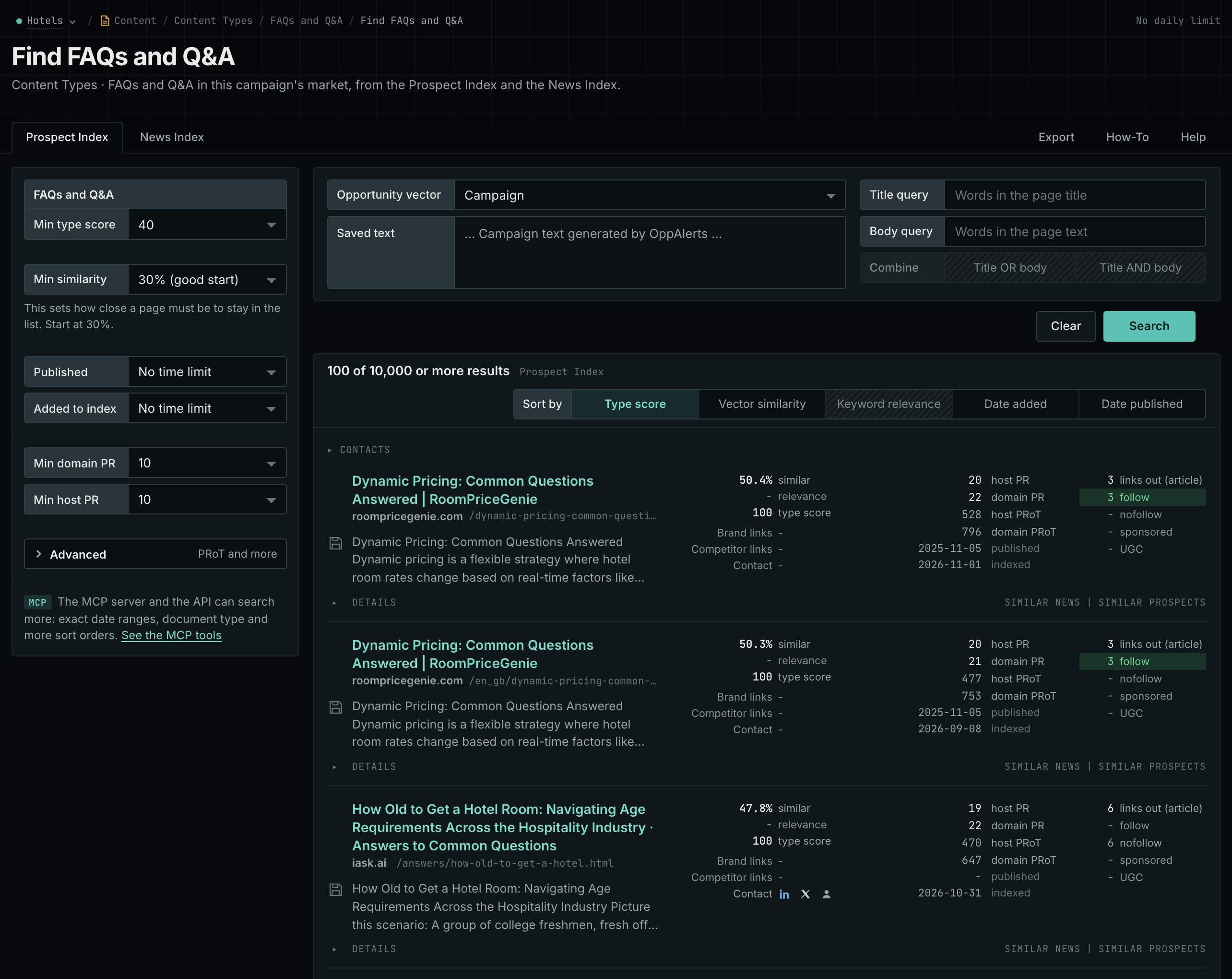
- Open Content Types, and choose FAQs and Q&A.
- Read the Prospect Index tab. Note the questions that these pages answer, and if those questions matter to your customers.
- Note what the answers leave unclear.
- MCP:
prospects_searchandnews_search, with{"campaign": 3, "similarity_target": "campaign", "pr_domain_min": 10, "type_scores": [{"content_type": "faqs-and-q-and-a", "type_score_min": 50}], "sort": "type_score"}. - API:
POST https://api.oppalerts.com/v1/prospects/searchandPOST https://api.oppalerts.com/v1/news/search, with the same JSON body.
How to judge the results
- Read what the reader wants to do. For a booking service, changing a booking means keeping it under different conditions; cancellation means ending it. A brief labeled only "booking changes" may omit the refund explanation needed by someone considering cancellation.
- Read what current answers leave unclear. A cancellation page may list a fee without explaining when it applies, or mention a refund without its conditions. Supply current terms and explanations to give the writer useful material to develop.
- Keep the words that matter. Preserve the distinction between eligibility ("Is it allowed?") and consequences ("What happens?"). Give the writer the original questions and current terms.
- Not every title is a question. Open pages with titles such as "Help Center" and read their headings; the questions may appear there rather than in the page title.
- One page or two. Combine questions on one page when both explanations remain clear. Give each its own page when more space is needed. Base that choice on readers' needs even when the questions share a keyword.
- Answer in the first paragraph. Use the question as the heading, word for word. Put the detail below the answer.
- Review the draft. Verify that the draft explains the decision specified in the brief and uses accurate terms. Track later citations separately from this assessment of the answer.