Documentation / How-To Guides / How to Find Unlinked Brand Mentions
How to Find Unlinked Brand Mentions
Find unlinked brand mentions and assess where a link would help readers.
Use Brand Unlinked Mentions or a saved opportunity to find pages that name your brand without linking to your sites. The writer already knows your business, which gives you context for a request when a link would help readers. This guide explains how to find those mentions, check the live page, and choose a useful destination.
- Which pages name you and do not link to you? Brand Unlinked Mentions.
- What is new today? A saved opportunity and the daily opportunities email.
Before you start: enter your names and your hosts
- Open your campaign in Edit Campaign, and open the Settings tab.
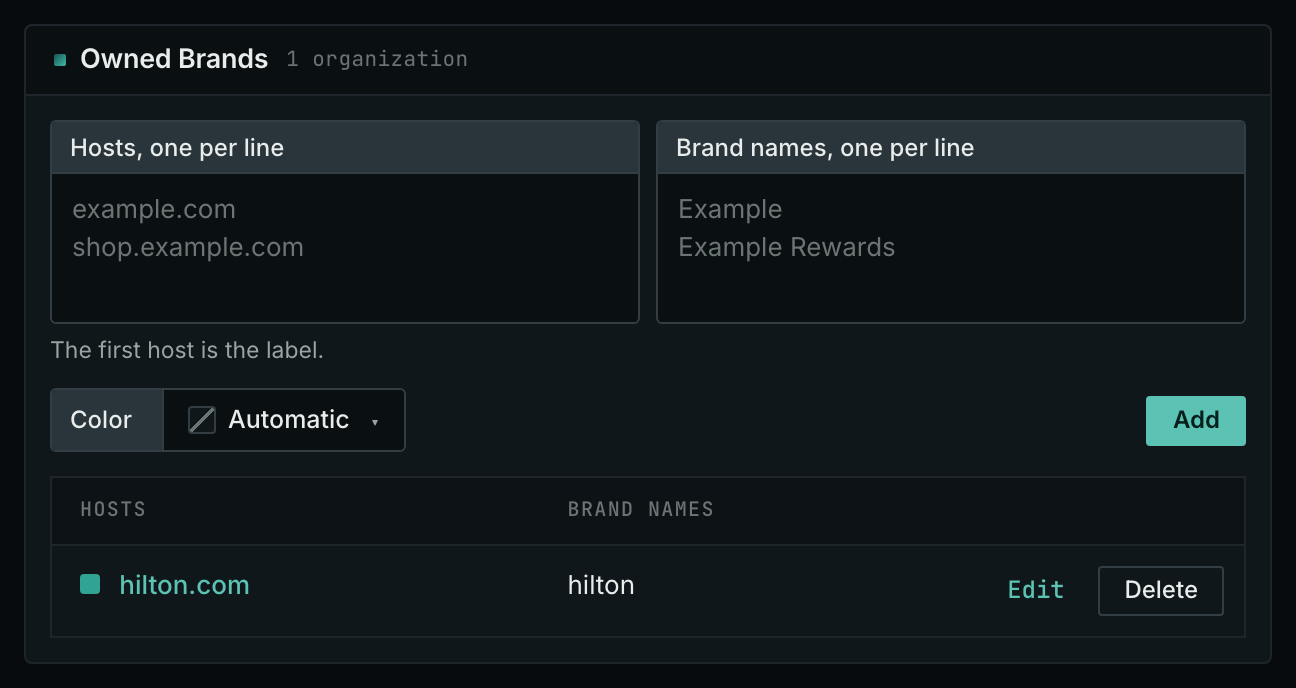
- In the Owned Brands box, enter each brand name that people use for your business.
- Enter every host that you own, also old domains and microsites.
- Save the tab.
The search matches the names you enter against page titles and bodies; omitted names are not found. It excludes pages linking to any entered host. Omitting an owned host can make a page linking to it appear to be an unlinked mention.
- MCP:
campaigns_organizationslists the organizations of a campaign and their relationships, with{"campaign": 3}. - API:
POST https://api.oppalerts.com/v1/campaigns/organizations, with the same JSON body.
1. Read the pages that name you and do not link to you
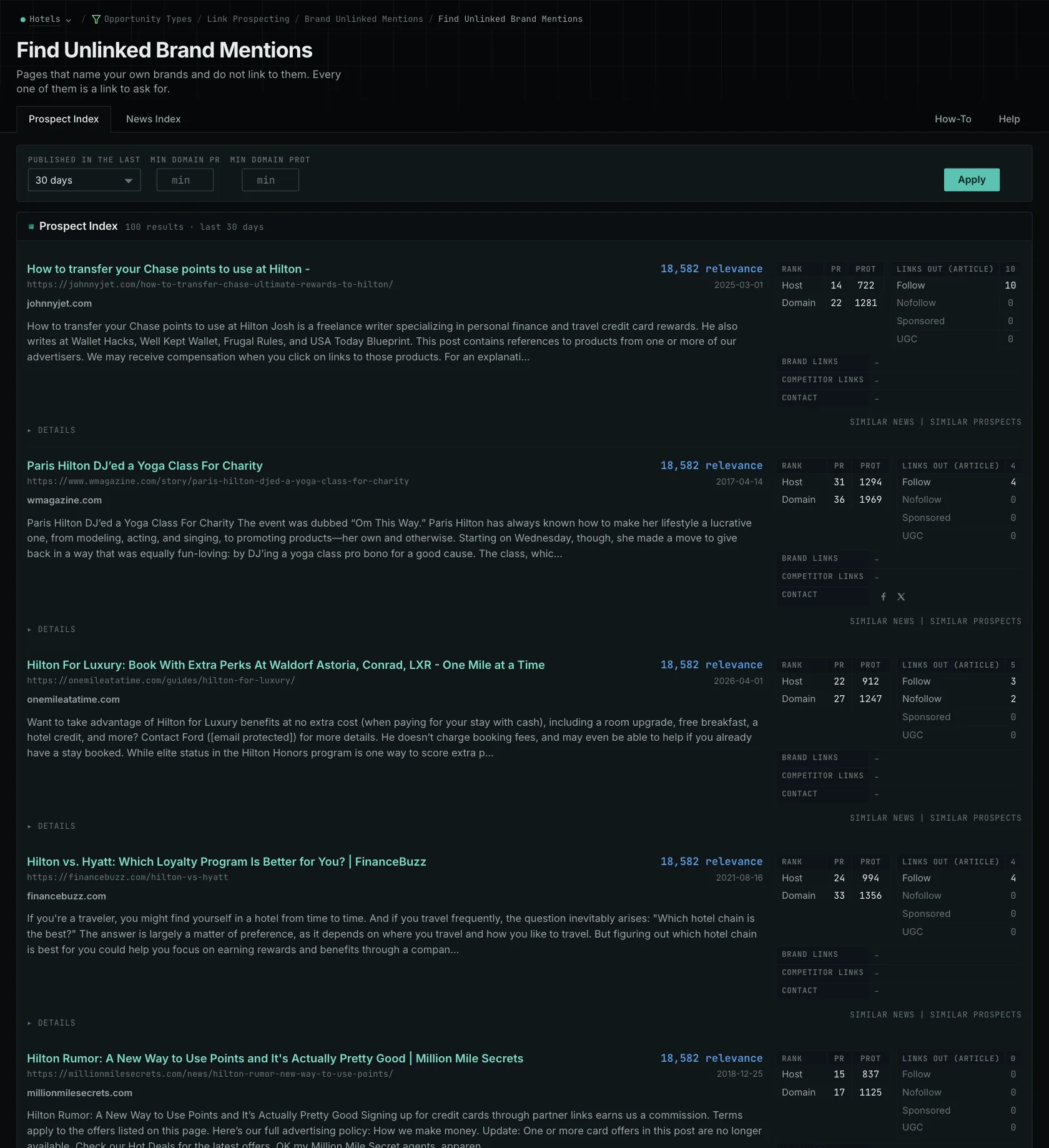
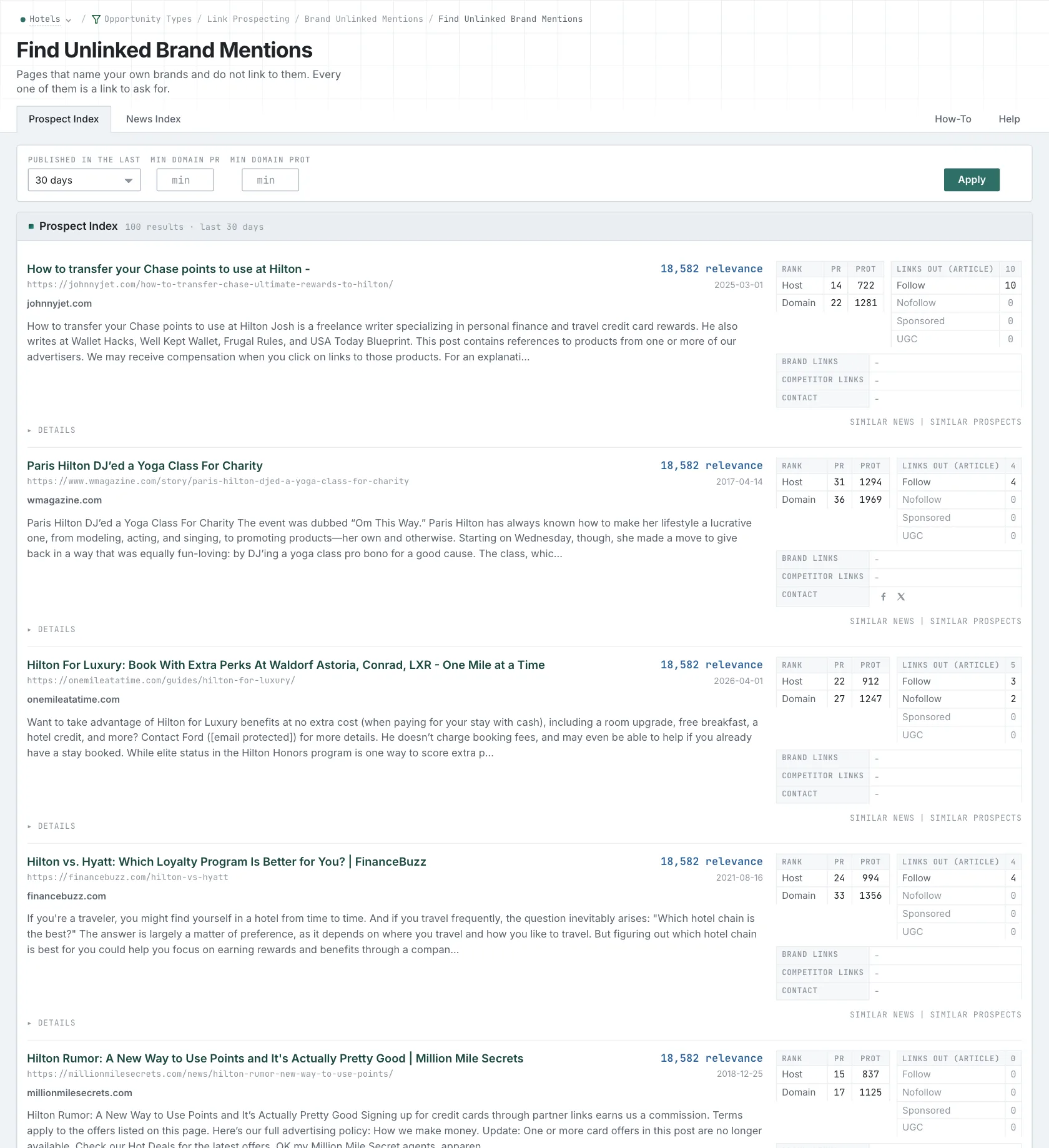
- Open Brand Unlinked Mentions in the web app.
- Read the News Index tab first. Set Published to the last few weeks. A writer adds a link to a recent article more easily than to an old one.
- Then read the Prospect Index tab. Most pages on this tab have no published date, so use Added to index for a time window.
- Set Min domain PR high first, and then make it lower.
- Open each page that matters, and read the sentence that names you. Details on the row lists the contact data of the site.
- MCP:
news_unlinked_brand_mentionsandprospects_unlinked_brand_mentions, with{"campaign": 3, "relationship": "org_owned_brand", "published_days": 30, "similarity_target": "none", "sort": "relevance"}. Forprospects_unlinked_brand_mentions, sendindexed_daysin place ofpublished_days: it counts from the date that the page came into the index. - API:
POST https://api.oppalerts.com/v1/news/unlinked_brand_mentionsandPOST https://api.oppalerts.com/v1/prospects/unlinked_brand_mentions, with the JSON body of each tool.
2. Get the new unlinked mentions every day
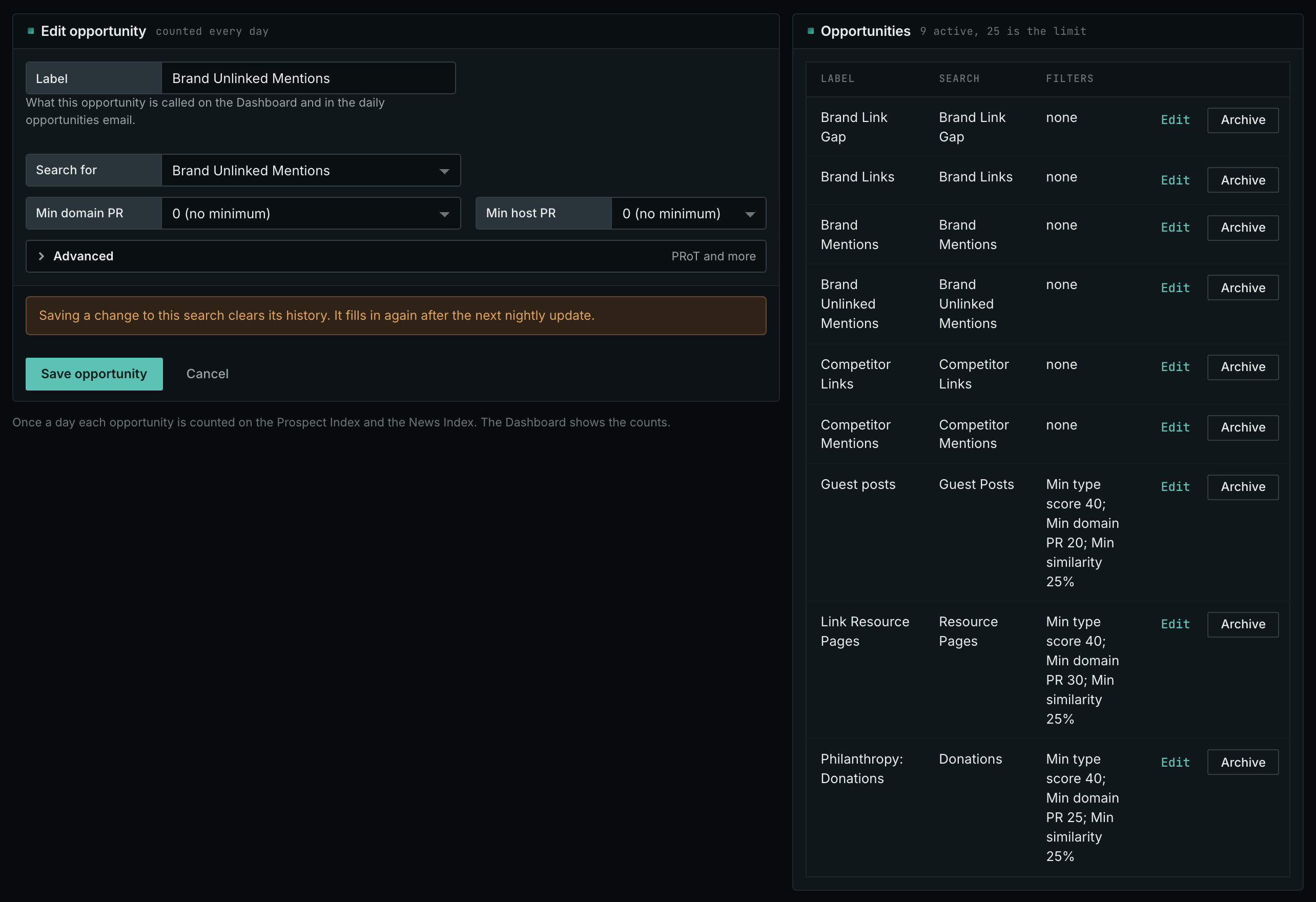
- In Edit Campaign, open the Opportunities tab.
- Add an opportunity. In Search for, choose Brand Unlinked Mentions. Click Add opportunity.
- Open the Daily Email tab, tick the box, choose the hour, and click Save.
- Each day, the Dashboard tab and the daily opportunities email show the new pages: the pages that came into the indexes in the last 24 hours.
- MCP:
campaigns_saved_opportunitiesgives the ID of each saved opportunity. Thennews_opportunitiesandprospects_opportunitiesgive the pages of 1 to 7 days, with{"campaign": 3, "opportunity": 1, "date_from": "2026-08-26", "date_to": "2026-09-01"}. For one day, send the same day indate_fromanddate_to. - API:
POST https://api.oppalerts.com/v1/news/opportunitiesandPOST https://api.oppalerts.com/v1/prospects/opportunities, with the same JSON body.
How to judge the results
- Open the live page first. The report reflects the page when OppAlerts collected it. A publisher may since have added a link. If the page links to an old URL of yours that no longer works, request a correction to that link.
- Read the sentence around your name. A passing mention may need no link, while a product claim may need a verifiable source. Decide whether a reply would help with a negative passage. A mention alone establishes neither a relationship with the writer nor an invitation to contribute.
- Choose the page that helps the reader. If a scheduling-tool comparison links to two products but only names yours, readers must search for your product. Suggest a page explaining the feature under comparison. Use the homepage only if it provides that explanation.
- Make the request specific. Give the article, the sentence, and the page to link. Say what the readers find there. For a broken link, give the current URL and the replacement URL, so that the publisher can check the problem.
- Check the date and the contact. A newly found page may be years old, and its writer may have moved on. Follow the publication's correction instructions; its current editorial contact may handle the request.
- Keep a record. Some pages warrant no request. Record the pages reviewed and requests sent so you avoid contacting a publisher twice about the same article.