Documentation / Opportunity Types / How to Find Newsletter Ads and Sponsorships
How to Find Newsletter Ads and Sponsorships
Find email newsletters in your market that sell sponsorship slots, with their prices and subscriber information.
What this type finds
This type finds pages where a newsletter offers ad space in its emails. These include:
- Sponsor pages of one newsletter. The page that says how to sponsor or advertise in that newsletter.
- Newsletter media kits. The subscribers, the open rate, the slots, and the prices of one newsletter.
- Dedicated email offers. A site sends its list one email containing only your message.
- Solo ads and classified ads in an email.
- Directories, marketplaces, and networks that list newsletters with ad space for sale.
- Pages with subscriber and open rate facts. These pages say how many people get the email, and how many open it.
Why it matters
- You reach a list of people who chose to read. Newsletter readers have chosen to receive the email.
- The slots are clear. A newsletter says what it sells, how often it sends, and how many people read it.
- It fits businesses that sell to a defined group, for example one trade or one hobby, and agencies that buy slots for a client.
Find it in the web app
- Open Opportunity Types in the web app menu.
- Choose Advertising, then choose Newsletter Ads.
- Read the Prospect Index tab first. Pages of this kind often have no published date, so do not set Published on this tab. Min type score defaults to 40. Raise it to keep only the pages that match this type most closely.
- Click Vector similarity in Sort by to put the pages most similar to your market first.
- Open the News Index tab, and set Published to the last few weeks. This tab shows current pages.
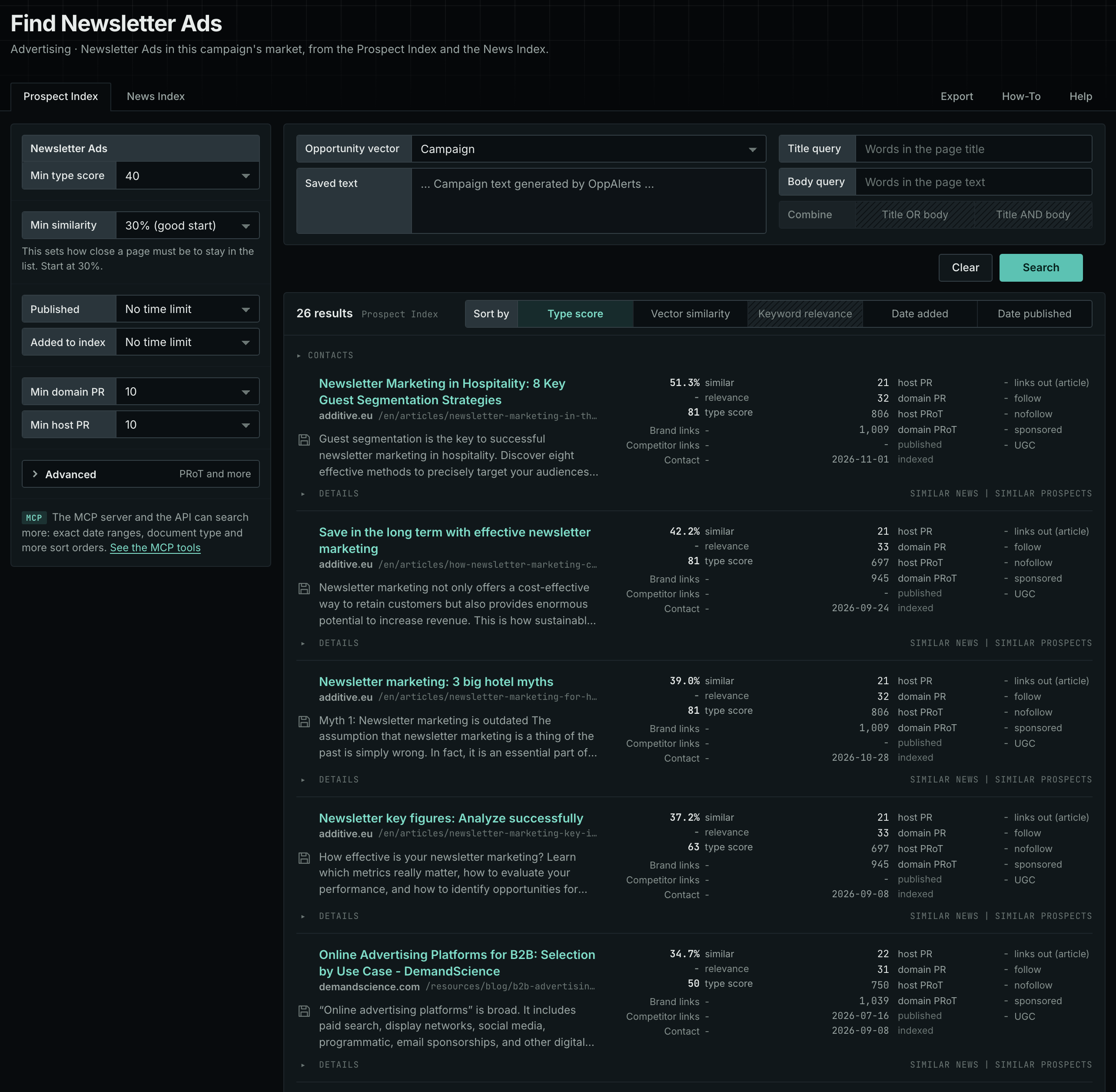
The Newsletter Ads page in the app docs describes every control in the search form.
Get new pages every day
- Open your campaign in Edit Campaign, and open the Opportunities tab.
- In Search for, choose Newsletter Ads in the Advertising group. In Opportunity vector, choose Campaign. Click Add opportunity.
- Open the Daily Email tab, select the checkbox, choose the hour, and click Save.
Each day, the Dashboard tab and the daily opportunities email show the pages added to the indexes in the last 24 hours. See Daily Monitoring and Alerts.
In MCP and the API
Two tools search this type. One request body works for both:
{
  "campaign": 3,
  "similarity_target": "campaign",
  "type_scores": [{"opportunity_type": "advertising/newsletter-ads", "type_score_min": 50}],
  "sort": "type_score"
}- MCP:
news_searchsearches the News Index.prospects_searchsearches the Prospect Index. - API:
POST https://api.oppalerts.com/v1/news/searchandPOST https://api.oppalerts.com/v1/prospects/search, with the same JSON body.
In type_scores, type_score_min sets the minimum type score, from 1 to 100. Sorting by type_score puts the highest type score first. To keep only the newest pages, add published_from or indexed_from with a date in YYYY-MM-DD format. The MCP pages list every parameter and a full example response.
To connect your AI agent or send API requests, read Use OppAlerts in Your AI Agent, Create an API Token, and Your First API Call.
How to judge the results
- Recent issues. Read the latest issues. Check that the newsletter is still being sent, and that the content fits your market.
- The subscriber and open rate numbers. The newsletter reports its own numbers. Ask how it measures them and when they were last measured.
- The slot. A slot at the top of an email is not the same as one at the bottom. Ask what each slot includes.
- The sending schedule and the booking date. Check the dates when slots are open and how far ahead you must book.
- The price. Compare the price with the number of subscribers. Ask about a discount for several issues.
- The disclosure rules. Check how the newsletter marks a sponsor.