Documentation / App / Advanced Search
Advanced Search
Apphttps://oppalerts.com/app/opportunities/advanced_search
What you use it for
The page where you ask your own question. Every other report page asks a fixed question of the two indexes. This one hands you the query.
- Answer something no report covers. "Which sites wrote about both of my competitors last month" is a search, not a report.
- Find pages by SEMANTIC SIMILARITY. Paste a paragraph and get the pages nearest to it, whether or not they share a single word.
- Find pages by WORDS. A phrase in quotes, OR, -, NEAR, and the other search operators, and a title search that runs separately from a body search.
- Filter by the strength of the SITE, not the page: PageRank this month, and PageRank added up over every month the web graph holds.
- Check what the index actually holds about a page before you trust a report built on it.
How it works

Two tabs, two indexes. The form is the same on both tabs. The pages it searches are completely different.
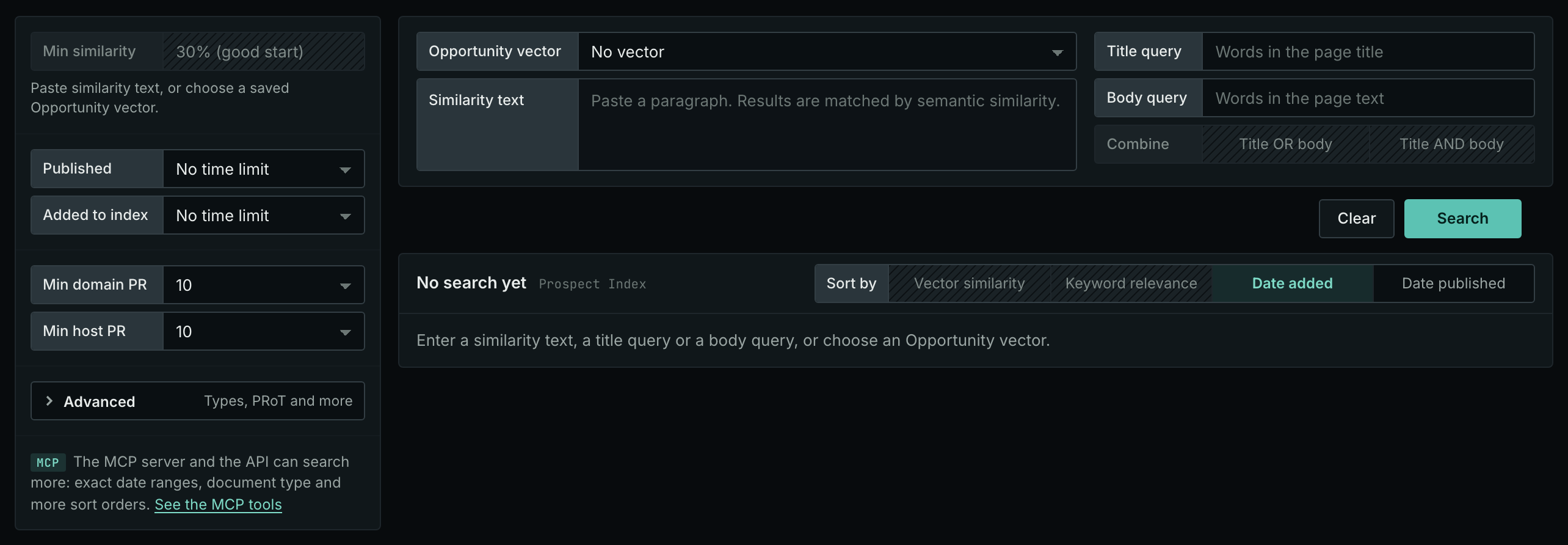
The four parts of the form
- The sidebar on the left holds the filters: Min similarity, Published, Added to index, Min domain PR, Min host PR, the Advanced button, and a note about the MCP server.
- The text card holds what you search for: Opportunity vector, the Similarity text box, Title query, Body query, and Combine.
- Clear and Search are under the text card. Search runs the form. Clear puts every box back to how the page opens, and runs the search again.
- The results card has the count and Sort by in its head, and the result rows under it.
When the page opens, no search runs. Opportunity vector is on No vector and the word boxes are empty, so there is nothing to search for, and the results card says "No search yet". Type in a word box, choose Similarity text and paste a text, or choose a stored vector, then click Search. A filter alone is not a search.
Opportunity vector and Similarity text: a SEMANTIC search
A semantic search turns text into 768 numbers, and the index returns the pages whose own numbers are nearest. No word has to match. The Opportunity vector menu says which text the pages are matched against:
- No vector is the value when the page opens. The words alone find the pages, and the Similarity text box is locked.
- Similarity text is your own text. Paste it in the box. With the box empty, the search is refused.
- Campaign is the stored text that describes your campaign's market. OppAlerts makes its vector when the campaign is finalized and its research finishes. You can choose Campaign before that, but the page does not search. It says that the campaign has no Campaign vector yet.
- Saved opportunities, at the end of the menu, are the opportunities you created on the Opportunities tab of Edit Campaign.
When you choose a stored vector, the box shows its saved text, read only, and its label changes to Saved text. A saved opportunity also sets Min similarity to its own minimum. A saved opportunity in grey has no stored vector yet.
Title query and Body query: a WORD search
Every word typed is required. A quoted phrase stays a phrase, and a bare OR, in capitals, is the OR operator. Title query reads only the page title. Body query reads the page text. Combine says how the two boxes go together: Title AND body needs both to match, Title OR body needs one of them. Combine is grey until both boxes hold words.
Requiring every word often catches people out: a six-word query usually returns nothing because every word must match.
A query takes at most 20 words or phrases. Words in quotes count as one phrase, and an operator does not count. With more, the page does not search, and the sentence under the boxes says why.
The search operators. OR, AND, MAYBE, NEAR/3, and NOTNEAR/3 work only in capitals. In lower case, each one is a plain word. Type -spa to remove the pages with the word, "red car" for the exact phrase, and "red car"~5 for the words of the phrase within 5 words. Type =hotels for the exact word form, hotel^3 to give a word more weight, and hote* for the words that start with "hote" (3 letters or more before the *). Use one level of parentheses: (hotel OR motel) spa. A -, _, or @ between 2 letters or digits is a part of the word: coca-cola works as you type it. When a query holds a character that is not allowed, or uses an operator in a way the search cannot run, the page does not search, and the results card says what to correct. A query holds only the letters a to z, the digits 0 to 9, spaces, a -, _, or @ inside a word, and the operators. How to Search the Indexes has every rule of a query. The full list of operators is in the documentation of the search operators.
The words and the vector work together
When you fill a word box and also use a vector, a page must match the words AND be at or above Min similarity. The words determine which pages can be returned. The vector removes the pages that are not near enough in semantic similarity.
Min similarity
How near in semantic similarity a page must be to stay in the list, as a percent. The menu goes from 100% down to 1% and opens at 30%, marked good start. It only removes results. It never brings more back. It is grey while there is no vector: an empty Similarity text box and no stored vector chosen.
Published and Added to index
Two time windows: No time limit, Last day, Last 3 days, Last week, Last 2 weeks, Last month, Last 3 months. Published is the date the page says it was published, and a page with no published date is left out when you set it. Added to index is the date OppAlerts added the page to the index. Both open on No time limit.
The minimum ranks
PR is PageRank, 0 to 100 in the newest month of a link graph built from billions of links. It comes from the sites that link to it. Both describe the SITE, not the page. Min domain PR removes every page on a domain below the number you choose. Min host PR does the same for the exact host, so news.example.com is judged apart from example.com. Both menus go from 100 down to 0 and open at 10. Choose 0 (no minimum) to keep every site.
Advanced
The Advanced button opens a panel with the filters you use less often. The button says how many of them are set.
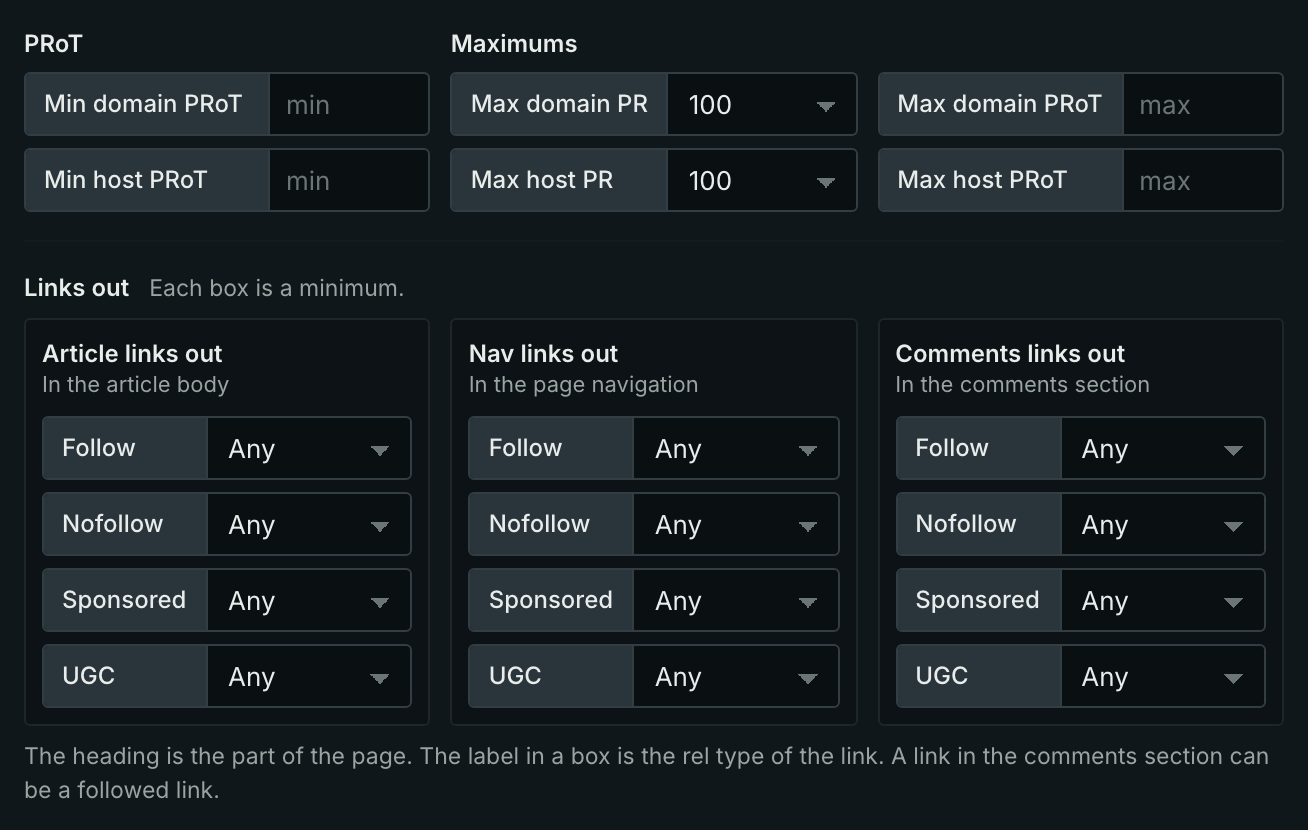
- Types is first in the panel. Every document carries one score, 0 to 100, for each opportunity type and each content type: the same scores the Opportunity Types and Content Types pages sort by. Tick a type and choose its Min type score. Every type you pick must pass: Newsletters at 80 and Blogs at 60 keeps only the documents that score 80 or more as a newsletter AND 60 or more as a blog. The Min type score goes from 1 to 100 and opens at 40. You can pick at most 20 types.
- PRoT is PageRank over Time: the PageRank of every month the graph holds, added up. It says how long the site has been strong, where PR says how strong it is now. Min domain PRoT and Min host PRoT are boxes you type a number in.
- Maximums remove the sites that are too strong: Max domain PR, Max domain PRoT, Max host PR, Max host PRoT. Use them to find smaller sites. The two PR menus go from 100 down to 1 and open at 100, which removes no site. A Max PRoT box takes 1 to 1,000,000, and an empty box sets no maximum.
- Links out is 12 menus. Each heading is a part of the page: Article links out, Nav links out, Comments links out. Each label in a box is the rel type of the link: Follow, Nofollow, Sponsored, UGC. Each menu is a minimum, Any or 1 to 10. In the sample above, Follow at 3 under Article links out keeps only the pages whose article carries 3 or more followed links out.
A PRoT number above 1,000,000 stops the whole search. The panel opens and names the box, for example "The Min domain PRoT box holds a number that is too high. The maximum is 1,000,000." Type a smaller number and click Search again. A maximum of 0 stops the search too. The panel says "A maximum cannot be 0. Type 1 or more, or empty the box for no maximum."
Sort by
The buttons in the head of the results card: Vector similarity, Keyword relevance, Date added, Date published. The sort follows what you type until you click one. With a vector in use it is Vector similarity. With only a word box filled it is Keyword relevance. With neither it is Date added. Vector similarity is grey without a vector, and Keyword relevance is grey without words. After you click a button, the sort stays on your choice.
When the page does not search
- A query with a formatting error is not searched. The sentence names the box and the error, for example: "Not searched. The Title query box has a formatting error: parentheses inside parentheses. Use only one level of ( and )." Correct the box and click Search again.
- A number box takes digits only. A PRoT box that holds 1,000 or -5 is not searched: "Not searched. The Min domain PRoT box holds a value that is not a whole number. Type digits only, for example 1000."
- A search that was sent and did not end shows a heading in the count line, and a sentence under it. "The search did not finish": the index did not answer, so try again in a few minutes. "The search was stopped": the search took more than 10 seconds. "No searches left today": the daily limit of index searches is used. "Another search is running": one index search of your account runs at a time, so click Try again.
- Each search page opens at its own values. A value that you typed on another search page is not carried over. Advanced Search opens at Min domain PR 10 and Min host PR 10.
Copies of one article
One press release is republished by dozens of sites, and each copy is a separate result. To see the copies of one article, click Similar news on that result. On that page, a copy on another site is a result like any other, near the top of the list.
Where the search runs
Both indexes and the embedding server run on our own hardware.

Reading one result row
Every page in the application that shows an index result displays this same row, with the same fields in the same order, so learning it once is enough. A hyphen means the row has no value there, or the value is 0.
- The title is the page itself. It opens in a new tab.
- The host under it is the site. Click it to open the site. The mark beside it says what the site is to your campaign, such as Competitor, when it is one of your organizations. The address after it is the page's path on that site.
- Save is the small button before the text. It puts a label on the result, such as Follow up. The label is not stored yet, so a reload clears it.
- The text is what the index stored, not a search engine's snippet. It is the beginning of the page's own writing, which is why it is worth reading before you approach anybody.
- similar, relevance, type score. similar is the semantic similarity of the page to the search text, 0 to 100 percent. relevance is how well the page matches the typed words; it has no upper end, so compare it only with the other rows of the list. type score is how well the page fits the opportunity type or content type, 0 to 100. Each one needs its part of the search, and without it the row prints a hyphen.
- Brand links and Competitor links say whether this page already links to you or to a competitor, from your Organizations list. Each line is one host it links to. Competitor links and no brand links is the target row.
- Contact is what the site publishes about itself: email addresses, phone numbers, and social accounts. Point at an icon to see them.
- host PR, domain PR, host PRoT, domain PRoT. They come from a link graph built from billions of links. PR is the PageRank of the newest month it holds, 0 to 100. PRoT is PageRank over Time: the PageRank of every month the graph holds, added up. So a site that has been strong for years is high on both, and a site that is strong only now is high on PR and low on PRoT. Host and domain differ, often by a lot: a strong domain can carry a weak subdomain, and these are the numbers the PageRank minimums filter on.
- published, then indexed. published is the date on the page, when it has one. Prospect pages usually do not, and the row prints a hyphen. indexed is the date the page came into the index. Both are dates in UTC.
- links out (article) is how many outbound links the page's own article carries, then follow, nofollow, sponsored, and UGC split them by type. A link with 2 types counts in both. A page with many followed outbound links links freely; a page with none does not link out at all, and asking it for a link is usually wasted effort.
- Details opens the hosts the page links to, in the article, the navigation, and the comments, and the site's contact routes: email addresses, phone numbers, social accounts, contact pages, and RSS feeds. It is always there, whatever the row holds.
- Similar news and Similar prospects find the pages nearest in semantic similarity to this one, in the News Index or the Prospect Index.
Tabs
The page has 2 tabs.
Tab 1: Prospect Index

What it shows
The pages we have fetched and indexed for prospecting. One row per page. It keeps every page, and many pages are years old.
In the sample above, a saved opportunity is chosen, so its text shows in the box, read only. The Title query "write for us" is a phrase. The search keeps only the pages with that phrase in the title that are also at or above Min similarity to the saved text.
Where the data comes from
Our own downloader and our own index. It keeps every page forever, in one table, so a page from 2019 is here beside one from this morning.
Most prospect pages carry no published date at all. They are a site's own pages, and a "write for us" page rarely has a date. Once you set Published to anything but No time limit, a page with no published date is left out. Use Added to index on this tab when you want only the pages that came into the index recently.
The Contacts box
On both tabs, a Contacts box can be in the results card, above the rows. It collects the social accounts, email addresses, and phone numbers of the pages the search found.
How to use it
- Use it for finding SITES, where the news tab is for finding what is being said.
- Raise Min domain PR to remove the sites with little standing.
- Open Details on a row to see the page's outbound links, which is what every link report on the site is built from.
- A host missing entirely usually means it blocks our downloader, not that we have not reached it.
Tab 2: News Index

What it shows
News, podcasts, and video. One row per document, with its title, its site, its published date, its standing, and what the index holds about it.
The count in the head of the results card can say 100 of 2,418 results. That means 2,418 pages matched the words, and the page shows the first 100 in the order of Sort by. A line such as 100 of 10,000 or more results means that the search found 10,000 pages or more. The numbers in the sample are made up.
Where the data comes from
News sources, news aggregators, about 20 million RSS feeds, and more than 4 million podcast feeds. The index keeps every document.
Use Published to read only recent news. At No time limit, the search reads the whole index.
Nearly every document has a real published date, which is why the Published menu matters on this tab and barely matters on the other.
How to use it
- Use it for "what is being said now". That is the only question this index can answer.
- For a semantic search, paste real writing, a paragraph from a page you want more of. Three words is not enough for a semantic search.
- For words, start wide. Every word is required, so add words one at a time and watch the count fall.
- Change the minimum ranks last, after you have seen what comes back. Min domain PR and Min host PR open at 10.
On your own campaign
Choosing the tab
- "Who is writing about this right now?" News Index.
- "Which sites exist that do X?" Prospect Index.
- "Who links to my competitor?" Prospect Index, or better, Brand Link Gap, which asks it for you.
- "Has anybody mentioned us?" Brand Mentions asks that properly, using the names on your organizations.
Getting a word search right
- Start with two words. Every word is required, so the count only ever falls.
- Quote a phrase when the word order matters.
- Use OR for synonyms, in capitals, as a bare word.
- Search the title when you want pages ABOUT something, and the body when you want pages that MENTION it. That distinction does more work than any filter.
Getting a semantic search right
- Paste a whole paragraph, ideally from a page you already like.
- Do not paste keywords. A list of words gives a semantic search too little text to match.
- Change Min similarity only after you have looked, because what counts as near varies with the subject. It opens at 30%.
- Add words to a semantic search when it brings back the right subject with the wrong pages. A page must then match the words AND be at or above Min similarity.
When it returns nothing
- A word search returning nothing is nearly always too many required words.
- A news search returning nothing may need wider words, a lower Min similarity, or a longer Published window.
- A semantic search returning nothing usually means Min similarity is set too high.
- Any search returning nothing can be a filter: look at Published, Added to index, the minimum ranks, and the count on the Advanced button.
- "No search yet" means there is nothing to search for. Type in a box, or choose a stored vector.
MCP
These MCP tools give the same data. Each page has every parameter and an example.
news_search: Search the News Index, a permanent collection of news pages, podcasts, and videos: by semantic similarity, by words in titles and bodies, or both, with date, document type, rank, outbound link, and type score filters.prospects_search: Search the Prospect Index, the collection of the wider web, with the same fields that news_search takes: by semantic similarity, by words in titles and bodies, or both, with date, document type, rank, outbound link, and type score filters.
API
These API routes give the same data.