Documentation / Content Types / How to Find Templates and Checklists
How to Find Templates and Checklists
See which templates and checklists a market shares, and which publishers build them.
What this type finds
The Templates & Checklists type finds pages that give the reader something to copy and use. It includes these kinds of pages:
- Checklists. A list of items to check or to do for one task, often printable.
- Cheat sheets. One-page summaries of the commands, rules, or steps of a field.
- Document and spreadsheet templates. A file that the reader fills in, such as a plan, a calendar, or a budget.
- Worksheets and forms. Pages with blanks to fill in, for use at work or in class.
- Template libraries. A page or a section with many templates for one field.
A content type describes the format of a page rather than its subject. The same subject can appear in many formats. The search keeps pages that match this format and are semantically similar to your market.
Why it matters
Templates and checklists show you what a market does again and again. A task that has many templates is a task that many people must do. When you start with a new client, read these pages to learn the routine work of its buyers.
They also show you the experts. A person who builds a good template knows how the work is done. A publisher with a library of templates is a publisher in that market. Note each publisher and the tasks that have no good template yet.
Content types are for research. Use them when you take on a new client or enter an unfamiliar market. They show you what people in the market write and who writes it.
Find it in the web app
- Open Content in the web app menu.
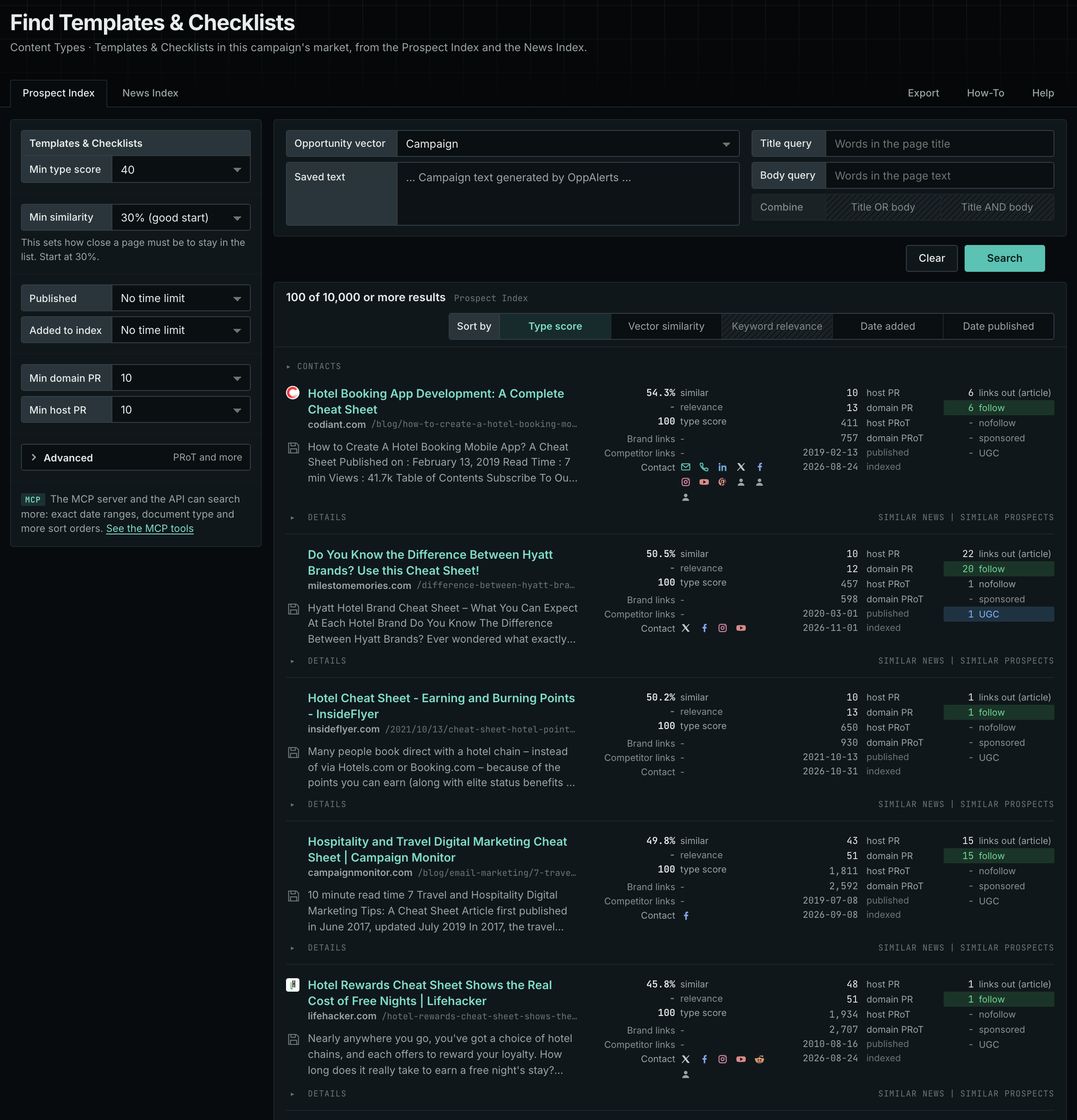
- Under Content Types, choose Templates & Checklists. The page searches as soon as it opens.
- Open the Prospect Index tab. It shows indexed pages of this type, with the closest matches to your market first. Min type score starts at 40, and Min similarity starts at 30%.
- Open the News Index tab to see what publishers are writing now. Set Published to a recent period. Most pages in the Prospect Index have no published date, so use Added to index there.
- Raise Min domain PR if the list includes sites that nobody knows. Open Details on a row to see how to reach the site.
See the new pages
The Search for menu of a saved opportunity in Edit Campaign lists the brand searches and the opportunity types. It does not include the content types. To follow new pages of this type, return to Content Types each week. Set Added to index to the last week on the Prospect Index tab, and set Published to the last week on the News Index tab. For the daily opportunities email for a campaign, read Daily Monitoring and Alerts.
In MCP and the API
Two tools search this type. One request body works for both:
{
  "campaign": 3,
  "similarity_target": "campaign",
  "type_scores": [{"content_type": "templates-and-checklists", "type_score_min": 50}],
  "sort": "type_score"
}- MCP:
news_searchsearches the News Index.prospects_searchsearches the Prospect Index. - API:
POST https://api.oppalerts.com/v1/news/searchandPOST https://api.oppalerts.com/v1/prospects/search, with the same JSON body.
In type_scores, type_score_min sets the minimum type score, from 1 to 100. Sorting by type_score puts the highest type score first. To keep only the newest pages, add published_from or indexed_from, with a date in YYYY-MM-DD format. The MCP pages list every parameter and include the full example response.
To connect your AI agent or to send API requests, read Use OppAlerts in Your AI Agent, Create an API Token, and Your First API Call.
How to judge the results
- Check that the file works. Open the template. Check that it is complete and that the format fits the user.
- Check the access. Some templates are free. Others need an email address. Plan for the cost to the user.
- Check the date. A tax or compliance checklist that is out of date can mislead the user.
- Check the fit. A template for a large company does not fit a small business. Check the audience.
- Check the site. Look at the domain PR and the host PR in the row.