Documentation / Opportunity Types / How to Find Infographic Opportunities
How to Find Infographic Opportunities
Find sites that publish, embed, or accept infographics.
What this type finds
The Infographics type finds pages that show, collect, or accept infographics. It can find:
- Submission pages and forms where a site accepts an infographic.
- Galleries, directories, and showcases of infographics.
- Pages that provide embed code so other sites can display an infographic.
- Archives and resource pages of visual content.
- Recurring chart columns, such as a chart of the day.
- Pages about interactive infographics and data visualization.
Some pages sell infographic design services or provide templates. They do not publish your work. Skip them.
Why it matters
A site that publishes or embeds an infographic can credit your business and link to the source. The type fits businesses that have data or a process to show and can illustrate it clearly.
For ideas for the content itself, read How to Find Content Ideas.
Find it in the web app
- Open Opportunity Types in the menu.
- Choose the group Content. Its types open in a third column.
- Choose the type Infographics.
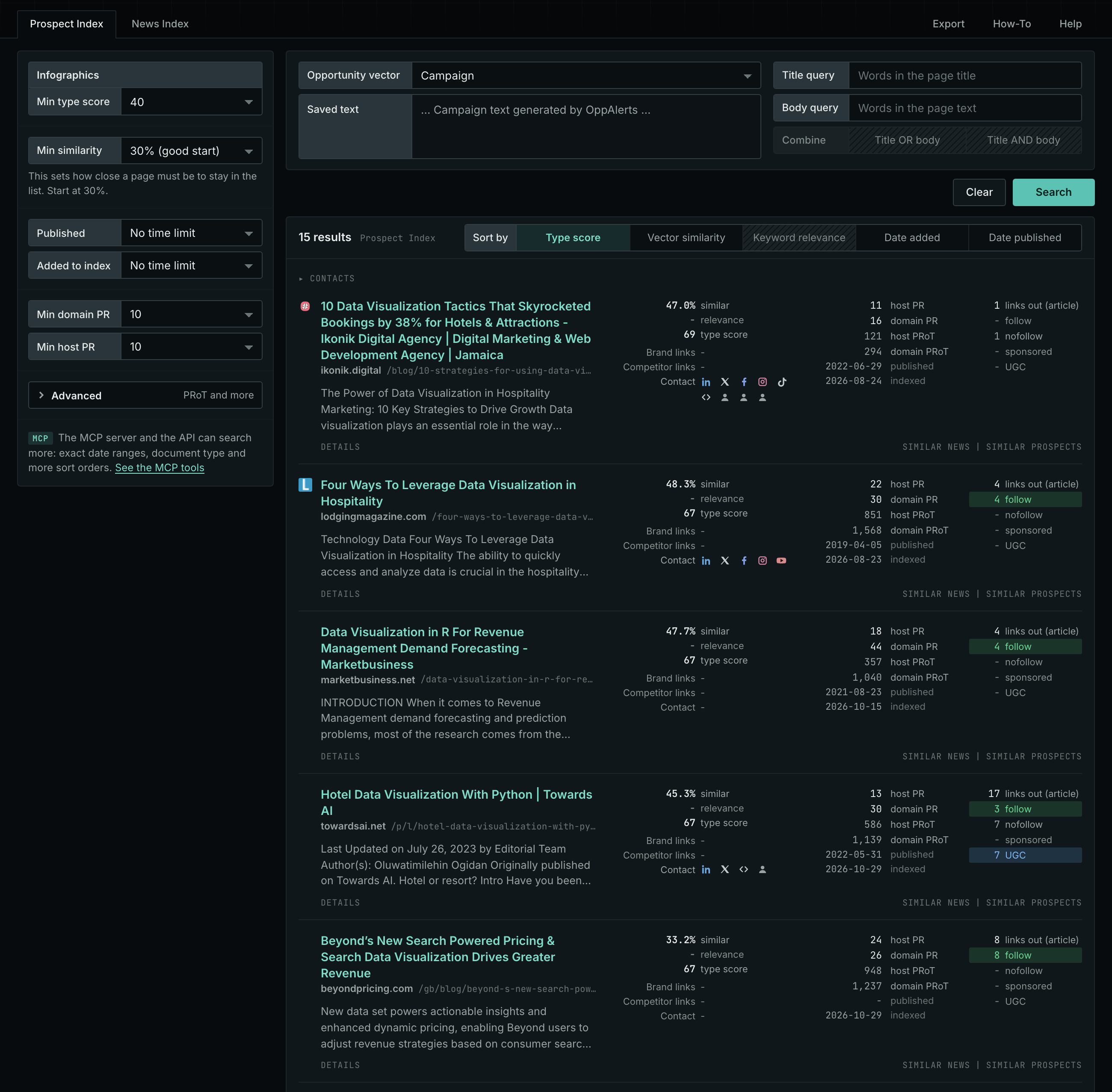
- Leave Min type score at 40, its starting value. Raise it to see only the strongest pages. Lower it to see more pages.
- Read the Prospect Index tab first. It shows both new and old pages. Raise Min domain PR to exclude sites with little standing.
- Read the News Index tab for pages published in recent weeks. Set Published to a recent period. It is normal for this tab to have few results for this type.
- The results are initially sorted by Type score. Click Vector similarity to show the pages most relevant to your market first.
Get new pages every day
- Open your campaign in Edit Campaign, and open the Opportunities tab.
- Add an opportunity. In Search for, choose Infographics under Content.
- In Opportunity vector, choose Campaign.
- Give it a Label, and save it.
The Dashboard and the daily opportunities email then show the new pages of this type. Daily Monitoring and Alerts has the steps.
In MCP and the API
Two tools search this type. One request body works for both:
{
  "campaign": 3,
  "similarity_target": "campaign",
  "type_scores": [{"opportunity_type": "content/infographics", "type_score_min": 50}],
  "sort": "type_score"
}- MCP:
news_searchsearches the News Index.prospects_searchsearches the Prospect Index. - API:
POST https://api.oppalerts.com/v1/news/searchandPOST https://api.oppalerts.com/v1/prospects/search, with the same JSON body.
In type_scores, type_score_min sets the minimum type score, from 1 to 100. Sorting by type_score puts the highest type score first. To keep only the newest pages, add published_from or indexed_from with a date in YYYY-MM-DD format. The MCP pages list every parameter and include the full example response.
To connect your AI agent or to send API requests, read Use OppAlerts in Your AI Agent, Create an API Token, and Your First API Call.
How to judge the results
- The date. Check the date of the last infographic on the site.
- The live page. Open the submission page or form. Check that it works and that the site still accepts new work.
- The rules. Read the rules on file size, image size, the source, and the credit. Check whether the site asks for a link back.
- The audience. Check that the subject and the readers fit your market.
- The cost. Check whether there is a fee and how much time you need to adapt the file to meet the rules.
- The credit. Check that published infographics show the source and link to it.