Documentation / How-To Guides / How to Review Prospect Site History
How to Review Prospect Site History
Review a prospect's PageRank trend alongside its current publishing activity.
Use PageRank history to put a prospect's current score in context. A site declining for three years warrants a different assessment from one whose score is growing. OppAlerts shows monthly Domain PageRank and Host PageRank since July 2017. Review one site or compare a list, then check what each publishes now.
- How did the PageRank of one site change? Link Graph: Site.
- Which sites of a list grow, and which decline? Link Graph: Multi-Site.
Before you start: know the two levels
- Domain is the registrable domain, for example
example.com, with all its hosts. - Host is the host that you ask for. For each month, it is the larger value of the host without www and its www host. It does not add the two values.
- Since January 2026, the link graph counts the www host apart from the host without www. So the score of a site can move from one host to the other.
- A subdomain is a different host.
blog.example.comandexample.comare two lookups. - A full URL is cut to its host.
1. Read the history of one site
- Open Link Graph: Site in the web app.
- Enter the host of the prospect.
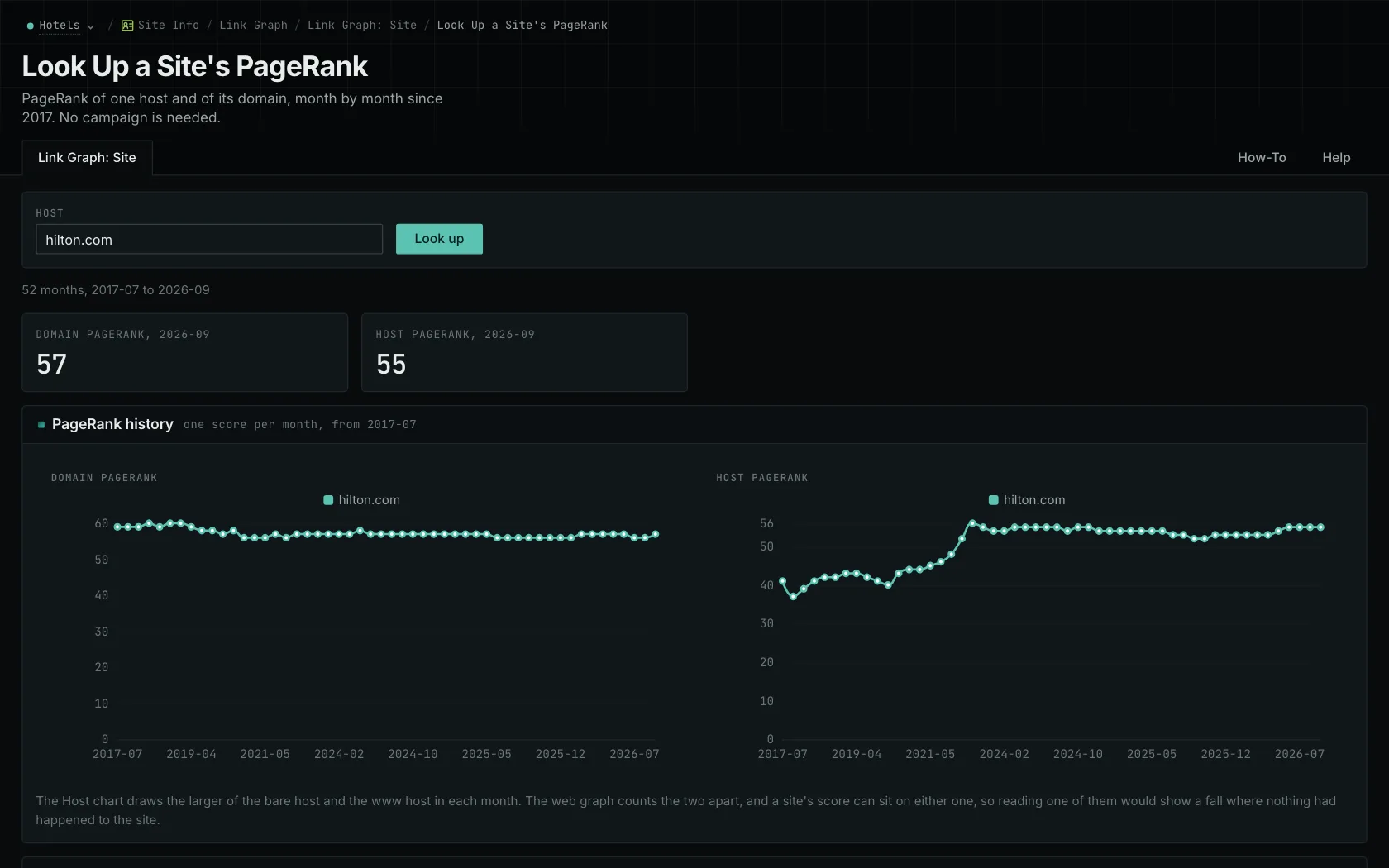
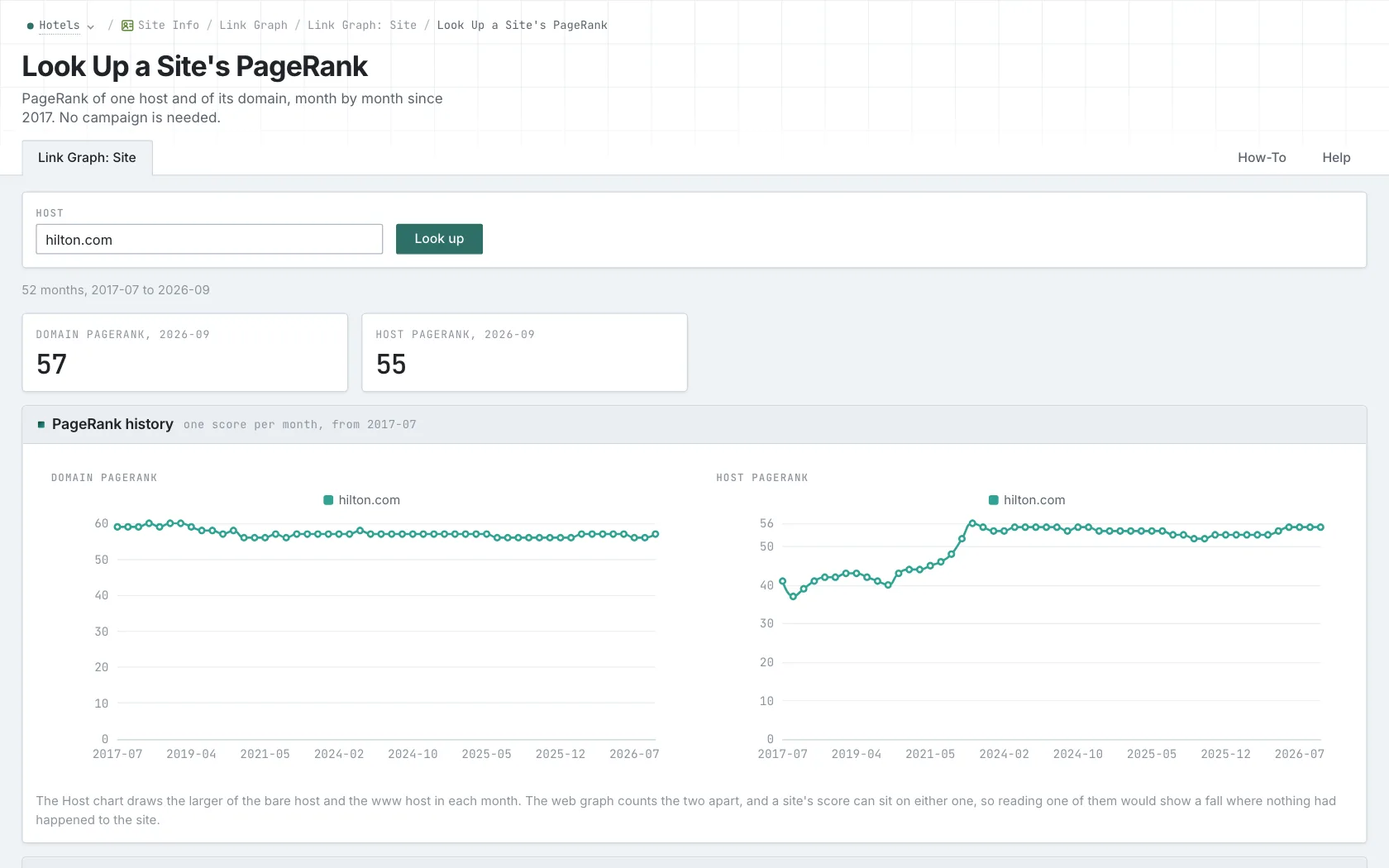
- Read the PageRank history card: the Domain PageRank chart and the Host PageRank chart.
- Read the direction of the line before the number. Then read the last three or four months.
- MCP:
linkgraph_history, with{"hosts": ["example-hotels.com"], "sort": "as_sent"}. Each result also haspr_newest, the newest PageRank of each level. - API:
POST https://api.oppalerts.com/v1/linkgraph/history, with the same JSON body.
2. Compare the history of a list of sites
- Open Link Graph: Multi-Site.
- Paste up to 100 hosts and click Look up. Longer lists are rejected without any lookups. Split an oversized list into smaller parts and look up each part.
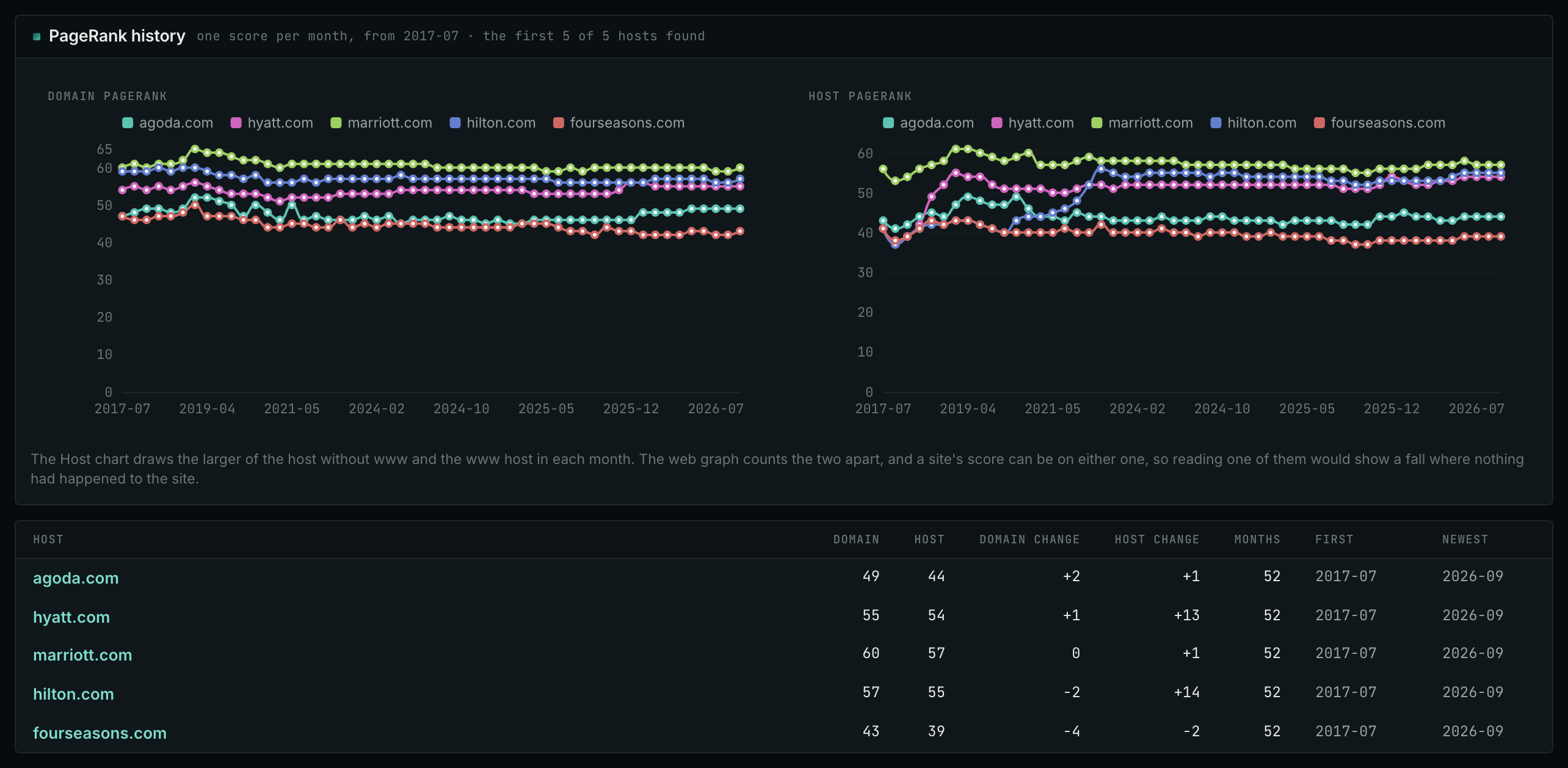
- Each row shows the newest score and change for both domain and host. Change is the newest score minus the first available monthly score, expressed as a difference rather than a percentage.
- Sort by the change to find the sites that grow.
- Open a host name to see its full history on Link Graph: Site.
- MCP:
linkgraph_history, with{"hosts": ["example-hotels.com", "grand-resorts.example"], "sort": "pr_domain_change"}. - API:
POST https://api.oppalerts.com/v1/linkgraph/history, with the same JSON body.
How to judge the results
- Check if the measurement explains the change. In an anonymized measured example, the host without www scored 56 and the www host scored 0 through December 2025. From January 2026, the values were 31 and 56. The host without www appears to decline on its own, while the Host chart shows 56 in both periods because it uses the larger value. This does not establish that the site was unchanged; it explains why a single host can give an incomplete comparison.
- Read the shape of the line. A steady climb indicates a site gaining links, and a flat line indicates stability. A long decline calls for a check of current publishing activity. Sudden jumps usually reflect redirects, mergers, or relaunches. A short history means the site entered the graph late.
- An empty month is normal. It is a month with no score for that level.
- The newest value is not live. The newest value is a monthly measurement and may omit recently published links.
- Then open the current site. Review recent articles, contact instructions, and contribution requirements. PageRank does not establish readership, editorial standards, or whether your article fits.
- Use the history after you find a good prospect. Use history to add context after identifying a reason to approach the site. A favorable chart establishes neither an audience nor a submission route.
- Report the facts and your opinion separately. Give the measured trend of Domain and Host. Then give your decision about the site.