Documentation / Opportunity Types / How to Find Sponsored Content Opportunities
How to Find Sponsored Content Opportunities
Find publishers that sell sponsored posts, and read their prices and rules before you pay.
What this type finds
This type finds pages where a publisher sells content that a brand pays for. These include:
- Sponsored post and article offers. A publisher says that a brand can pay for a post on its site.
- Advertorial packages. A paid article with a fixed price and a fixed list of deliverables.
- Paid guest post pages. Sites that charge a fee for a contributed article.
- Brand studio and content studio pages. The paid content teams of a publication.
- Partner content and paid partnership pages. Pages that describe how a brand works with a publisher.
- Guideline and disclosure pages. The rules for a sponsored post, and the label that marks it.
- Sponsored posts. A page that is itself a sponsored post shows that its site publishes them.
Why it matters
- You get a post on a named site, with the content that you agree on. You do not have to wait for an editor to accept a pitch.
- You see the price first. A paid offer tells you what the placement costs.
- It fits businesses with a budget, and agencies that want a guaranteed placement for a client.
Find it in the web app
- Open Opportunity Types in the web app menu.
- Choose Advertising, then choose Sponsored Content.
- Read the Prospect Index tab first. Pages of this kind often have no published date, so do not set Published on this tab. Min type score defaults to 40. Raise it to keep only the pages that match this type most closely.
- Click Vector similarity in Sort by to put the pages most similar to your market first.
- Open the News Index tab, and set Published to the last few weeks. This tab shows current pages.
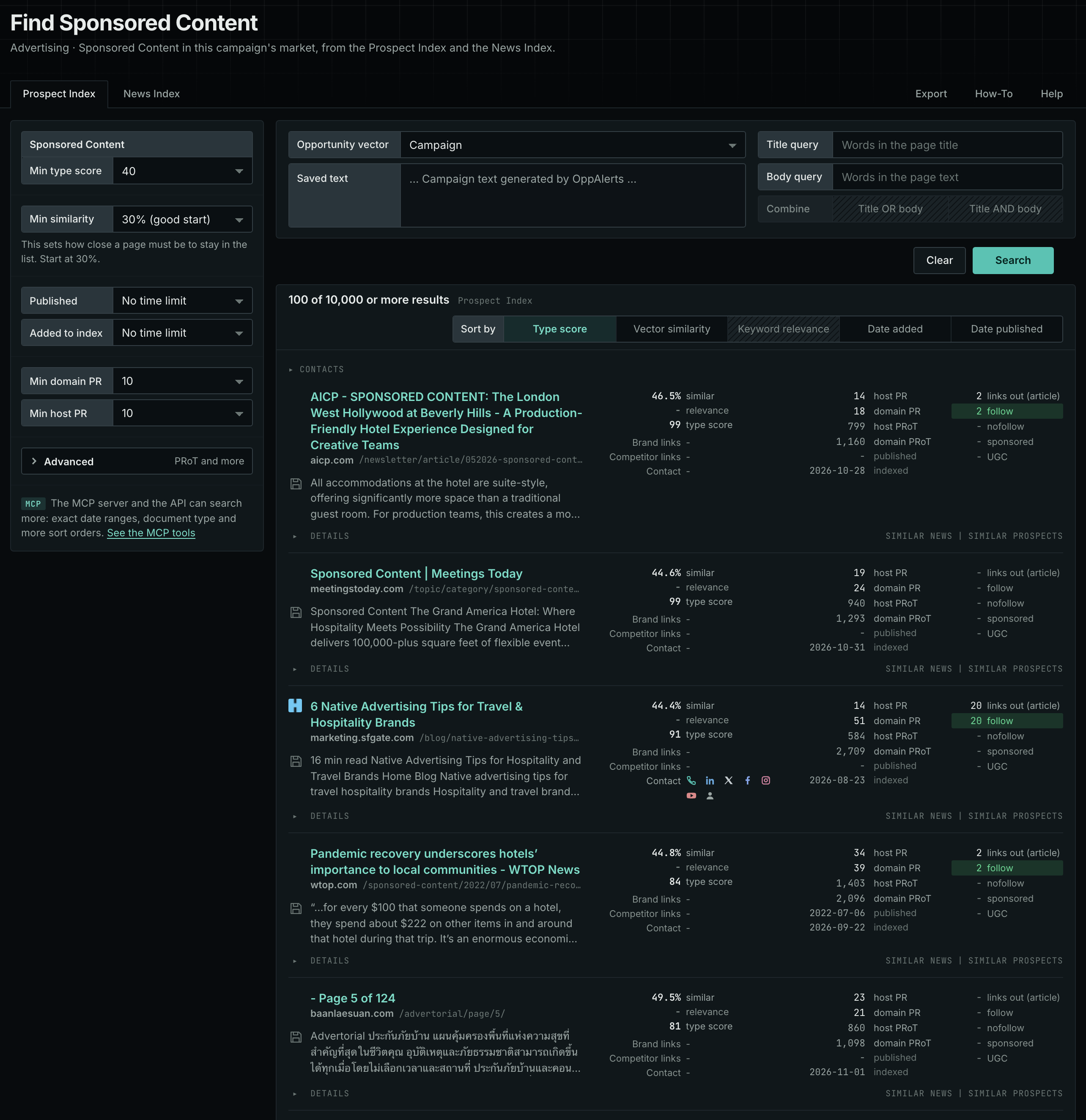
The Sponsored Content page in the app docs describes every control in the search form.
Get new pages every day
- Open your campaign in Edit Campaign, and open the Opportunities tab.
- In Search for, choose Sponsored Content in the Advertising group. In Opportunity vector, choose Campaign. Click Add opportunity.
- Open the Daily Email tab, select the checkbox, choose the hour, and click Save.
Each day, the Dashboard tab and the daily opportunities email show the pages added to the indexes in the last 24 hours. See Daily Monitoring and Alerts.
In MCP and the API
Two tools search this type. One request body works for both:
{
  "campaign": 3,
  "similarity_target": "campaign",
  "type_scores": [{"opportunity_type": "advertising/sponsored-content", "type_score_min": 50}],
  "sort": "type_score"
}- MCP:
news_searchsearches the News Index.prospects_searchsearches the Prospect Index. - API:
POST https://api.oppalerts.com/v1/news/searchandPOST https://api.oppalerts.com/v1/prospects/search, with the same JSON body.
In type_scores, type_score_min sets the minimum type score, from 1 to 100. Sorting by type_score puts the highest type score first. To keep only the newest pages, add published_from or indexed_from with a date in YYYY-MM-DD format. The MCP pages list every parameter and a full example response.
To connect your AI agent or send API requests, read Use OppAlerts in Your AI Agent, Create an API Token, and Your First API Call.
How to judge the results
- The label and the link. Check how the site marks a sponsored post and its links. The result row shows the follow, nofollow, and sponsored links of the page.
- What the price includes. Check the writing, editing, promotion of the post, and how long it stays live.
- The editor. Find out who approves the text, and whether you can change it.
- Past sponsored posts. Read some. Check their quality and the brands that paid for them.
- The site. A site that sells posts on any subject can harm your brand. Check its audience and its other content.
- The live page and the rules. Open the page. Compare this offer with a free guest post in the guest post guide.