Documentation / Opportunity Types / How to Find Awards Lists and Awards Calendars
How to Find Awards Lists and Awards Calendars
Find pages that list many award programs so you can plan a year of entries from one source.
What this type finds
The Awards Lists type finds pages that collect award programs. It groups several kinds of pages:
- Awards directories and databases that you can browse or search.
- Awards calendars and lists of deadlines.
- Lists of industry awards, such as business, creative, design, advertising, or PR awards.
- Guides to awards and competitions, often sorted by category.
- Pages that show early and final entry dates for many programs.
The type identifies the page's format rather than its subject. Your campaign determines which subject comes first.
Why it matters
One awards list can show many programs at once, so you do not need to find them individually. You can then build a calendar of the awards to enter in the next year.
The type fits an agency or an in-house team that enters awards every year. It also fits a business that does not yet know which awards exist in its market. The list itself can be a place to ask for a listing, and its publisher can be a good contact.
Find it in the web app
- Open Opportunity Types in the web app menu.
- Choose Awards, then choose Awards Lists.
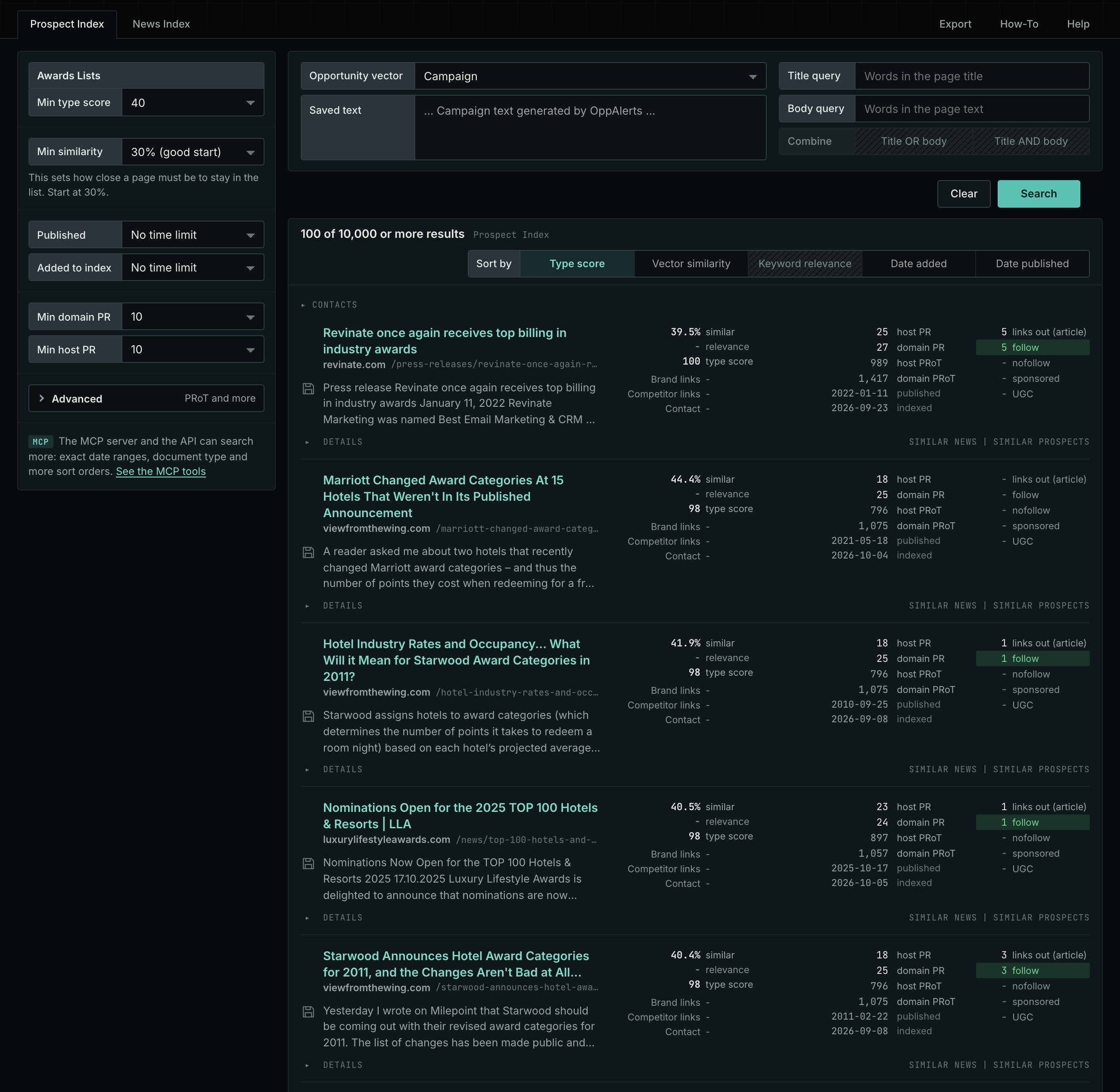
- Read the Prospect Index tab first. It contains pages from all dates. Min type score starts at 40. Raise it to see only the pages that match this type most closely.
- Click Vector similarity in Sort by to show the pages most relevant to your market first.
- Open the lists that fit your market. Copy the programs that fit your business into your own calendar, with their dates.
- Read the News Index tab for current pages. Set Published to the last few weeks.
Get new pages every day
- Open your campaign in Edit Campaign, and open the Opportunities tab.
- In Search for, choose Awards Lists in the Awards group. In Opportunity vector, choose Campaign. Click Add opportunity.
- Open the Daily Email tab, select the checkbox, choose the hour, and click Save.
Each day, the pages added to the indexes in the last 24 hours appear on the Dashboard tab and in the daily opportunities email. See Daily Monitoring and Alerts.
In MCP and the API
Two tools search this type. One request body works for both:
{
  "campaign": 3,
  "similarity_target": "campaign",
  "type_scores": [{"opportunity_type": "awards/awards-lists", "type_score_min": 50}],
  "sort": "type_score"
}- MCP:
news_searchsearches the News Index.prospects_searchsearches the Prospect Index. - API:
POST https://api.oppalerts.com/v1/news/searchandPOST https://api.oppalerts.com/v1/prospects/search, with the same JSON body.
In type_scores, type_score_min sets the minimum type score, from 1 to 100. Sorting by type_score puts the highest type score first. To keep only the newest pages, add published_from or indexed_from with a date in YYYY-MM-DD format. The MCP pages list every parameter and include the full example response.
To connect your AI agent or to send API requests, read Use OppAlerts in Your AI Agent, Create an API Token, and Your First API Call.
How to judge the results
A high type score indicates that the page matches this type. It does not tell you whether the page is a good fit for you. Check these points before you act:
- Check the date of the list. A list from a previous year may show closed programs and outdated deadlines. Check each program on its own site.
- Check how the list is made. A list that an editor keeps up to date is better than a list that a program pays to join.
- Check the scope. A list for your country and your industry helps more than a general list.
- Follow each link to the program. Read the current rules there, and use the list only to find the program.
- Ask for a listing. If you run an award program, see if the list takes new programs. Look for a submit form or an email address.