Documentation / Opportunity Types / How to Find Resource Pages
How to Find Resource Pages
Find the pages that exist to link to useful resources in your market, and the ones that accept new suggestions.
What this type finds
A resource page directs readers to other resources. This type groups several kinds of resource pages.
- Resource hubs and resource libraries. A company, a nonprofit, or an association collects guides, tools, and documents on one subject.
- Lists of useful links. A short page of sites that the owner recommends to its visitors.
- Industry resource directories. A list of vendors, organizations, tools, and documents in one market.
- Subject guides and research guides. Libraries, schools, and universities make these for students and staff. They list sources by topic and by course.
- Support and community resource lists. Nonprofits, public bodies, and community groups list services and help for the people they serve.
- Partner resource pages. A page where an organization lists the resources of its partners.
- Suggestion pages. A page with a form or an address where you can propose a resource.
Why it matters
A resource page links out by design. A link from a page that people use to find help can keep sending visitors for a long time, and the owner of the page expects new suggestions.
This type fits a business or a nonprofit that has a free guide, a tool, a calculator, a dataset, or a study that really helps the reader. It does not fit a plain sales page.
Find it in the web app
- Open Opportunity Types in the web app menu.
- Choose Links.
- Choose Resource Pages.
- Read the Prospect Index tab first. It contains pages that OppAlerts fetched and offers the broader set of results. Min type score defaults to 40. Raise it to see only the pages that fit the type best.
- Read the News Index tab for news, podcasts, and video. It has fewer results and shows what is current. Few results for a type here are normal.
- Raise Min domain PR to drop the sites with little standing. Click Vector similarity in the Sort by buttons to see the pages most similar to your market first.
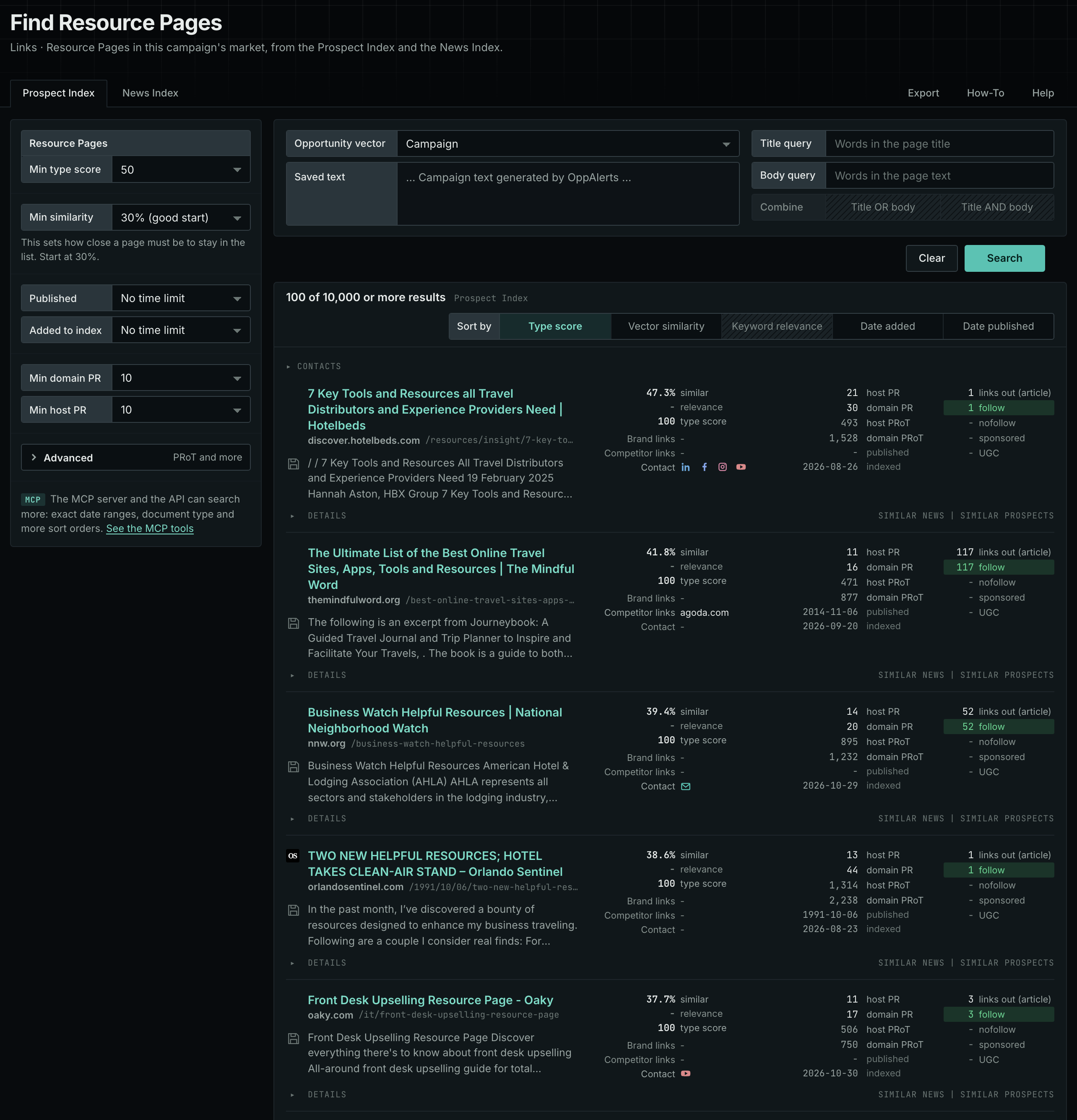
Each page's type score is based on the words in its address, title, and opening text. The score does not describe the page's subject. Your campaign supplies the subject. See Opportunity Types and Content Types.
Get new pages every day
- Open your campaign in Edit Campaign, and open the Opportunities tab.
- Add an opportunity. In Search for, choose Resource Pages, under Links.
- In Opportunity vector, choose Campaign.
- Give it a Label, and click Add opportunity.
Each day, the Dashboard and the daily opportunities email show the new pages of this type. Read Daily Monitoring and Alerts to set up the daily opportunities email.
In MCP and the API
Two tools search this type. One request body works for both:
{
  "campaign": 3,
  "similarity_target": "campaign",
  "type_scores": [{"opportunity_type": "links/resource-pages", "type_score_min": 50}],
  "sort": "type_score"
}- MCP:
news_searchsearches the News Index.prospects_searchsearches the Prospect Index. - API:
POST https://api.oppalerts.com/v1/news/searchandPOST https://api.oppalerts.com/v1/prospects/search, with the same JSON body.
In type_scores, type_score_min sets the minimum type score, from 1 to 100. Sorting by type_score puts the highest type score first. To keep only the newest pages, add published_from or indexed_from with a date in YYYY-MM-DD format. The MCP pages list every parameter and a full example response.
To connect your AI agent or send API requests, read Use OppAlerts in Your AI Agent, Create an API Token, and Your First API Call.
How to judge the results
- Check the date and the upkeep. Open the page and click some of its links. A page with many dead links has no active owner. A page with a few dead links can be a chance for you to offer a working replacement.
- Check the topic. The listed resources must be like yours. A page about one subject does not link to a resource about another.
- Check who is listed. If the page lists only the owner's pages, it will not take yours. If it lists outside sites, there is a chance.
- Read the rules. Some pages say who can suggest a resource and what they need. Follow these rules.
- Check the audience. A school page serves students. A business page serves buyers. Your resource must help those readers.
- Check the cost. Some resource pages charge for a listing. Suggestions are usually free.