Documentation / App / New Campaign
New Campaign
Apphttps://oppalerts.com/app/campaign/new
In the campaign menu, the row is New Campaign. The heading of the page is Set up your campaign.
What you use it for
Sets up one campaign on one page. Every part of the setup is on the page: the campaign, the brands and competitors, the opportunities, the taxonomy presets, and the daily opportunities email. Nothing is saved when you leave a field. The 2 buttons at the end of the page save the form.
- Start a new client.
- Start a second market for an existing client, when their two markets have different buyers.
- Finish a campaign you started earlier. Press "Save Draft" and come back later. The page shows the values you saved.
The owned brands and the competitors are set here. Partners, publishers, several hosts for one organization, and chart colors are on the Settings tab of Edit Campaign, after setup.
How it works
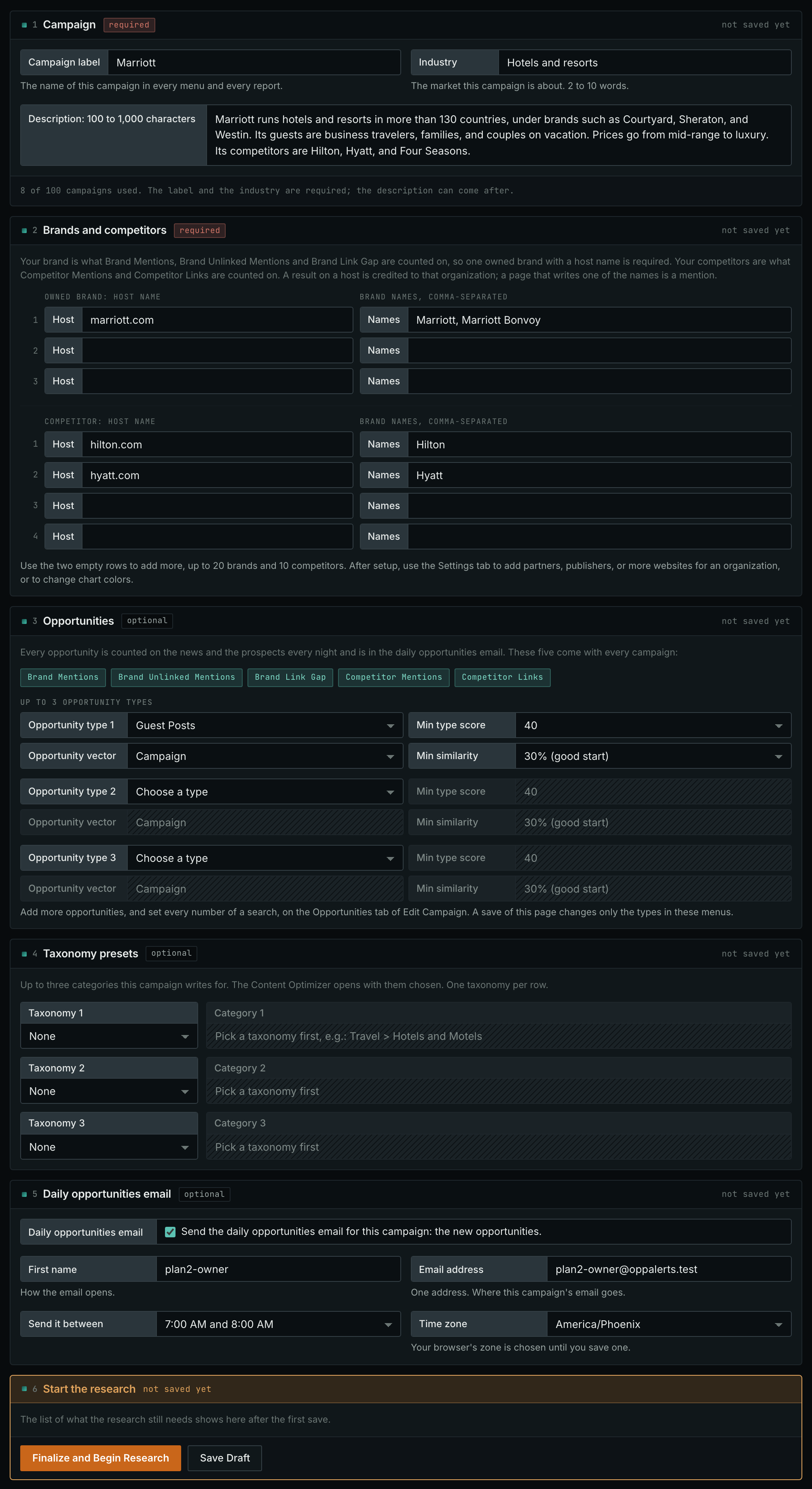
- Label. The name of this campaign in every menu and every report. Name it for yourself.
- Industry. The market the campaign is about, in 2 to 10 words. Choose an industry no other campaign in your account uses.
- Description. 100 to 1,000 characters describing the client. It is what the research is built on.
Nothing is collected while you set up. The collection starts when you press "Finalize and Begin Research" at the end of the page, and not before.
The 5 boxes
The page has 5 numbered boxes: Campaign, Brands and competitors, Opportunities, Taxonomy presets, and Daily opportunities email. The label, the industry, and one owned brand with a host name are required. The other boxes are optional. The last part, Start the research, holds the 2 buttons.
The other parts of the page
- Brands and competitors. One owned brand with a host name is required. Add each competitor with its host name and its brand names.
- Opportunities. Five opportunities come with every campaign: Brand Mentions, Brand Unlinked Mentions, Brand Link Gap, Competitor Mentions, and Competitor Links. Each type menu adds one opportunity type or one content type.
- The values beside a type menu. Min type score goes from 100 down to 1 and opens at 40. Opportunity vector opens on Campaign. Min similarity opens at 30%. The 3 values are locked until you choose a type. Min similarity is also locked when the vector is No vector. A free account has 1 type menu.
- More opportunities, and every numeric search setting, are on the Opportunities tab of Edit Campaign. Saving this page changes only the types in its menus.
- Taxonomy presets. Up to three categories this campaign writes for, one taxonomy per row. The Content Optimizer opens with them chosen. When the taxonomy list does not load, the box says "The taxonomy list did not load. The presets of this campaign are not changed. Try again in a few minutes." A save then does not change the stored presets.
- Daily opportunities email. The tick is on when the page opens, with your first name, your email address, 7 o'clock, and the time zone of your browser, or America/New York when the browser does not give one. Remove the tick if you do not want the email.
The 2 buttons
- "Save Draft" sends only the boxes that changed. The page does not load again. A box that holds its saved values is not sent. The first save creates the campaign with its five opportunities. Nothing is collected, and the research does not start.
- Each box has a status line at the top. Before the first save it says "not saved yet". After a save it says "saved just now" when the box was sent, "no change" when the box was not sent because nothing in it changed, "partly saved" when some rows were saved before a refusal, or "not saved". The taxonomy box can say "not changed: the taxonomy list did not load". The brands box can say "saved. A row with no host name is not saved".
- A refusal shows at the box it is about. Every box keeps what you typed. The boxes before the refusal stay saved, and their status lines show it. The boxes after it keep the status line they had, and the sentence says "Changes in the boxes ... are not saved yet." Correct the box and press the button again: the page sends the rest.
- "Finalize and Begin Research" opens a pop-up first. It tells you that the research starts, and that after this step you cannot change the industry or the description.
- When you agree in the pop-up, the page saves every part, as "Save Draft" does, and then finalizes the campaign. If a part is refused, the campaign is not finalized. After finalization, the campaign’s Dashboard opens.
Nothing starts yet
A draft starts nothing. The collection starts when you press "Finalize and Begin Research", and not before. You can save a draft, leave it half written for a week, and finish it later.
The two limits
How many campaigns may be ACTIVE at once, and how many may be STARTED in any 24 hours. The screen identifies which limit prevented the action.

The Start the research part
The last part of the page holds the 2 buttons. After the first save, it is the checklist for the rest of the setup, and it is the fastest way to see what is still missing.
- Every line is something the research still needs. Each save shows the list again.
- The list is checked again when you press "Finalize and Begin Research", not only when it is displayed. If a line is still on the list, the campaign is not finalized, and the list shows in this part.
- Nothing has been collected at this point, and nothing will be until the campaign is finalized.
On your own campaign
Writing the three fields
- Label: write it for the menu. "Marriott" beats "Hotels and resorts Q3 2026". It can be changed later.
- Industry: write the MARKET, not the client. "Hotels and resorts", not "Marriott International". The research is about the market.
- Description: write it for a stranger. Who the client is, what they sell, who buys it, what makes them different, and who they compete with.
What to put in the description
- The products or services, by name.
- The type of customer, in plain terms.
- The price position. Budget, mid, premium. Models weight this heavily.
- The geography, if it matters.
- The named competitors.
- Not marketing language. It is read by a model, and superlatives carry no information.
Then what
- Brands and competitors. One owned brand with a host name is required.
- Optional settings. Opportunities, Taxonomy presets, and Daily opportunities email. The daily opportunities email is on: check the address.
- Press "Save Draft" and read the Start the research part at the end of the page.
- Press "Finalize and Begin Research". That is when the research starts. The industry and the description cannot be changed after this. The Dashboard of the campaign opens next.
MCP
The page calls these MCP tools, in this order, when you press one of its 2 buttons. Only "Finalize and Begin Research" calls campaigns_finalize. Each tool needs the scope api:write. Each page has every parameter, who may call the tool, every error, and an example.
campaigns_create: Creates a new campaign in the account, with its label, industry, and description. The campaign does not start until it is finalized.campaigns_set_taxonomy_presets: Sets the 3 taxonomy presets of one campaign: the taxonomy categories the Content Optimizer opens with.campaigns_organization_add: Adds one organization to a campaign: your own brand, a competitor, a partner, or a publisher, with its websites and brand names.campaigns_saved_opportunity_add: Adds one saved opportunity to a campaign: a saved search that is counted on the News Index and the Prospect Index every day, and that the daily opportunities email reports.campaigns_rebuild_counts: Ask for the stored daily counts of one campaign to be counted again, for example after a change to its organizations. The page calls it after a save that changed a type.campaigns_set_daily_opportunities_email: Sets the daily opportunities email of one campaign: the address, the first name, on or off, and the hour and time zone of the send.campaigns_finalize: Finalizes one campaign, so that its research starts. Finalize cannot be undone.
After the first save, the page changes the stored values with the update tools for each part. Edit Campaign lists them.
API
These API routes do the jobs of this page, in the same order. Each one needs the scope api:write.
POST /v1/campaigns/createPOST /v1/campaigns/set_taxonomy_presetsPOST /v1/campaigns/organization_addPOST /v1/campaigns/saved_opportunity_addPOST /v1/campaigns/rebuild_countsPOST /v1/campaigns/set_daily_opportunities_emailPOST /v1/campaigns/finalize
Edit Campaign lists the routes of the other changes.