Documentation / Opportunity Types / How to Find Meetups, User Groups, and Networking Events
How to Find Meetups, User Groups, and Networking Events
Find recurring local and online groups in your market, and meet the people in them at their events.
What this type finds
The Meetups, User Groups type finds pages for groups that meet regularly. It groups several kinds of pages:
- Meetup groups: groups that meet on a topic, a role, or a technology.
- User groups: groups of people who use one product or one technology.
- Local chapters: local branches of a larger group.
- Business networking groups and events: breakfasts, mixers, and referral groups.
- Virtual meetups: online sessions of a group.
- Pages with upcoming meetups: a group's event lists, often with a way to confirm attendance.
A page's type score indicates how closely it matches this type. The score does not depend on the subject. OppAlerts then keeps the pages nearest in semantic similarity to your campaign. See Opportunity Types and Content Types.
Why it matters
A meetup puts you in a room, or on a call, with practitioners in your market. A group may need a speaker, a venue, or a sponsor.
The group pages also show who is active in a market. The organizers and the regular speakers are people to know.
This type fits a local business, a business that sells to developers or professionals, and an agency that builds a client network.
Find it in the web app
- Open Opportunity Types in the web app menu.
- Choose Events, then choose Meetups, User Groups.
- Read the Prospect Index tab first. It shows pages of all dates. Min type score defaults to 40. To see only pages recently added to the index, set Added to index.
- Read the News Index tab for the pages published in the last few weeks. Set Published to the time period you want.
- Click Vector similarity in Sort by to put the pages most similar to your market first.
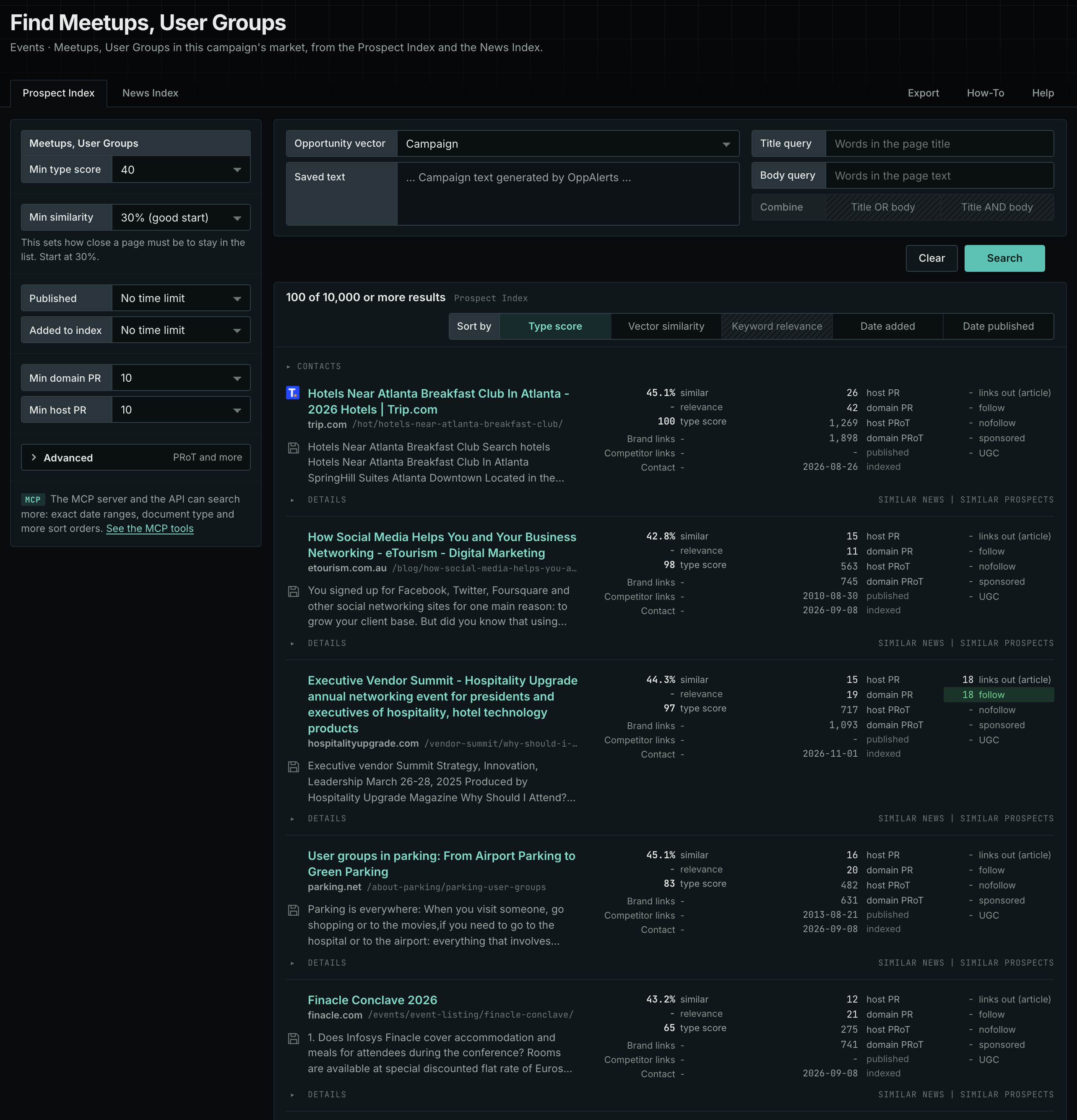
The web app documentation lists all the search controls and explains how to read a result row: Meetups, User Groups.
Get new pages every day
- In Edit Campaign, open the Opportunities tab.
- Add an opportunity. In Search for, choose Meetups, User Groups in the Events group.
- In Opportunity vector, choose Campaign.
- Open the Daily Email tab, select the checkbox, choose the hour, and click Save.
Each day, the Dashboard tab and the daily opportunities email show the new pages. See Daily Monitoring and Alerts.
In MCP and the API
Two tools search this type. One request body works for both:
{
  "campaign": 3,
  "similarity_target": "campaign",
  "type_scores": [{"opportunity_type": "events/meetups", "type_score_min": 50}],
  "sort": "type_score"
}- MCP:
news_searchsearches the News Index.prospects_searchsearches the Prospect Index. - API:
POST https://api.oppalerts.com/v1/news/searchandPOST https://api.oppalerts.com/v1/prospects/search, with the same JSON body.
In type_scores, type_score_min sets the minimum type score, from 1 to 100. Sorting by type_score puts the highest type score first. To keep only the newest pages, add published_from or indexed_from with a date in YYYY-MM-DD format. The MCP pages list every parameter and a full example response.
To connect your AI agent or send API requests, read Use OppAlerts in Your AI Agent, Create an API Token, and Your First API Call.
How to judge the results
- Read the date of the last event. A group that has not met for a year has probably stopped.
- Check the size. Look at the number of members and the usual attendance.
- Check the topic. The group must discuss a subject that your buyers or peers care about.
- Read the rules for speakers and sponsors. Find out who to ask, and what the group expects.
- Check who can join. Some groups are open. Others are for members only or charge a fee.