Documentation / Opportunity Types / How to Find Newsrooms and Press Centers
How to Find Newsrooms and Press Centers
Find the newsrooms and press centers of the organizations in your market, and learn what they announce and who speaks for them.
What this type finds
A newsroom is the part of an organization's site where it publishes its own news. This type finds several kinds of newsroom pages.
- Corporate newsrooms. Companies publish their news releases, announcements, and media contacts.
- Association newsrooms. Trade bodies and professional groups publish news for their members and for the press.
- University newsrooms. Universities publish research news and the names of experts.
- Government newsrooms. Public bodies publish announcements and contact information for their press offices.
- Nonprofit newsrooms. Charities and groups publish news about their work.
- Media contact and press office pages. Pages that name the person or the address that journalists must use.
- Press kit and media resource pages. Pages with logos, photos, fact sheets, and background for journalists.
Why it matters
A newsroom page shows how an organization speaks to the press: what it announces, how often, and who answers. This type shows you which organizations in your market make news, and which ones journalists use as sources.
It fits PR teams that map a market, businesses that want to watch a competitor's announcements, and companies that look for partners and sources. Newsrooms publish the organization's own news. They rarely take outside news, so use them for research and building relationships, not as a place to post.
Find it in the web app
- Open Opportunity Types in the web app menu.
- Choose Media.
- Choose Newsrooms.
- Read the Prospect Index tab first. It contains pages that OppAlerts fetched and offers the broader set of results. Min type score defaults to 40. Raise it to see only the pages that fit the type best.
- Read the News Index tab for news, podcasts, and video. It has fewer results and shows what is current. Few results for a type here are normal.
- Raise Min domain PR to drop the sites with little standing. Click Vector similarity in the Sort by buttons to see the pages most similar to your market first.
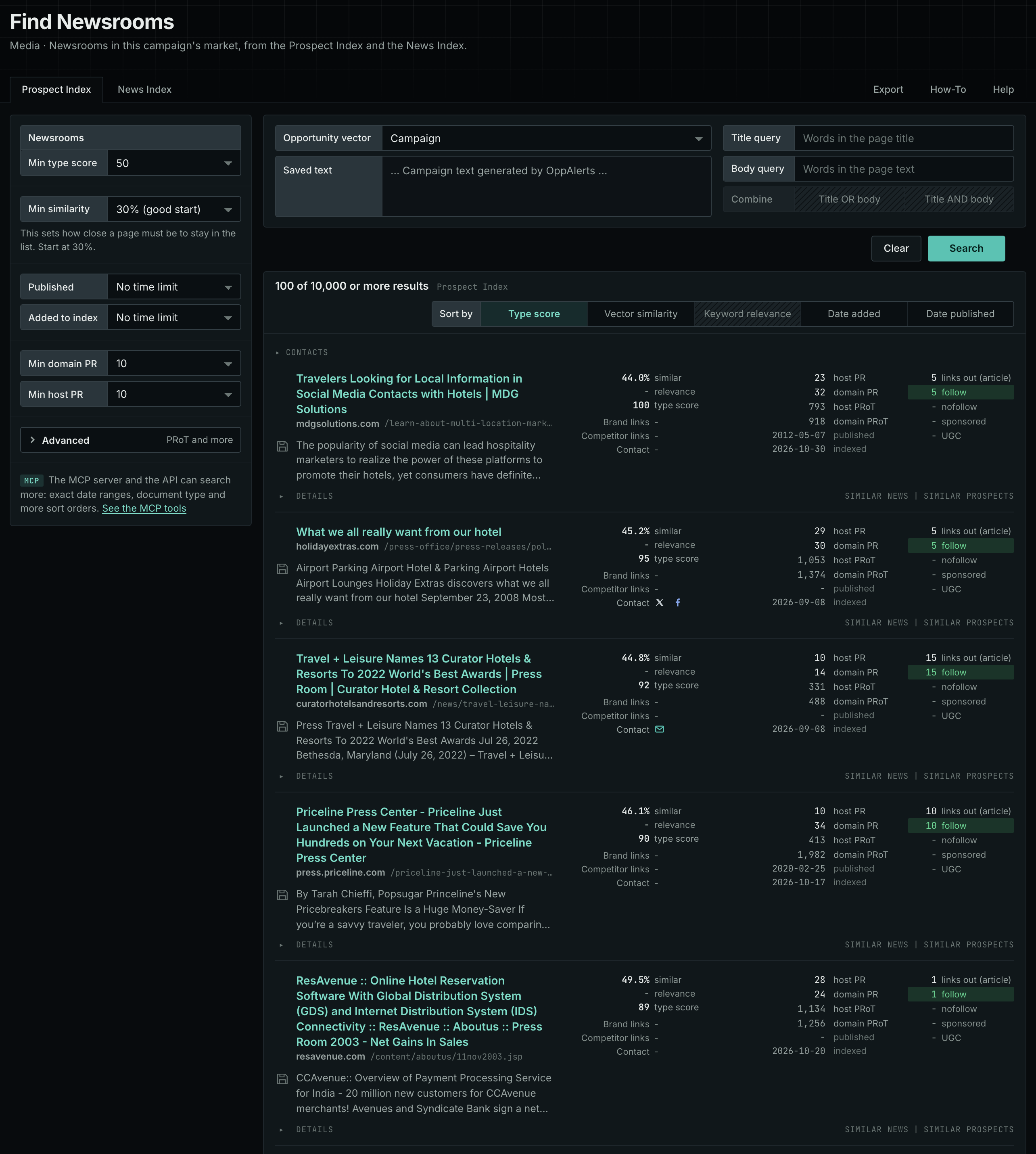
Each page's type score is based on the words in its address, title, and opening text. The score does not describe the page's subject. Your campaign supplies the subject. See Opportunity Types and Content Types.
Get new pages every day
- Open your campaign in Edit Campaign, and open the Opportunities tab.
- Add an opportunity. In Search for, choose Newsrooms, under Media.
- In Opportunity vector, choose Campaign.
- Give it a Label, and click Add opportunity.
Each day, the Dashboard and the daily opportunities email show the new pages of this type. Read Daily Monitoring and Alerts to set up the daily opportunities email.
In MCP and the API
Two tools search this type. One request body works for both:
{
  "campaign": 3,
  "similarity_target": "campaign",
  "type_scores": [{"opportunity_type": "media/newsrooms-and-press-centers", "type_score_min": 50}],
  "sort": "type_score"
}- MCP:
news_searchsearches the News Index.prospects_searchsearches the Prospect Index. - API:
POST https://api.oppalerts.com/v1/news/searchandPOST https://api.oppalerts.com/v1/prospects/search, with the same JSON body.
In type_scores, type_score_min sets the minimum type score, from 1 to 100. Sorting by type_score puts the highest type score first. To keep only the newest pages, add published_from or indexed_from with a date in YYYY-MM-DD format. The MCP pages list every parameter and a full example response.
To connect your AI agent or send API requests, read Use OppAlerts in Your AI Agent, Create an API Token, and Your First API Call.
How to judge the results
- Check the archive. The date of the newest release shows whether the newsroom is active.
- Read the types of news. The releases show what the organization thinks is worth announcing.
- Check the tag. In the result row, a tag such as Competitor tells you how the organization relates to your campaign.
- Check the contact. A named person is more useful than a general address. Open Details in the result row for the contact routes.
- Check who the organization is. A university, a trade body, and a company are very different sources.
- Check that the page is live. An old press kit can contain outdated logos and facts.