Documentation / App
App
The web app, one page of documentation for each page of the app.
What you use it for
Every campaign in the account, one row each.
- See what state each campaign is in without opening each campaign.
- Open one to edit it. The label is the link.
- Find a campaign you archived, which keeps everything it collected.
- Check how many slots you have left before promising a client a start date.
How it works
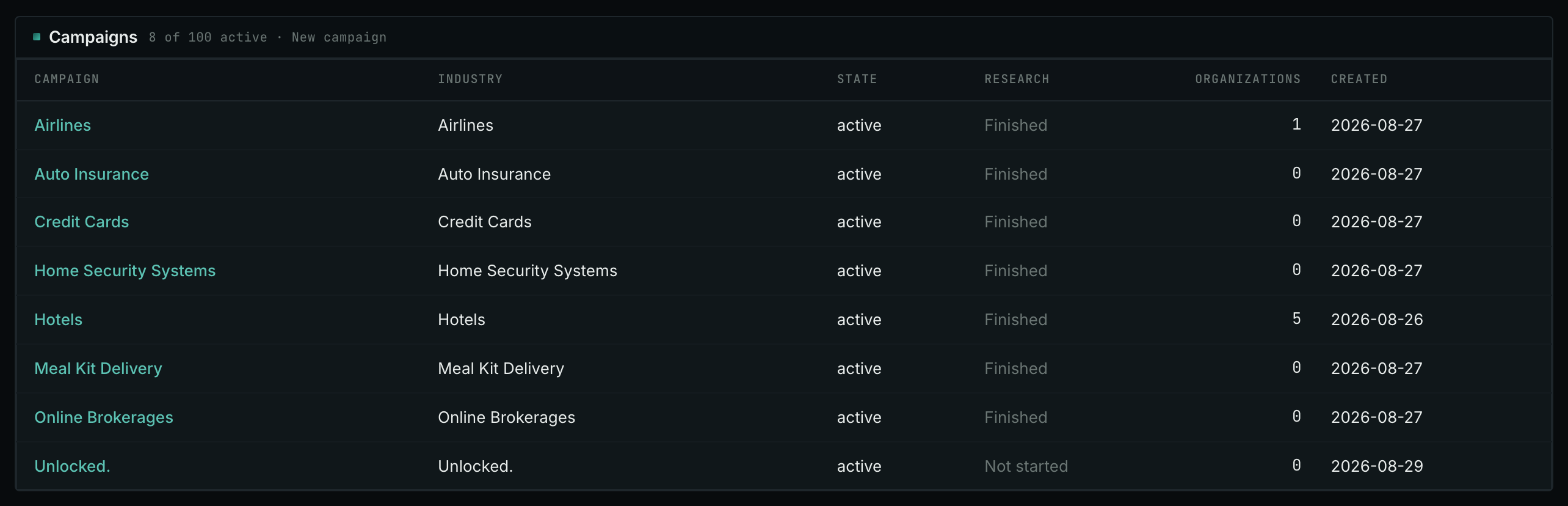
One row per campaign, with its state, its organizations, and its research progress. The page only reads data. It does not start or stop anything.
A campaign is either active or archived. Archiving keeps everything the campaign collected and frees its slot at once, so an agency that loses a client can archive and add on the same day.
Two separate limits decide whether you can add another: how many campaigns you may have active at once, and how many you may start in any 24 hours. When a limit prevents this, the screen identifies which limit.
Active and archived
Archiving keeps everything the campaign collected and frees its slot at once. So an agency that loses a client can archive and add a new one the same day, and the old reports still open.
The two limits
Two separate rules decide whether you can add another campaign, and the screen identifies which limit prevented it:
- How many campaigns you may have ACTIVE at once. Archiving frees one immediately.
- How many you may START in any 24 hours. A campaign you archive before you lock it stops counting right away. One you archive after you lock it still counts until its 24 hours are over. A finalized campaign that you make active again is not a new start.
Deleting
A campaign cannot be deleted, only archived. The "Archive campaign" button is on the Settings tab of Edit Campaign. An archived campaign comes back with "Make active" on the same tab.
Reading the result
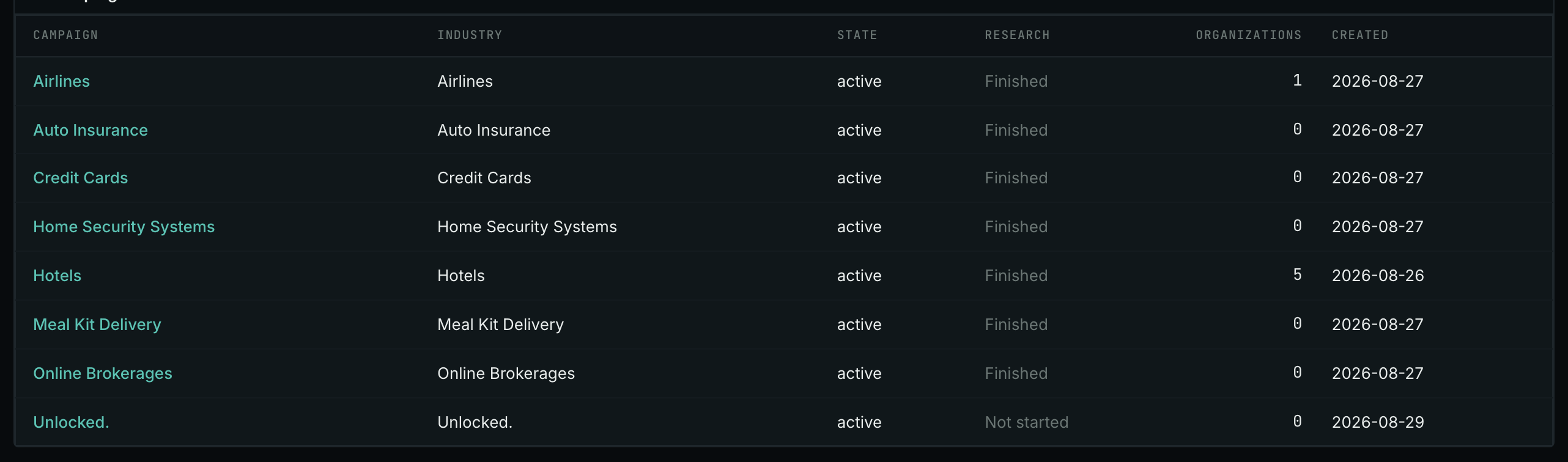
- Organizations under about five means the labeling is incomplete, and every report will show untagged domains.
- Research shows collection progress. "Not started" is a campaign that is not finalized yet. "Waiting to start", "Queued" and "Running" mean the research process is working through it. "Finished" is a campaign whose reports are complete. "Stopped" is research that stopped because of an error.
- Archived keeps everything and frees the slot at once.
On your own campaign
How to use it
- Use the campaign menu in the breadcrumb for switching. It is on every page and it is faster than coming here.
- Come here to compare. This is the only place that shows campaign states side by side.
- Archive a finished client on the Settings tab of Edit Campaign. You keep the history and you get the slot back.
- Check the count before you promise a start. The 24-hour rule can stop you even when a slot is free.
A campaign per what?
- One campaign per client is the normal case.
- One campaign per MARKET when a client sells into two markets that do not overlap. The two markets' keywords would fight each other in one campaign.
- One campaign per industry. Each industry can be used by only one campaign in your account.
MCP
These MCP tools give the same data. Each page has every parameter and an example.
campaigns_list: A summary of every campaign in the account: id, label, state, whether it is finalized, and its research progress.
API
These API routes give the same data.