Documentation / Opportunity Types / How to Find Software and Tool Directories
How to Find Software and Tool Directories
Find the catalogs where buyers look for software and tools, and the pages where you list your product.
What this type finds
This type finds catalogs of software, platforms, applications, and utilities. They are sorted by use case or by market. These pages include:
- Software directories and catalogs. Lists of business software by category.
- Tool directories. Lists of tools for one job, such as free online tools and calculators.
- App and SaaS marketplaces. Stores where buyers find and compare applications.
- Listing and submission pages. Pages with a form to submit a tool, add a product, or claim a software profile.
- Comparison and review pages. Pages that compare software products, show user reviews, and list alternatives.
- Category pages. Pages that sort software by category, so that a buyer can browse.
These catalogs also show your competitors. A catalog that lists your competitors shows how buyers compare them with you.
Why it matters
A software buyer often starts in a catalog or a marketplace. A listing there puts your product in front of that buyer, next to the alternatives. A review on the listing adds proof.
This type fits software companies, app makers, and tool makers. It also fits an agency that works for one. The directories also help you research competitors: you see who is listed, in which category, and how.
Find it in the web app
- Open Opportunity Types in the web app menu.
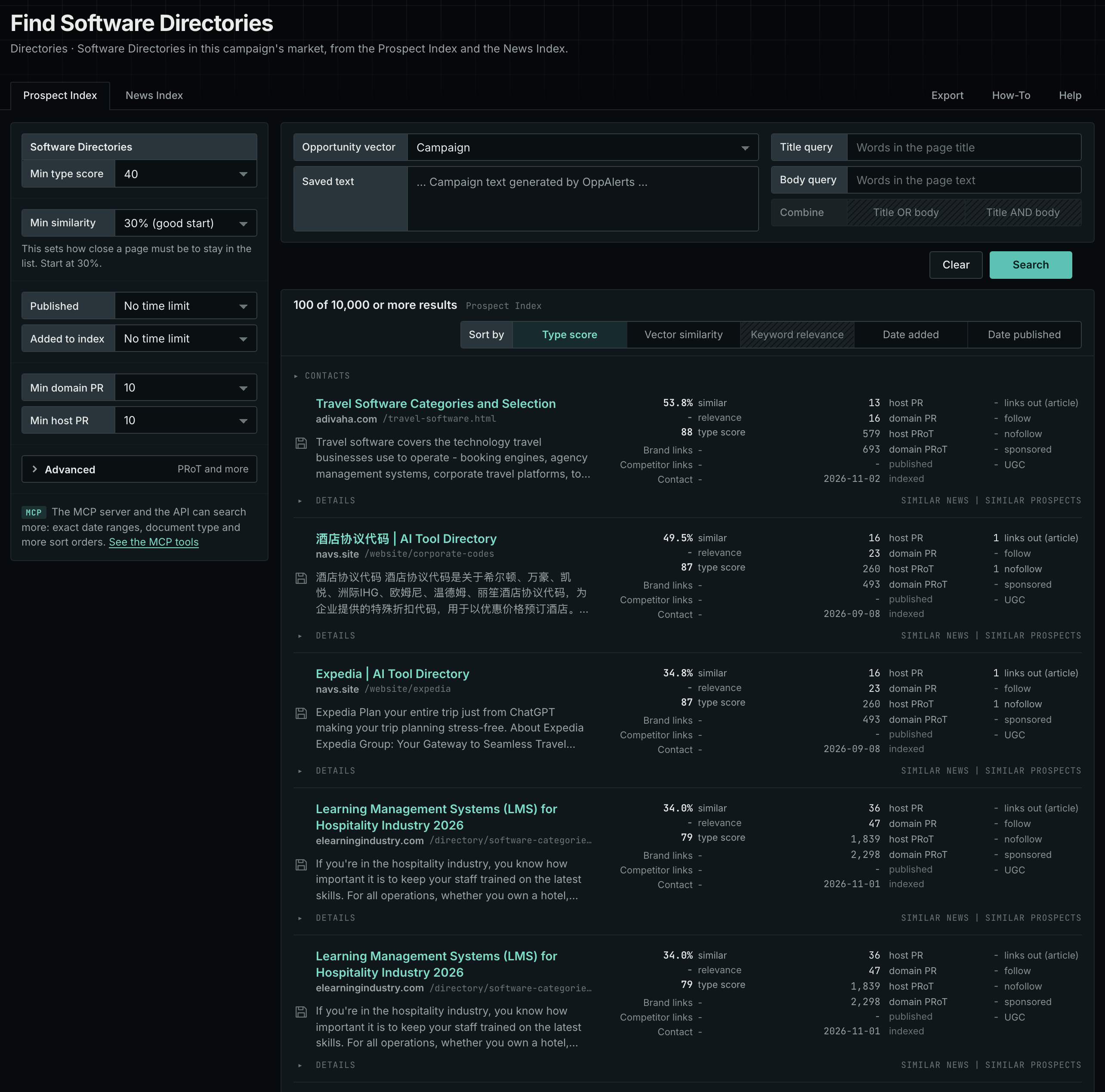
- Choose Directories, then choose Software Directories.
- Read the Prospect Index tab. It holds the pages that OppAlerts collected over time. Many of these pages have no published date. Use Added to index and not Published on this tab.
- Read the News Index tab for the pages that were published recently. Set Published to the last few weeks to see the current pages. Few pages of this type are news, so this tab can have few results.
- Check Min type score. It defaults to 40. Lower it to see more pages, and raise it to keep only the pages that match this type most closely.
- Click Vector similarity in Sort by to put the pages most similar to your market first.
Get new pages every day
Save this type as an opportunity, and OppAlerts shows you the new pages each day.
- Open your campaign in Edit Campaign, and open the Opportunities tab.
- Add an opportunity. In Search for, choose Software Directories.
- In Opportunity vector, choose Campaign.
- Give it a Label, and save.
The Daily Email tab sends the new pages by email. Daily Monitoring and Alerts shows all the steps.
In MCP and the API
Two tools search this type. One request body works for both:
{
  "campaign": 3,
  "similarity_target": "campaign",
  "type_scores": [{"opportunity_type": "directories/software-and-tool-directories", "type_score_min": 50}],
  "sort": "type_score"
}- MCP:
news_searchsearches the News Index.prospects_searchsearches the Prospect Index. - API:
POST https://api.oppalerts.com/v1/news/searchandPOST https://api.oppalerts.com/v1/prospects/search, with the same JSON body.
In type_scores, type_score_min sets the minimum type score, from 1 to 100. Sorting by type_score puts the highest type score first. To keep only the newest pages, add published_from or indexed_from with a date in YYYY-MM-DD format. The MCP pages list every parameter and a full example response.
To connect your AI agent or send API requests, read Use OppAlerts in Your AI Agent, Create an API Token, and Your First API Call.
How to judge the results
- Check the category. Your product must fit a category that the catalog really has. The wrong category sends you buyers you cannot serve.
- Check the competitors. See who is listed and how the listing looks. The Competitor links line of a row names the competitors that the page links to.
- Read the listing rules. Find out whether a listing is free, whether the catalog sells placement, and whether it asks you to collect reviews.
- Open the live page. Check that the catalog is maintained. Old listings and dead links are a bad sign.
- Check the audience. Check the row's PR numbers. Then check that the catalog reaches your buyers.
- Count the work. A listing needs descriptions, images, and updates. Allow time for that work.