Documentation / Opportunity Types / How to Find Quiz Opportunities
How to Find Quiz Opportunities
Find interactive quizzes and assessments that other sites collect, embed, and link to.
What this type finds
The Quizzes type finds pages where a reader answers questions and gets a result. It can find:
- Online quizzes: personality, knowledge, and trivia quizzes.
- Self-assessment tools and readiness assessments that give a score.
- Skills assessments and practice tests.
- Collections and hubs that list many quizzes.
- Pages with embed code, so that other sites can show a quiz.
- Pages that accept submitted quizzes.
- Quiz maker and quiz builder pages.
A quiz maker page is a tool for you to use. It is not a place that will publish your quiz. Read each page to see which of the two it is.
Why it matters
Quizzes can earn links and shares because other sites collect and embed them. The pages also show you which tests your market takes: which skills, topics, and questions people want to check about themselves.
The type fits businesses that have expert knowledge and can turn it into a test, and teams that look for ideas for a new content asset.
Find it in the web app
- Open Opportunity Types in the menu.
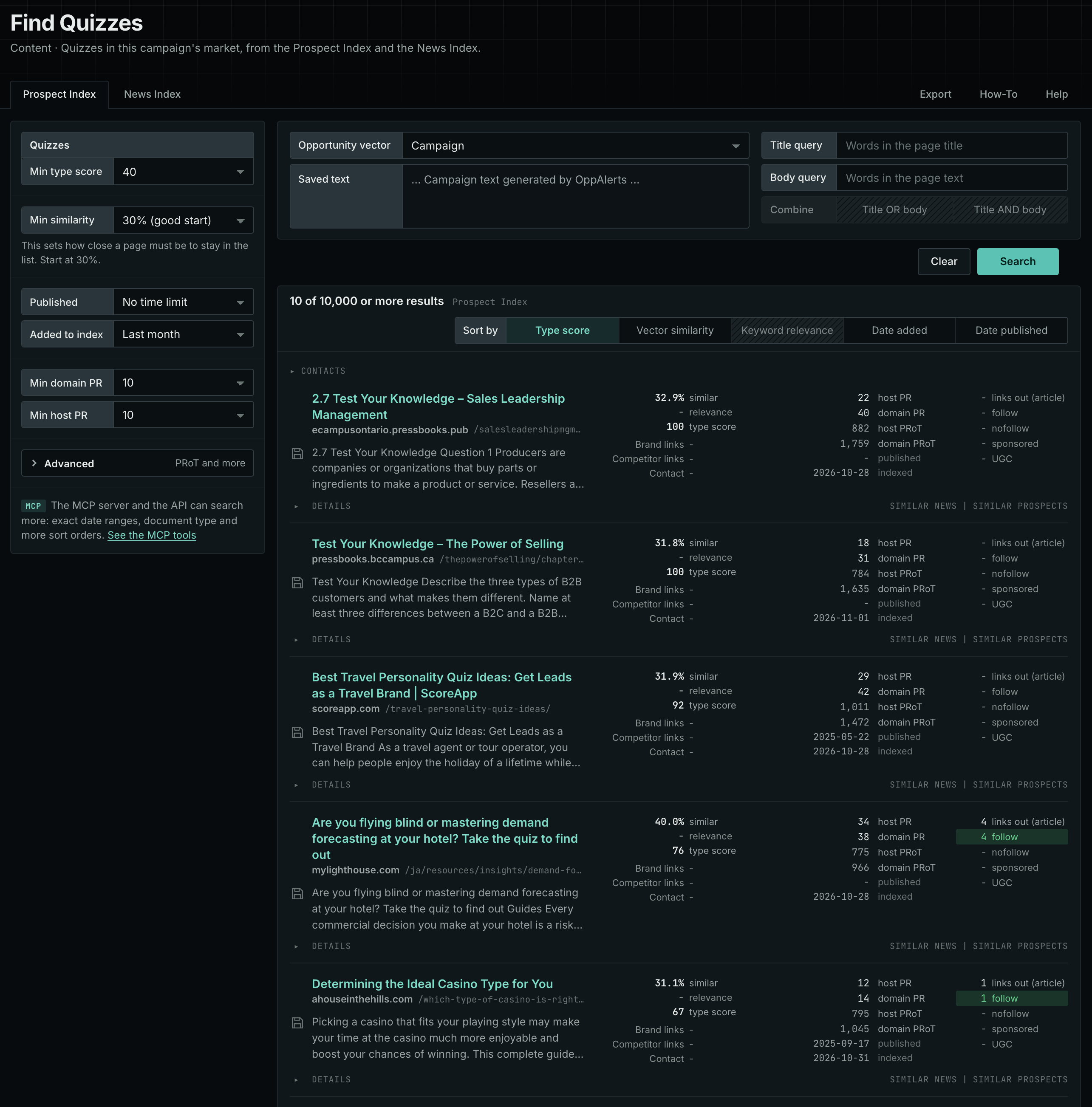
- Choose the group Content. Its types open in a third column.
- Choose the type Quizzes.
- Leave Min type score at 40, the default value. Raise it to see only the pages that match the type most closely. Lower it to see more pages.
- Read the Prospect Index tab first. It shows the pages that exist, new and old. Raise Min domain PR to drop the sites with little standing.
- Read the News Index tab for pages published in the last few weeks. Set Published to a recent time period. This tab can have few results for this type, and that is normal.
- The results open sorted by Type score. Click Vector similarity to put the pages most similar to your market first.
Get new pages every day
- Open your campaign in Edit Campaign, and open the Opportunities tab.
- Add an opportunity. In Search for, choose Quizzes under Content.
- In Opportunity vector, choose Campaign.
- Give it a Label, and save it.
The Dashboard and the daily opportunities email then show the new pages of this type. Daily Monitoring and Alerts has the steps.
In MCP and the API
Two tools search this type. One request body works for both:
{
  "campaign": 3,
  "similarity_target": "campaign",
  "type_scores": [{"opportunity_type": "content/quizzes", "type_score_min": 50}],
  "sort": "type_score"
}- MCP:
news_searchsearches the News Index.prospects_searchsearches the Prospect Index. - API:
POST https://api.oppalerts.com/v1/news/searchandPOST https://api.oppalerts.com/v1/prospects/search, with the same JSON body.
In type_scores, type_score_min sets the minimum type score, from 1 to 100. Sorting by type_score puts the highest type score first. To keep only the newest pages, add published_from or indexed_from with a date in YYYY-MM-DD format. The MCP pages list every parameter and a full example response.
To connect your AI agent or send API requests, read Use OppAlerts in Your AI Agent, Create an API Token, and Your First API Call.
How to judge the results
- The date. Check when the quiz or the hub was last updated.
- The live page. Open the quiz. Check that it works and shows a result.
- The rules. Check whether the site accepts quizzes from outside contributors, whether it allows embedding, and what it does with the answers and the email addresses that it collects.
- The audience. Check that the readers who take the quiz are your market.
- The cost. A good quiz takes time to design and to test. Compare that time with the reach of the site.
- The link. Check whether the result page or the embed code links back to the quiz's creator.