Documentation / How-To Guides / How to Monitor New Brand Links
How to Monitor New Brand Links
Review newly found links to your site and check when they were published.
Use link monitoring to see which pages direct readers to your business and how they use your material. This guide covers three ways to monitor links in OppAlerts. Check dates before reporting a new placement: OppAlerts may discover a link long after the publisher added it.
- Which pages link to you? Brand Links.
- Which sites link to you? Backlinks DB: Site.
- What is new today? A saved opportunity and the daily opportunities email.
Before you start: enter all your hosts
- Open your campaign in Edit Campaign, and open the Settings tab.
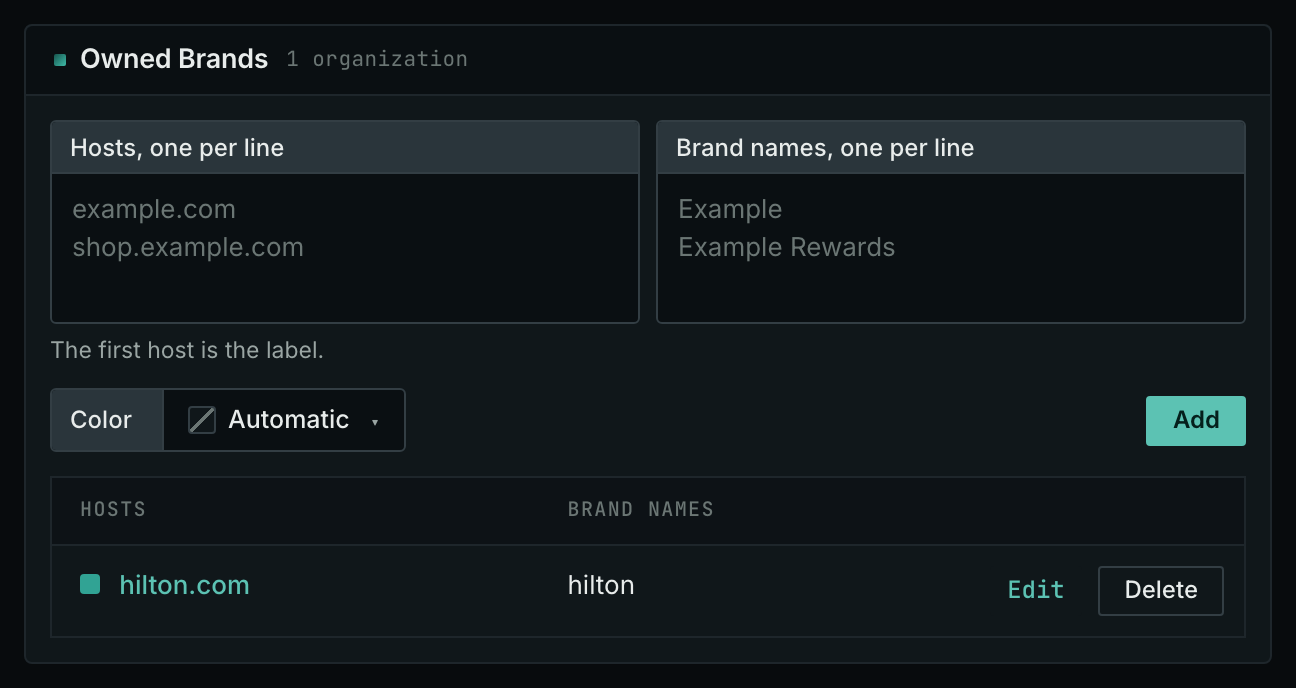
- In the Owned Brands box, enter every host that you own, also old domains and microsites.
- Save the tab.
Brand Links searches for the hosts you enter. It will not find links to an omitted host.
- MCP:
campaigns_organizationslists the organizations of a campaign and their relationships, with{"campaign": 3}. - API:
POST https://api.oppalerts.com/v1/campaigns/organizations, with the same JSON body.
1. Read the pages that link to you
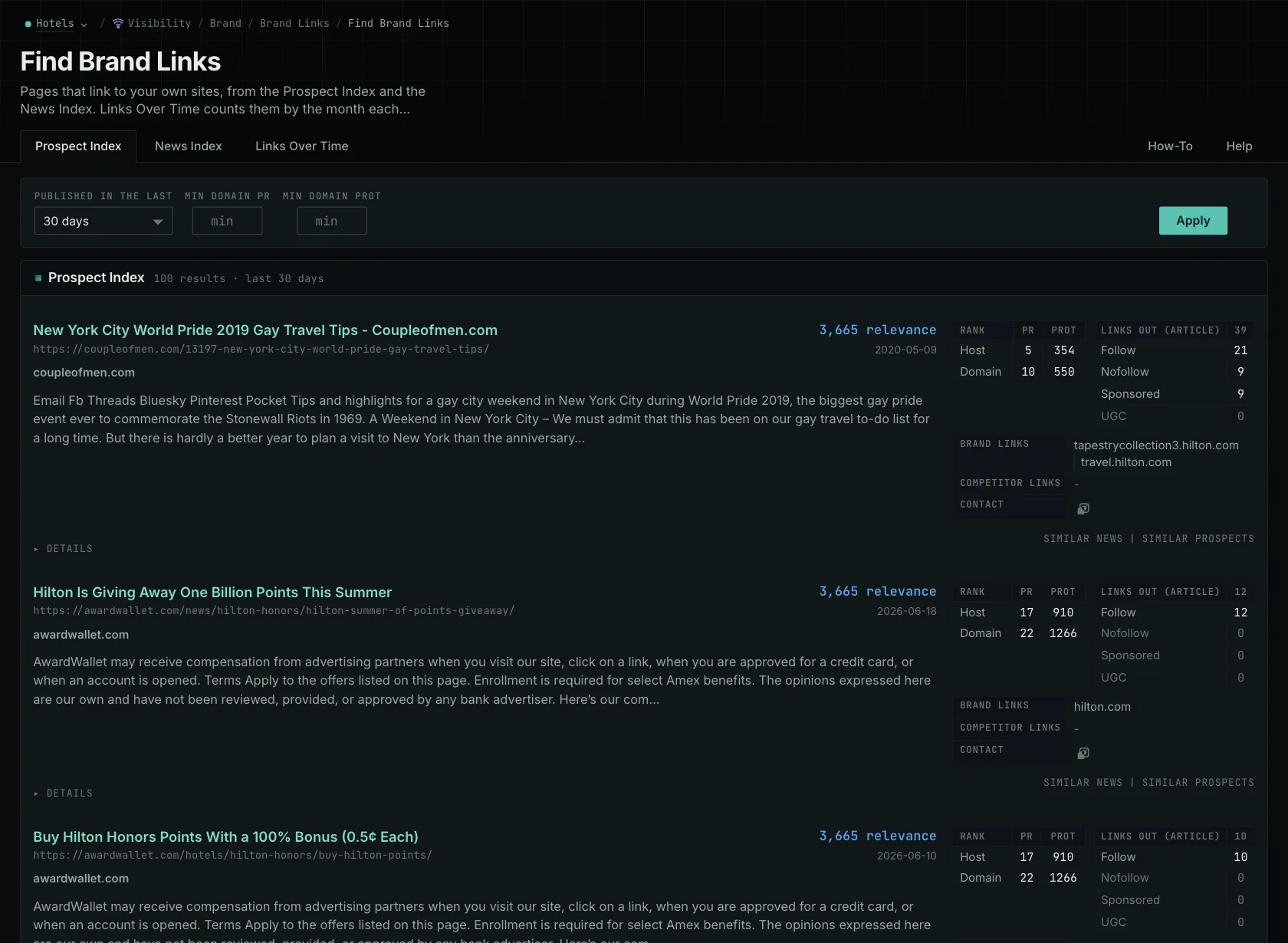
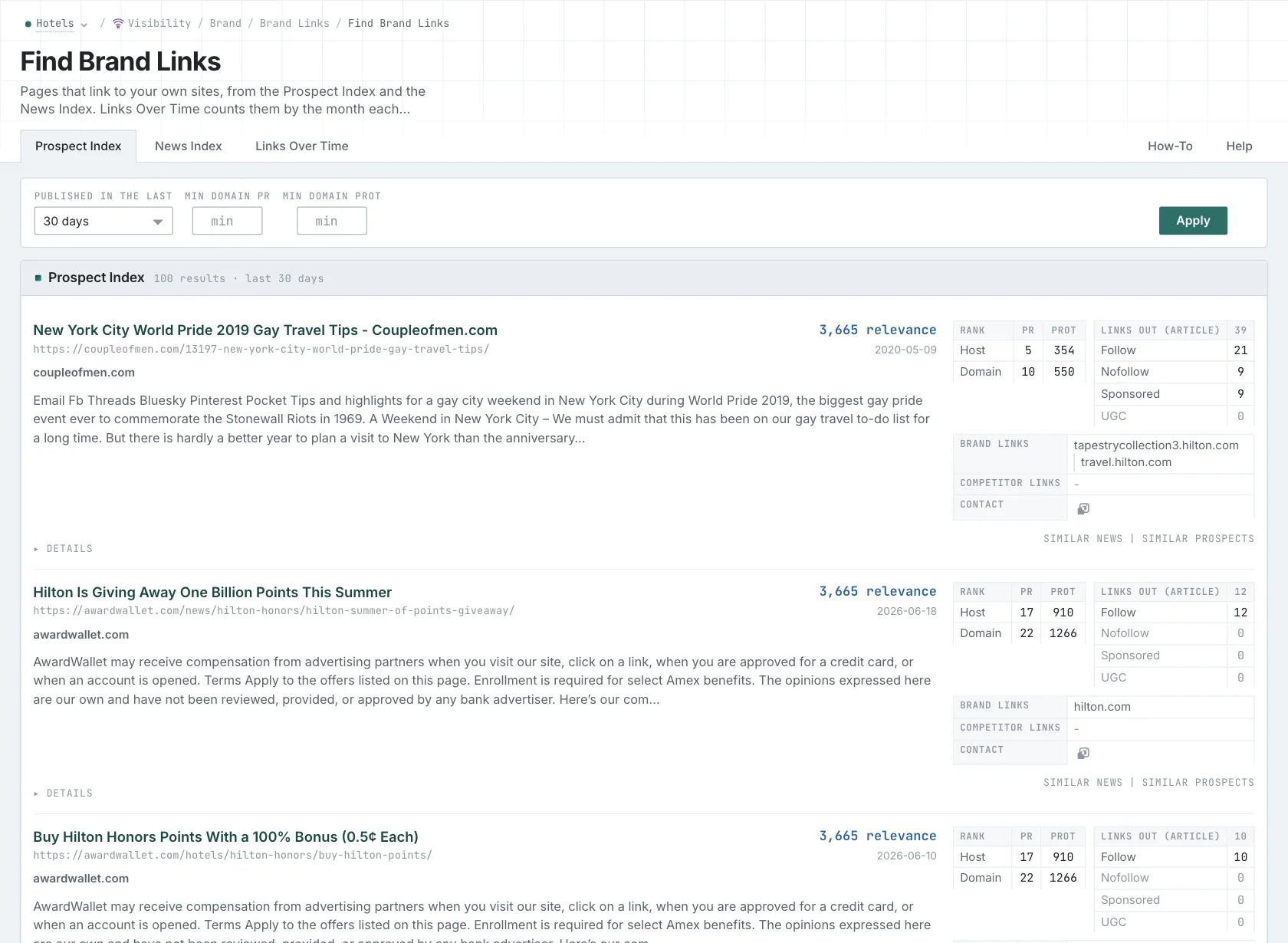
- Open Brand Links in the web app.
- Read the News Index tab. Set Published to Last week for a weekly review, or to Last month for a monthly report.
- Read the Prospect Index tab. Most pages on this tab have no published date. Set Added to index to see the pages that OppAlerts found recently.
- Open Details on a row to see the link and the part of the page that holds it.
- MCP:
prospects_brand_linksandnews_brand_links, with{"campaign": 3, "relationship": "org_owned_brand", "indexed_days": 30, "similarity_target": "none", "sort": "relevance"}. Fornews_brand_links, sendpublished_daysin place ofindexed_days: it counts from the published date. - API:
POST https://api.oppalerts.com/v1/prospects/brand_linksandPOST https://api.oppalerts.com/v1/news/brand_links, with the JSON body of each tool.
2. See the sites that link to you
The Backlink Database holds the links between websites. It does not need a campaign.
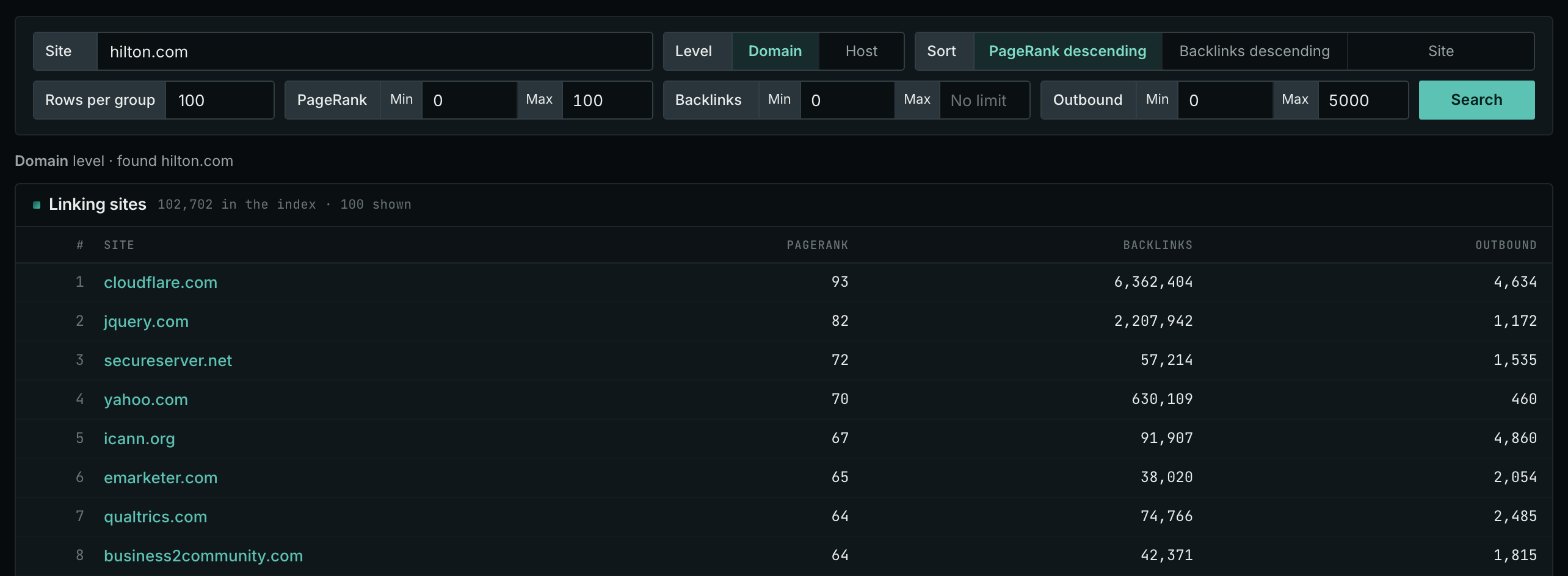
- Open Backlinks DB: Site.
- Enter your own site. Start at domain level.
- Set a maximum on outbound links to remove the directories and the sites that exist only to link out.
- Read the list for sites that link to you and that you did not know.
- MCP:
backlinks, with{"sites": ["example-hotels.com"], "level": "domain", "sort": "pr", "results_limit": 100, "pr_min": 20}. - API:
POST https://api.oppalerts.com/v1/backlinks, with the same JSON body.
3. Get the new brand links every day
- In Edit Campaign, open the Opportunities tab.
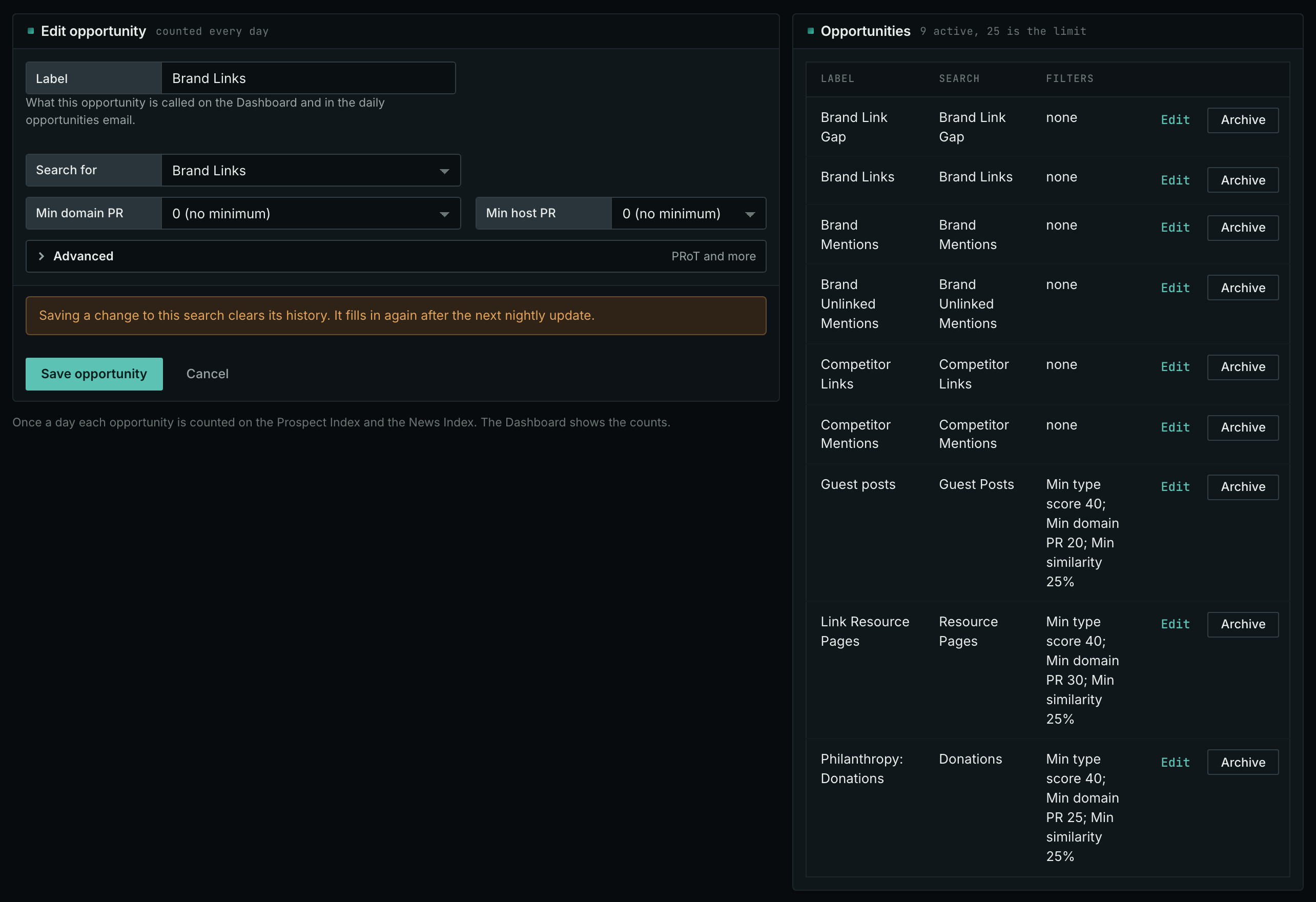
- Add an opportunity. In Search for, choose Brand Links. Click Add opportunity.
- Open the Daily Email tab, tick the box, choose the hour, and click Save.
- The Dashboard tab and daily opportunities email show pages added to the indexes during the 24 hours ending at 09:00 UTC. News Index pages must also have a published date within the last 7 days. Prospect Index pages have no publication-date requirement, so an old page discovered that day also counts.
- MCP:
campaigns_saved_opportunitiesgives the ID of each saved opportunity. Thennews_opportunitiesandprospects_opportunitiesgive the pages of 1 to 7 days, with{"campaign": 3, "opportunity": 1, "date_from": "2026-08-26", "date_to": "2026-09-01"}. For one day, send the same day indate_fromanddate_to. - API:
POST https://api.oppalerts.com/v1/news/opportunitiesandPOST https://api.oppalerts.com/v1/prospects/opportunities, with the same JSON body.
How to judge the results
- Check the dates before you report a result. A link found today in a two-year-old article may have been added during a later edit; the publication date does not establish when. Verify the dates before thanking a publisher for recent coverage or reporting a new link to a client.
- More links found is not more links earned. More newly discovered links do not establish that this month's outreach earned more placements.
- Read why the publisher added the link. Open the article, read the passage, and follow the link to understand its purpose. A research citation serves a different purpose from a product link; that distinction can inform your next work.
- Check the destination. If the link goes to a page that does not work, or to the wrong information, send the publisher the linking page, the current destination, and the replacement URL. Say how the replacement supports the passage.
- Record the links that follow your outreach. Compare the live page with your request, and record what was published. Record each link with the dates that you can confirm.
- Know what the data does not show. The data covers only collected links. It does not measure search-engine value, clicks, or how long a link remains. A quiet period may reflect fewer links entering the data.