Documentation / Account / API & MCP Tokens
API & MCP Tokens
Create and revoke API and MCP tokens, and review the apps connected to OppAlerts.
Where it is
- URL: oppalerts.com/app/account/api_tokens.
- In the profile menu at the top right, click API & MCP Tokens.
- This page is in the web app. The old address
/account/api-tokensredirects here. - Anyone with access to the web app can open this page and create their own tokens, including team members.
What it shows
- What a token is for: a token lets a program read
your OppAlerts data. An AI agent uses it with the MCP server, and your own
script uses it with the API. Both use the same token. The card shows the
full MCP server address
https://mcp.oppalerts.com/mcp, the API addresshttps://api.oppalerts.com/v1/, and the headerAuthorization: Bearer <token>. - Set up my agent: a prompt to paste into your AI agent, with a Copy button. The agent then connects to OppAlerts. The same text is on Use OppAlerts in Your AI Agent.
- Your tokens: each token you created, with its name, account, scopes, creation date, expiration date, last-used date, and a Revoke button.
- Make a token: the form.
- Connected apps: each app that signed in with OAuth, with its scopes, the date it connected, and a Disconnect button.
A token, or OAuth
- Claude Code, Claude, Codex, and most other MCP clients need no token. Add the MCP server address to the client. The client opens your browser, you sign in to OppAlerts, and you give the permissions that the client asks for. The client then appears under Connected apps.
- A token is for your own script, or for a client
that cannot sign in with OAuth. It sends the token in the header
Authorization: Bearer <token>.
Make a token
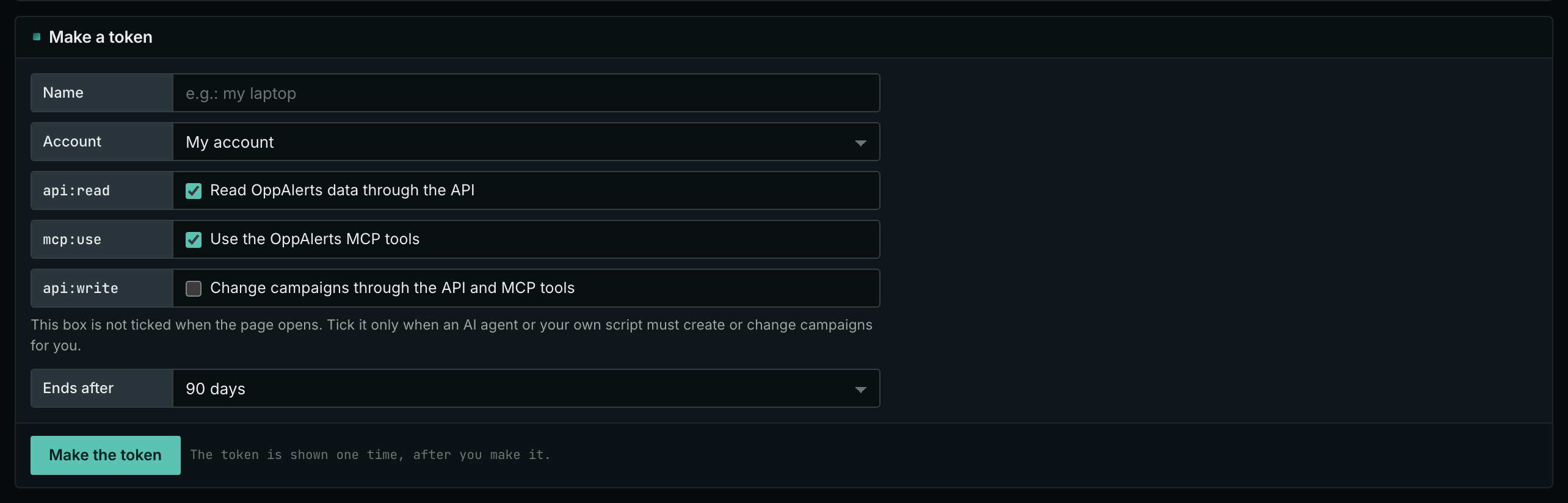
- In Name, enter a recognizable name, such as the computer or tool that uses the token. A name is required and can have up to 80 characters.
- In Account, choose the account that the token reads. This field appears only if you can access more than one account, for example as a team member.
- Check the scopes you need.
api:readandmcp:useare checked by default.api:writeis not. - In Ends after, choose 30 days, 90 days, 365 days, or Never. The default is 90 days.
- Click Make the token.
- The page shows Your new token. Click Copy. The button says "Copied" when the token is on your clipboard.
- The page shows the token one time only. OppAlerts stores only a fingerprint of the token, so it cannot be shown again. If you lose it, revoke it and create a new one.
- A token starts with
pat_live_. - No name: "Give the token a name." No scope: "Tick at least one scope."
- To test the token, see Create an API Token.
The scopes
Each scope checkbox shows its permissions followed by the scope name:
api:read: "Read OppAlerts data through the API".mcp:use: "Use the MCP server (needs the read box too)".api:write: "Edit campaigns through the API and the MCP server".
api:read and mcp:use give read permissions.
api:write gives edit permissions: the token can create and
edit campaigns.
Authentication
explains each scope and what tokens created before this release can do.
The page says under the api:write box: tick it only when an
AI agent or your own script must create or edit campaigns for you.
Tokens for the account of a team
- A token reads one account: your own or an account whose team you belong to. It cannot read data you cannot access.
- A token cannot exceed its owner's permissions. A campaign
editor's token reads only campaigns that person can access.
With
api:write, it can edit only the campaigns where the person is an editor. - A viewer's token cannot edit anything, regardless of whether it has
api:write. - When the account owner removes you from the team, your tokens and connected apps for that account stop working.
Revoke a token
- In Your tokens, click Revoke in the token's row.
- A pop-up asks "Revoke the token" and the name. Click Yes, revoke.
- Anything that uses the token stops working.
Revoke a token if a computer storing it is lost, if it was exposed to other people, or if it is no longer used. "Never" under Last used means that the token has not been used.
Disconnect an app
- In Connected apps, click Disconnect in the app's row.
- Confirm in the pop-up.
- The app stops working until it signs in again.
To give an app edit permissions, disconnect it, then sign in again from the app. See Authentication.
Why tokens are made on the website only
Create and revoke tokens yourself on this page. No MCP tool or API route can do it. This is a security precaution: AI agents read pages from the open web, which can contain instructions for the agent. Those instructions must not be able to make the agent grant access to your account. Each token must therefore be created by a person on this page.
In MCP and the API
MCP and the API deliberately have no tools to create, list, or revoke
tokens, for the reason above. To see which tokens made calls, open
Usage, or call account_usage.