When you edit a draft, you need to check more than whether the sentences are correct. Is it still about the subject in the brief? Is it helping the intended reader? Semantic content optimization compares meaning to help you investigate where the writing's emphasis may have shifted.
In OppAlerts, you submit text and choose a category to compare it with. The report shows nearby categories and where your target appears. You may already have a sense that the emphasis has changed. The comparison gives you another way to investigate that or review a revision.
Read the draft from the buyer's perspective
Imagine a guide to help manufacturers choose a freight forwarder. The opening describes how forwarding companies are organized. The licensing section lists accreditations. The pricing section explains how quotes are assembled. It's all about freight forwarding, but the manufacturer still needs help choosing a service.
You could compare the draft with an appropriate audience category. Suppose the nearest results emphasize freight and logistics services instead. That's an illustrative example, not a measured result from the tool. It shows the kind of difference that could give you a reason to reread the explanation.
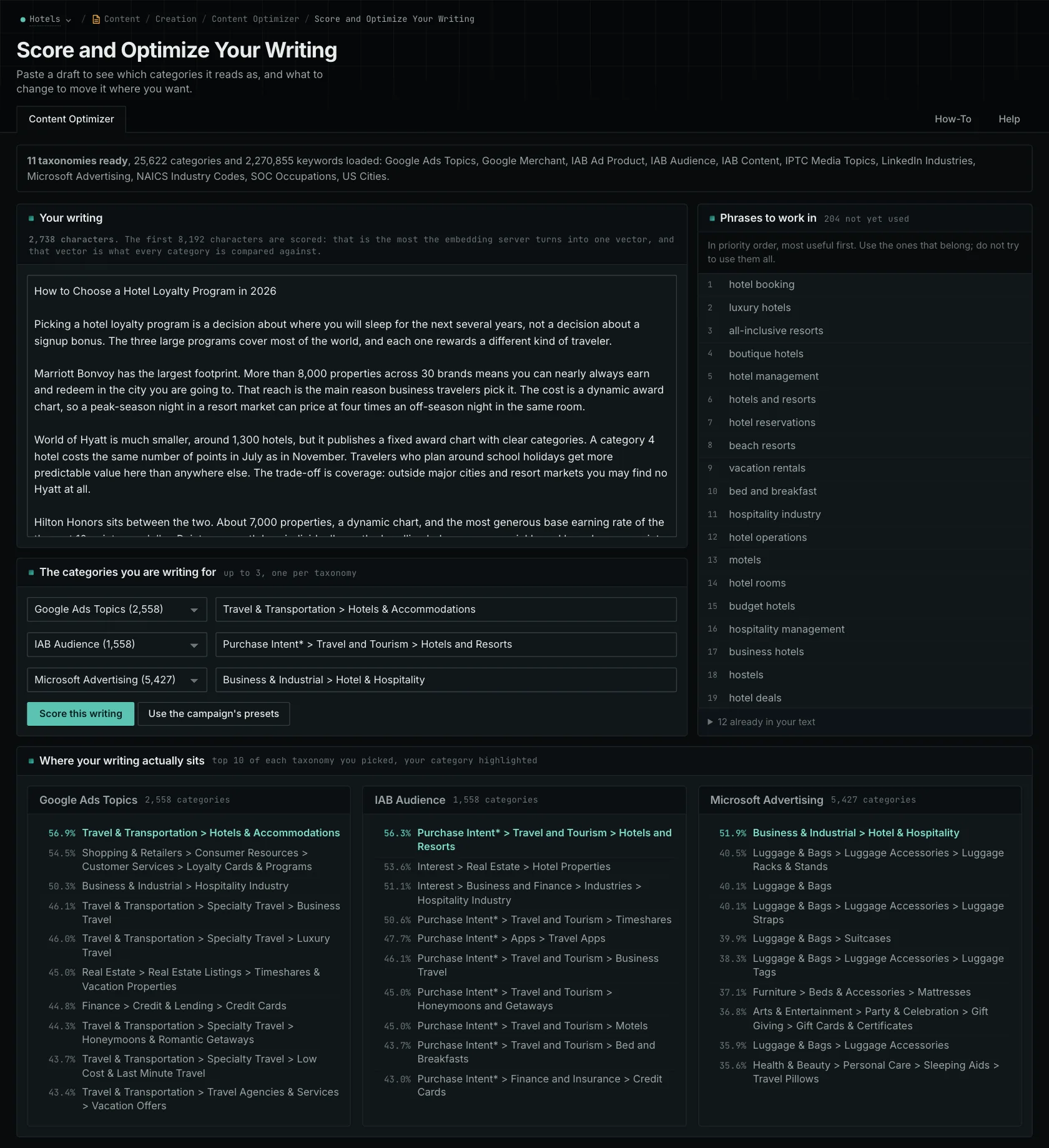
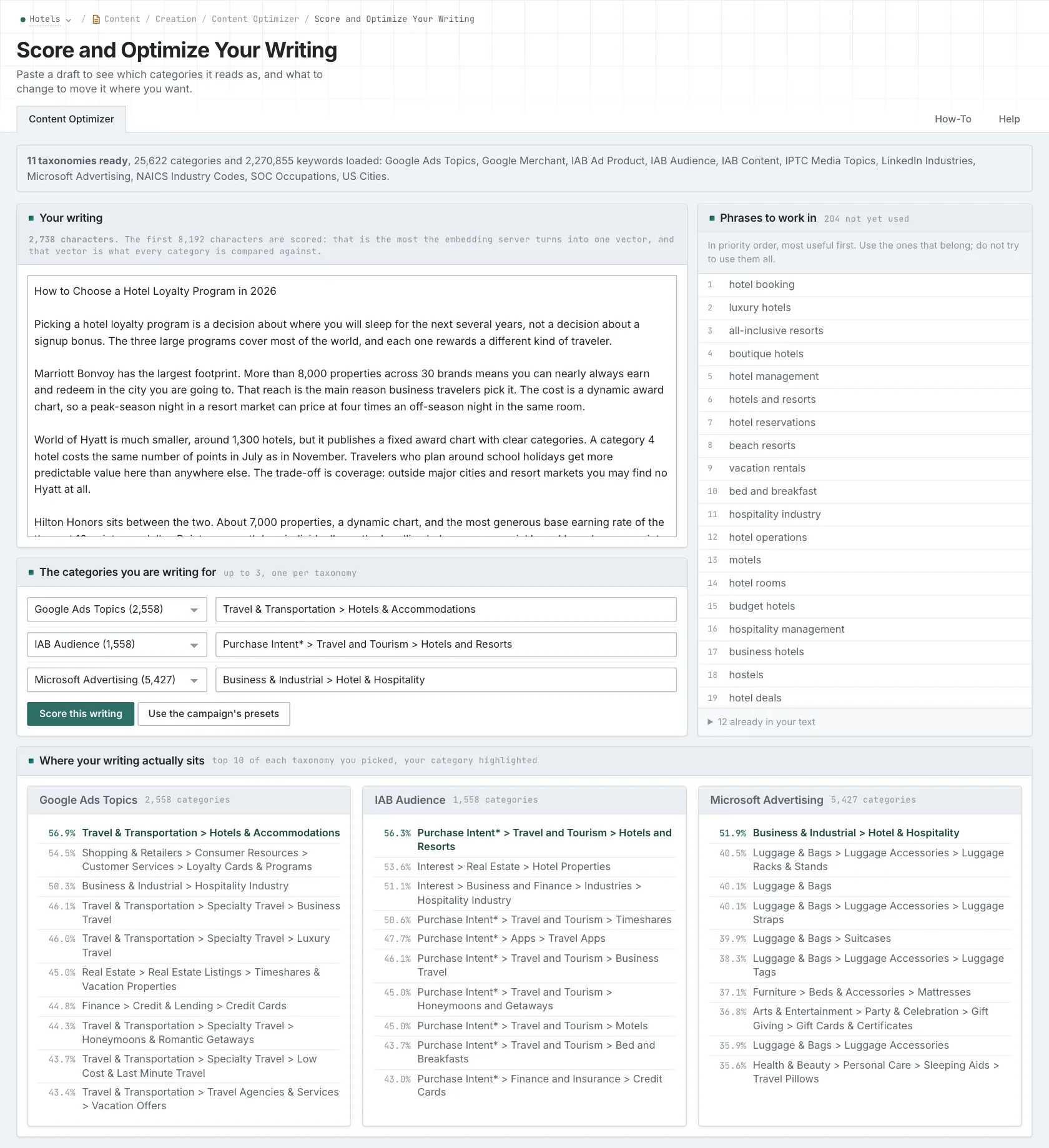
Go back to the text and look for the connections the buyer needs. What does an accreditation establish for the customer? What makes two quotes comparable? Who handles a customs delay? Explaining those consequences keeps the article on its subject and helps the person choosing the service.
The category result didn't write the revision or prove you needed one. It gave you a reason to examine the draft. The buyer's task helped you decide what to change.
Read the matches, including the unexpected ones
If your intended category comes first, the text resembles it more closely than the other categories in that set. You still need to check accuracy and completeness. A short passage about freight forwarding could match closely while leaving out most of what a manufacturer needs to know.
If other categories come first, read their descriptions. They could reflect necessary background, a second subject, or a perspective you didn't intend. If your target falls outside the nearest matches, check the category you selected too. Its description may not represent your intended article well.
Those are different possibilities, with different editorial decisions. The score alone won't tell you which one applies. Connect the result to something you can actually point to in the writing.
Use phrase suggestions to find possible gaps
The phrase list separates terms already in your draft from phrases associated with the category that aren't there. A phrase about customs documentation could point to a question the freight-forwarding brief needs to answer. Another suggestion could describe a service the article doesn't cover.
Add an explanation when the reader needs it and you can support it. Inserting words just to raise the number may change the score without answering the buyer's question. No search engine takes part in the calculation, so the score doesn't predict rankings or citations either.
Compare revisions while you can still change the structure
Use the check after a first draft, when reviewing an existing page, or to compare versions where you understand what changed. Give pages built from one template the same attention. Similar scores could reflect their shared wording, but that alone doesn't establish that you should merge them.
The input limit is about 8,000 characters, so check longer articles in sections. Those results don't combine into a score for the whole article. A separate check can still be useful when you're working on one part, such as the pricing section.
For the manufacturer's guide, compare the revised section with the same target. Then read it to see whether it helps the buyer compare services. Keep the edit for that reason, alongside your factual and editorial checks. The scoring methodology explains the calculation. The draft-review walkthrough and taxonomy guide help you choose what to compare.
See how OppAlerts fits your work.
Tell me what you are working on and what you need to find out. I can walk you through the relevant reports and explain what OppAlerts can help you do.
You can explore the demo first, or use this form to ask about a task or arrange a demonstration with me.